Create Symbol Library
The creation of a symbol library while a display is open in authoring mode by the following steps:
- Open the Symbol Libraries panel from the Display command bar and then activate the Library Property panel.
- Select the Edit tab.
- Click on the New Library button.
- The library creation dialog window is shown.
- Select the library Type to be created.
A Custom Graphic Template library can be created for AF Display only and then populate the new library with the selected Graphic Templates for both display and Model.

Once the library has been created, it is bounded to the Sigmafine database referenced by the AF Display and it makes available a set of sections used to organize the Graphic Templates.
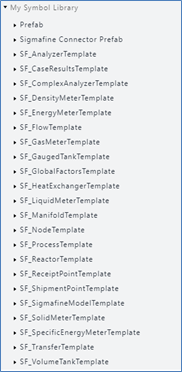
Prefab
This section makes available a set of prefabs items like Text, Connector, Ellipse, Circle, Rectangle, Line, Arc.
Sigmafine Connector Prefab
Derived from the “Connector” prefab and used by SFHub for representing Model Connections.
Can be used by users to graphically differentiate Model Connections from Graphical Connections.
Sigmafine Templates Section
A section is created by default for each Sigmafine Element template defined in the Sigmafine database referenced by the library. These sections can be populated to assign a Graphic Template to a display.
Additional sections can be added to the library to meet the organization’s needs.