Quick Edits Settings
Element's attributes that are set up as Quick Edits can be easily edited from the Display, Details and Diagnostic panels. This makes it easier to make a quick change like adjustments.
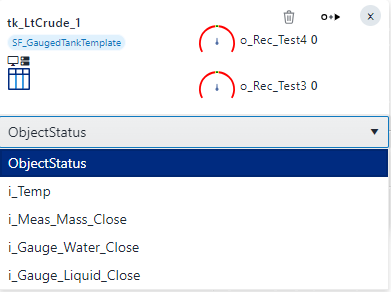
These settings are reflected in the Element Details, Quick Edits panel as well as in the Display panel when you rest your mouse pointer over an Element and click on the 'Select a Quick Edit' down-arrow.
To enable or disable Quick Edits on an Element:
Ensure that you have clicked on a Template for which to define the Quick Edit layout.
List of Attributes - Quick Edits column
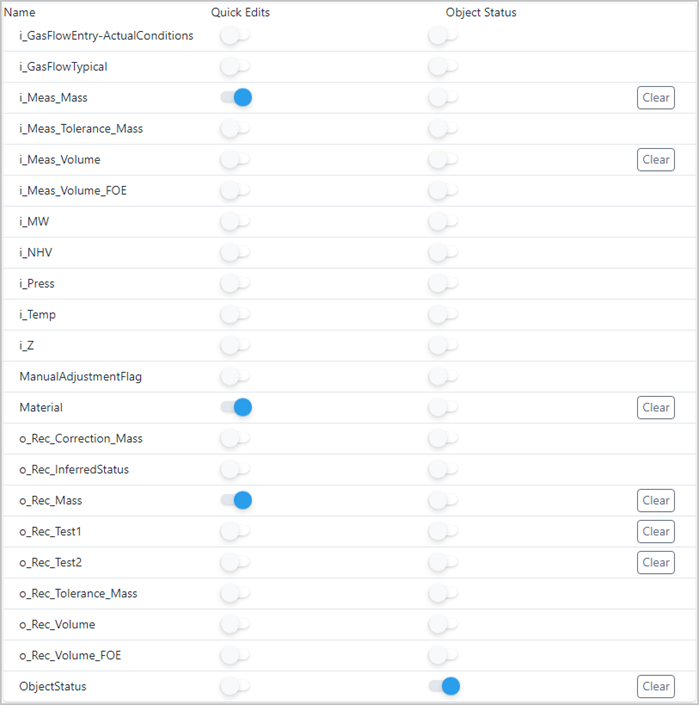
Under the Quick Edits column in the bottom panel, click the
 white dot next to each Element you want to enable Quick Editing on.
The dot slides to the right and turns

(Optional) To disable Quick Editing on an Element, click the
dot to disable the feature.The dot slides to the left and turns white
When finished, you can either define another layout in the Display Setting or click on the Template's "-" collapse icon to collapse the template's settings view.
Selections are automatically saved.
Here below is an example of Quick Edit panel in SFHub Visualizer:
Element Deatils Panel - Quick Edit
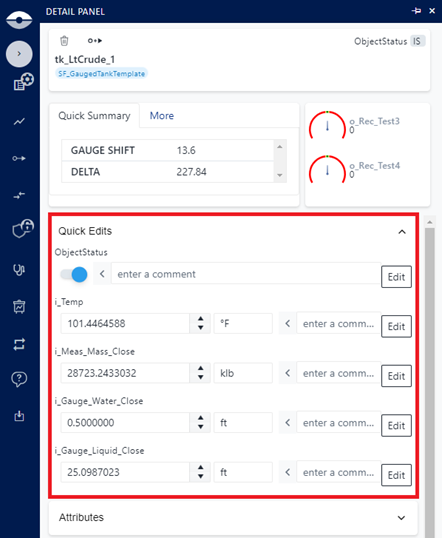
Element Tooltip Panel - Quick Edit