Apply Display Settings
Once Display Settings have been configured, you can assign it to the display. The displays to which you can apply a Display Setting depends on how it was set up. (See Create Display Settings,for details on how Display Settings can be defined.)
A Display Settings configured for a well defined Server and Database can be assigned to all the displays referencing models defined in the same server and database.
Display Settings that are assigned to displays by an SF Administrator in the SFHub Admin application, are used as the default Display Settings for all users.
To assign a Display Setting to a display:
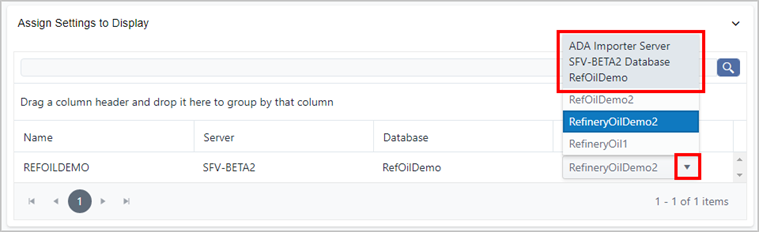
Click Assign Settings to Display to open the panel.
Settings - Assign Settings to Display
Click on image to enlarge it
Locate the name of the Display to which you want to assign a specific Display Setting.
You can use the search box at the top of the panel to quickly find a specific display, or use the forward and back arrows at the bottom of the panel to cycle through multiple pages.
Click on the display's Settings down-arrow and select the Display Setting you want to use.
Remember that the Path setup for a Display Setting determines whether or not it is available for the display you have selected. Therefore, only those Display Settings that are applicable are available as options in the selection list.
If you are finished configuring settings:
- SFHub Admin: Close the SfHubVisualizer® Settings panel.
- SFHub Visualizer: Click on the SFHub Visualizer link at the top of the Settings panel.
Your setting is automatically saved. (SFHub Visualizer only: In some instances, you may need to refresh the Display to see your changes take affect.)