Export/Import Setting
Export and import Display Settings to share configurations with other users or transfer them across different environments (servers, databases, and models).
Common use cases:
- Environment migration: Export Display Settings from development and import into production to maintain consistency,
- User onboarding: Share predefined Display Settings with other users to accelerate their setup,
- Backup and restore: Use export/import as a backup mechanism for your Display Settings,
- Organization-wide sharing: Export your own Display Settings and import them from the Admin application to make them available to all SFHub users.
If you want to share a Display Setting with other users in the same environment, you can use the Duplicate Display Setting feature instead of Export/Import.
Export Display Settings
It allows to export the display settings of a specific model into a .json file that can be imported into another SFHub Visualizer instance or used as a backup or restore in a different environment.
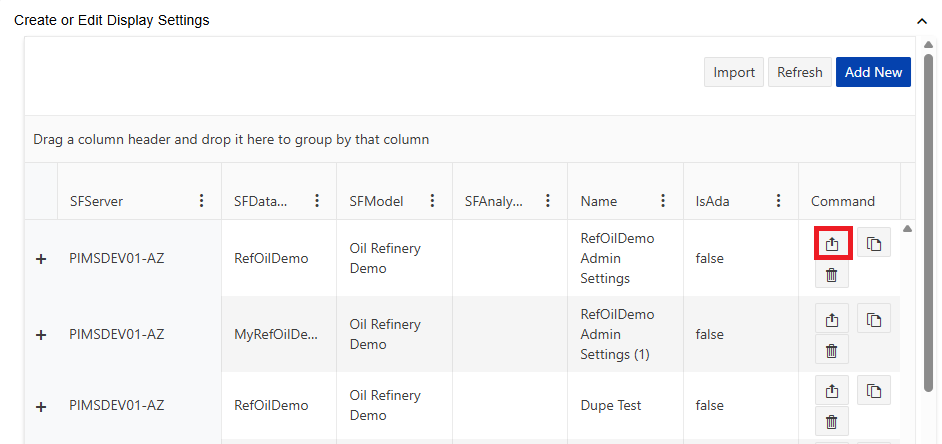
Press the Export icon or button to open the Export Display Settings dialog.
In the Export dialog, you can choose to protect the exported settings file with a password.
To do so, enter the desired password in the Password field.
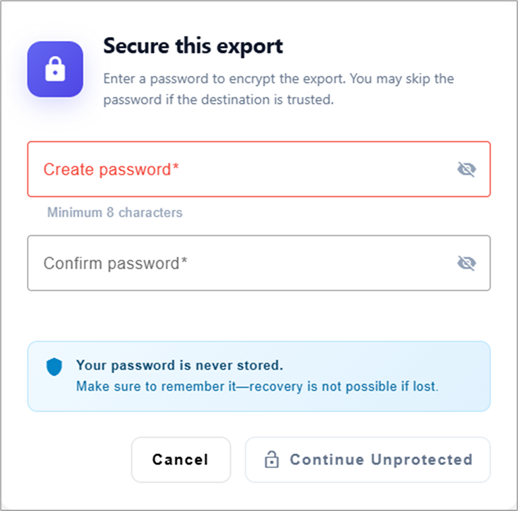
Press the Continue Unprotected button to export the settings without password protection.
Import Display Settings
It allows to import display settings from a .json file that was previously exported from another SFHub Visualizer instance or used as a backup or restore in a different environment.
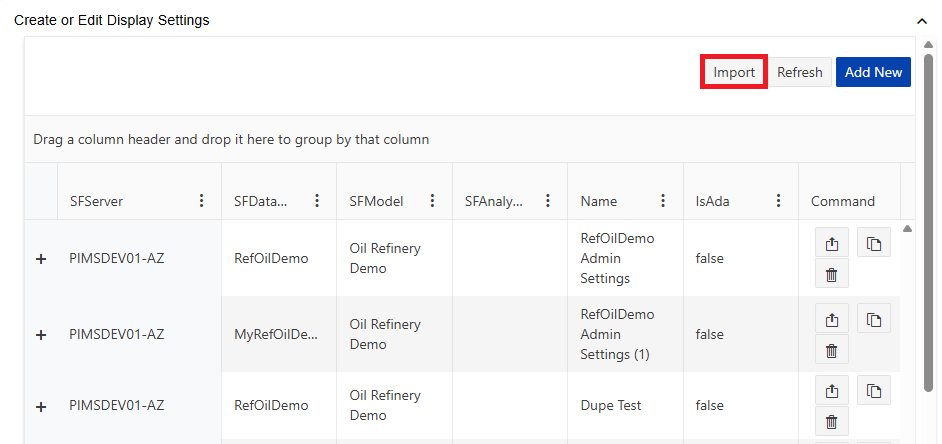
Press the Import button to open the Import Display Settings dialog.
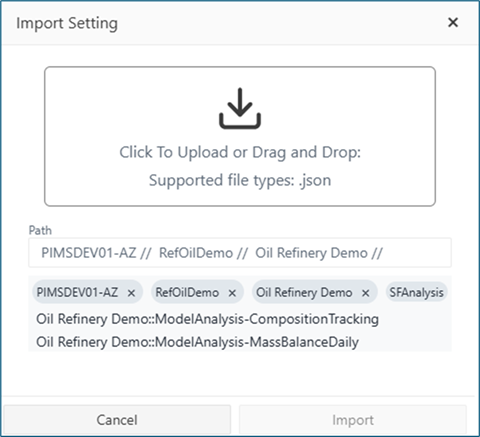
Click the Browse button to locate and select the display file (.json) you want to import.
Select the Server, database and model to be associated to the imported display.
Click the Import button to start the import process.
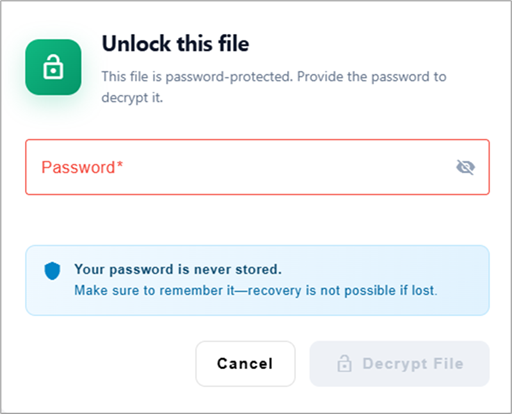
If the display settings file is password protected, enter the password in the Password field.