Select a Case
The main purpose of SFHub Visualizer is to provide a means for reviewing display or report details and running Case analyses. Display or report details consist of cases, which are made up of various elements that are linked together by connections, and contain attributes. Most often, it is the Element and it's Attributes in a specific Case that you need to review.
To select a case:
In the left panel, click the
 Case Search icon.
A Case Search panel displays.
Cases panel
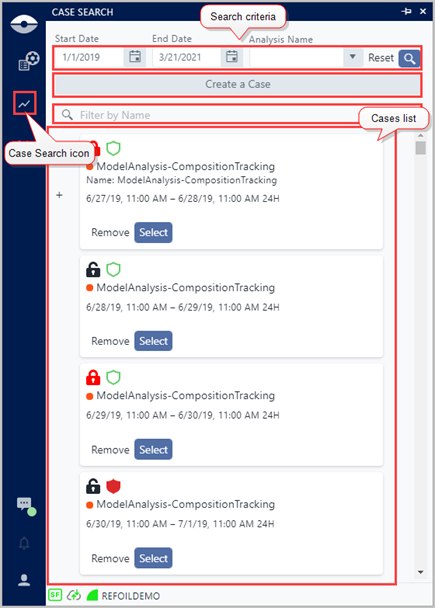
The Case Search panel is divided into four areas:
- Search criteria: The search filters allow you to narrow the scope of the Cases displaying in the Cases list by allowing you to set a date start, end and/or range and/or type of analysis to which to confine the search.
- Create a Case: In this area, you can select to open another panel that allows you to create a Case for a specific type of analysis for which no Cases currently exist in the display you have selected.
- Filter by Name: In this area, you can type a specific name to filter the Case list by. The cases are filtered by the name, with the most recent date range at the top and the oldest date range at the bottom.
- Cases list: This area displays the list of all the Cases available for review that match the search criteria you choose. The first time you open the Case Search panel, the Case list is empty. Once you set a date range, that same range is used as your default for the model, until you set a different range.
Enter the date range to search for relative Cases.
NoteYou must provide a date range.
You can manually enter the month, day and year or select them from a calendar.
To manually enter a date range:
a. In the Start Date box, highlight the current date by dragging your mouse across from left to right, or right to left.
Manually enter a date

b. Type the new date in the box; do not enter the slashes; the system does that for you.
c. Repeat steps a & b in the End Date box.
All cases starting on the Start Date and ending on the End Date display in the Cases list after you click Search.
To select the date range from a calendar:
a. Click the Start Date calendar, to open a Calendar selection panel.
A Calendar panel opens.
Calendar panel
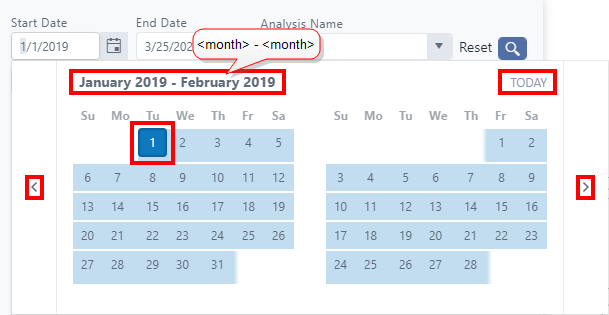
b. Select the month, day and year on which to begin the Cases search. The following options can be used to select the month, day and year:
Click TODAY on the top right-hand side of the calendar, to choose the current month, day and year.
Click the left or right arrow to cycle back and forward through all months for all years. Once you find the month/year you want, click on the day.
Click on the 'month - month' at the top of the calendar panel (the July 2022 - August 2022, in the example), to open a Month