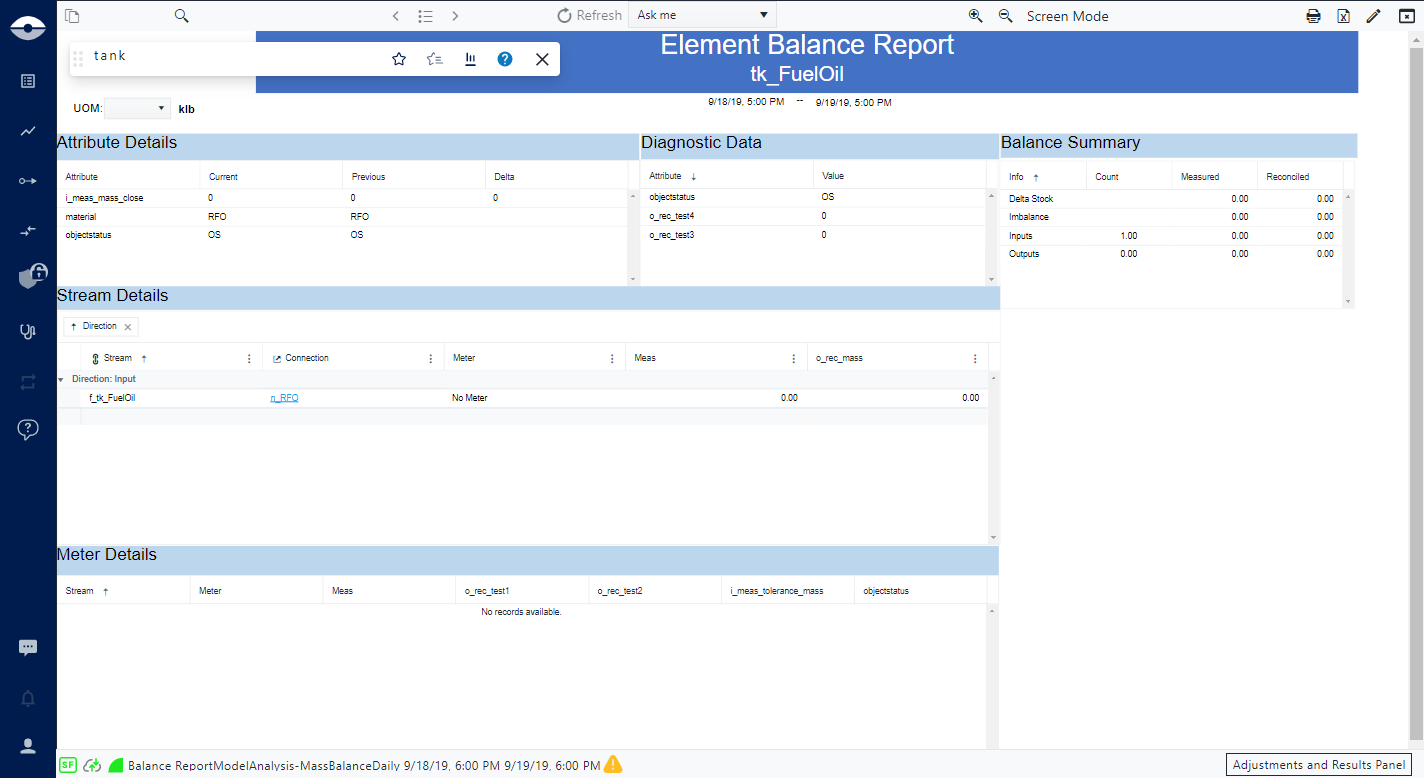
Open a Report
When you choose to work with a Report, once it is selected, the Report Panel opens to an empty page. This occurs because there are some actions you need to take first; you must select a Case if the Report you choose is of type 'Model', or select a Case and an Element if the Report is of type 'Element'.
If you need to open a report for multiple elements, multiple cases, multiple reports or a combination of any of these options, please see Open Multiple Reports.
To open a Report:
Open the SFHub Visualizer app if not already open.
You can choose the app from your home dashboard or from the SFHub icon at the top of the command bar.
Click the
 Choose Display Or Report from List icon in the command bar to
open the Artifact List page and from the Reports tab you can choose the report you want
to open.
Choose Display Or Report from List icon in the command bar to
open the Artifact List page and from the Reports tab you can choose the report you want
to open.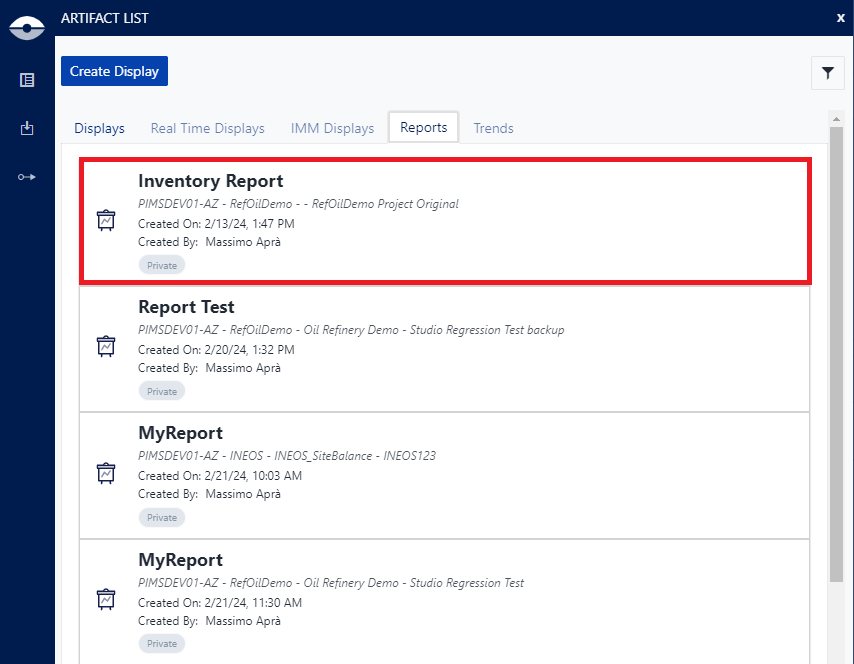
Choose the Report from the Display List page.
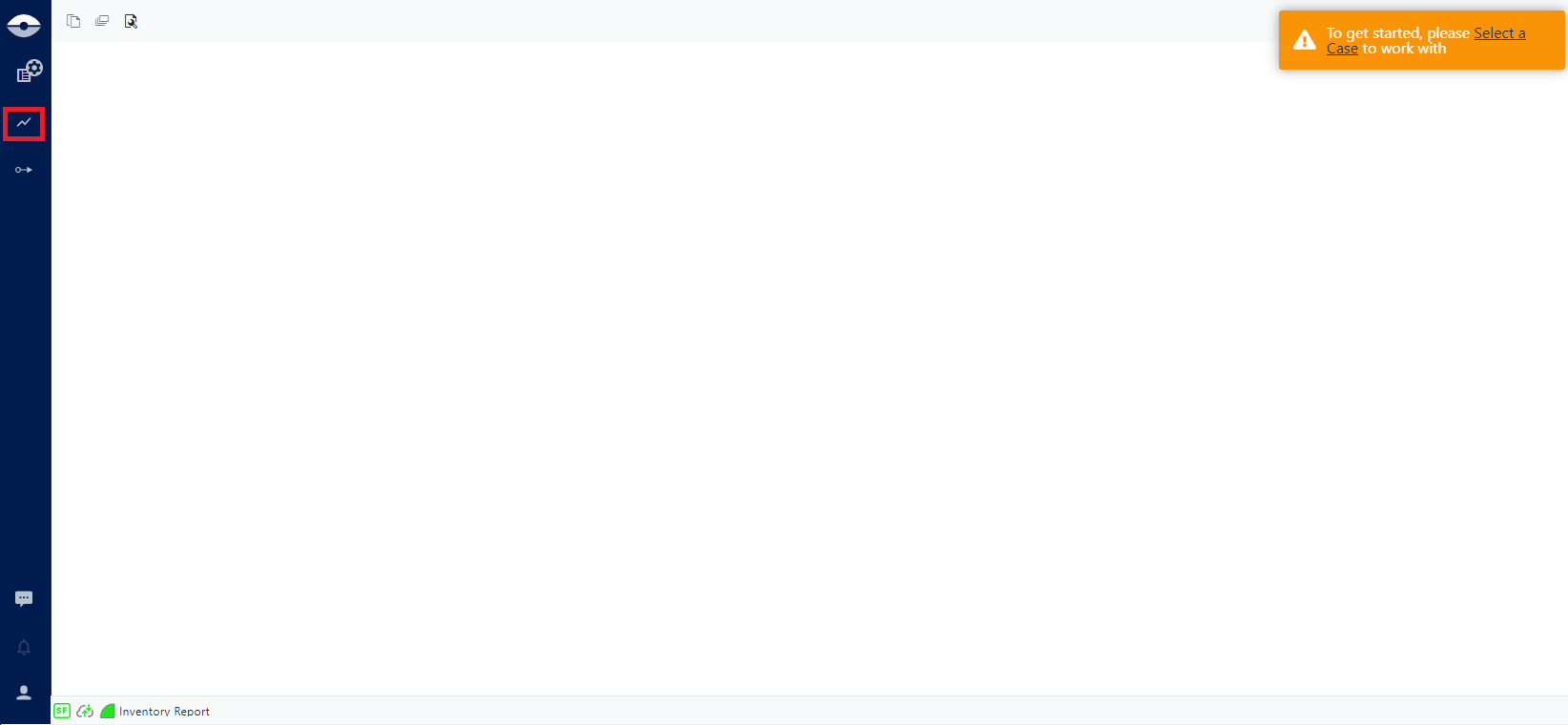
The Report Panel opens to a blank page that displays a "Select a case to work with" message block.
 Note
NoteWhen you are working with a case display and decide to open a report, the report automatically inherits the current case (you are not required to reselect the case).
Do one of the following to open the Case Search panel.
Click on the Select a case to work with block.
Click the
 Case Search icon in the command bar.
The Case Search panel opens.
Locate the Case and click its Select button.
If the Report you have chosen is of type Case, the Report Panel display is populated with the case data (as shown in the following example).
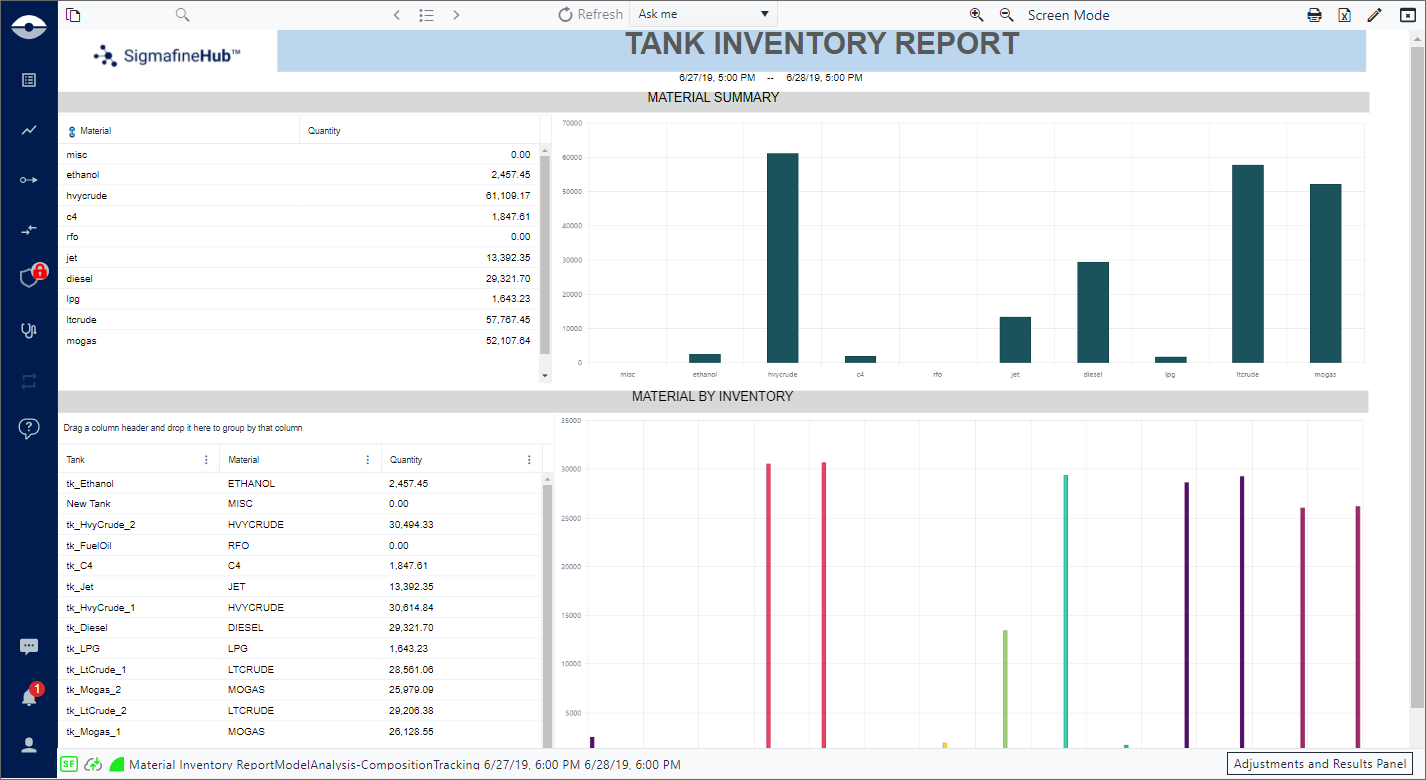
If the Report you have chosen is of type 'Case and Element', you also required to choose an element for which to populate the report. In this instance, the SFHub Visualizer 'Search' toolbar displays.
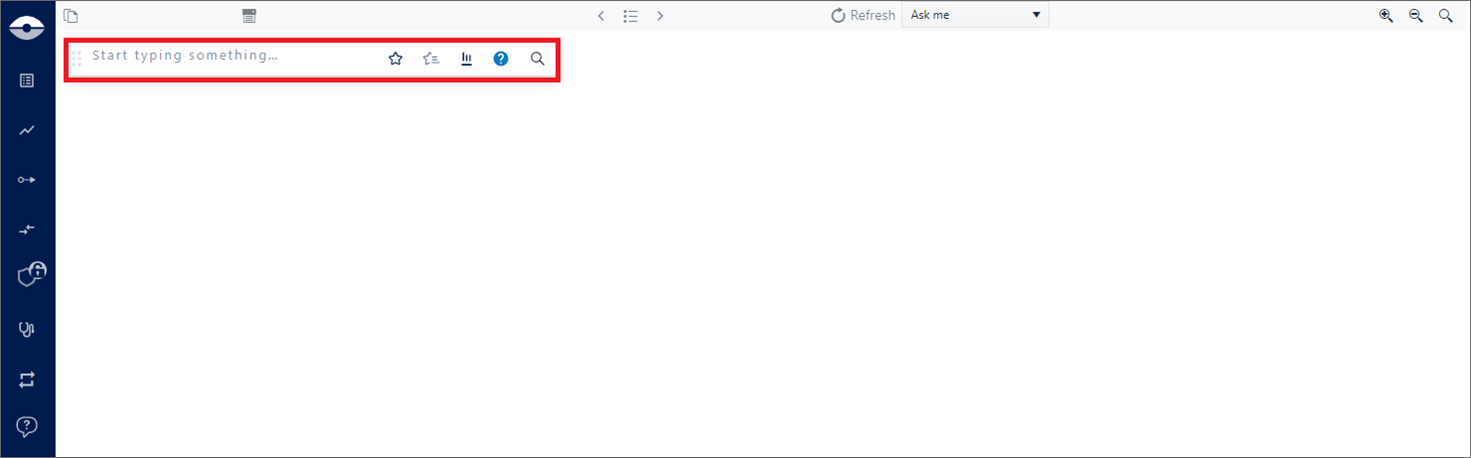
To choose an Element, begin typing its name in the Search bar (as shown in Figure 5).
As you type, the search results list populates with all elements matching the characters you have typed so far. The more characters you type, the more refined the search results list becomes.
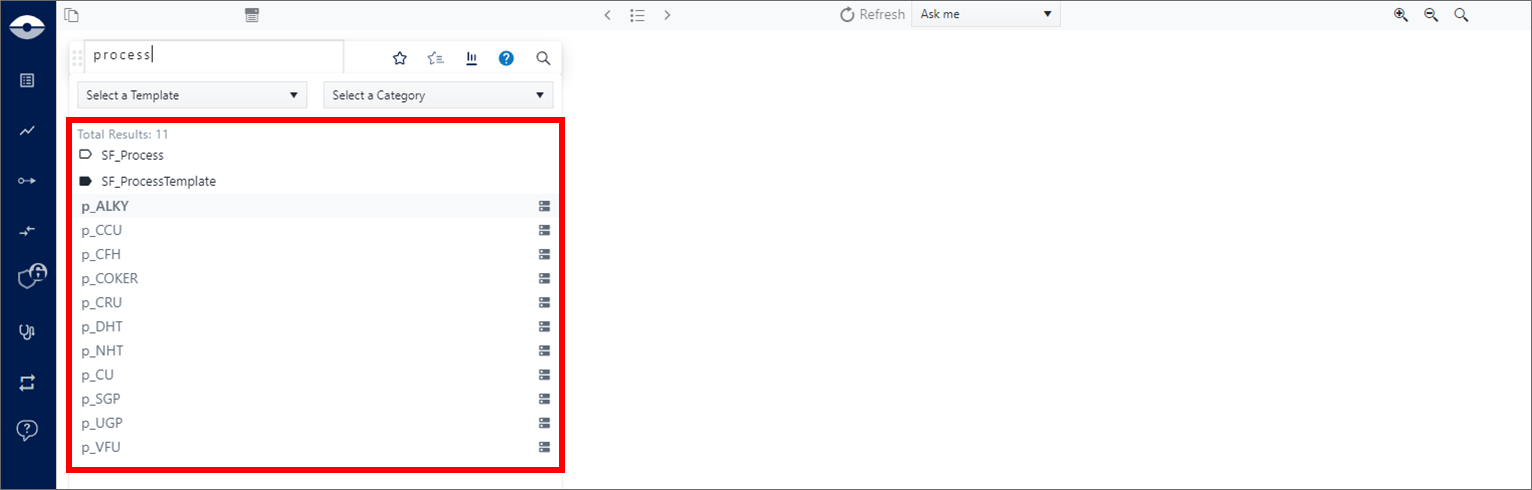
When the element you want appears in the list, click on it to select it.
The report in the Report Panel is populated with the case element data.