Search for a Display
SFHub Visualizer includes Search Filters that allow you to narrow the scope of the displays and reports shown in the Display List. The filter panel can be activated by selecting the filter icon on the display list.
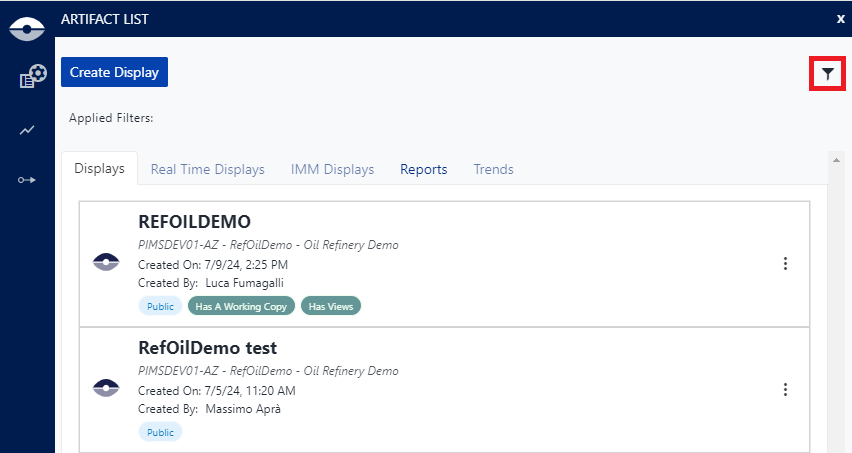

There are two types of search filters:
Filter by name
The Filter by Name search filter allows you to quickly find a display or report by typing any part, or all of the name. Only those displays or reports that match the characters you have entered, are shown in the Display List - Displays and Reports panels.
Click on the
 Choose Display or Report From List icon.
The list of available displays appears.
Choose Display or Report From List icon.
The list of available displays appears.In the Filter by Name box, type part or all of a display name.
Filter by Name
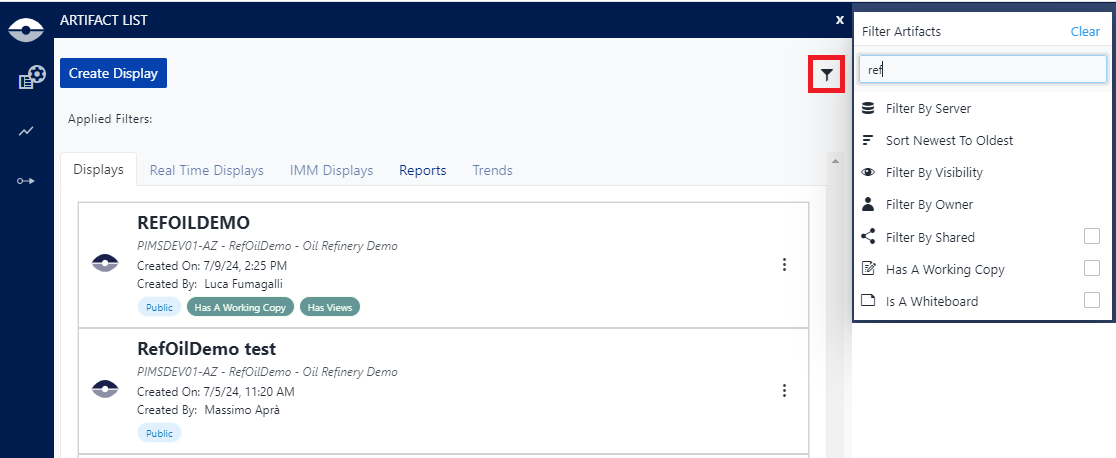
As you type, the lists in the Displays and Reports panels update to show only those displays or reports that have the characters you have typed.
Note: Capitalization is ignored by the search engine. This means that typing "demo" shows all displays for which "DEMO," "demo," and "Demo" are part of their name. Wildcard characters are not supported
When the lists narrow to where you can easily find the display or report you want, you can either stop typing or continue to enter more characters to further refine the scope of the results.
- When finished typing your search text, click on the display or report you want, to select it. A graphical representation of the display is shown in the main "Display" panel. See Display Panel for further details on displays and Report Panel for further details on reports.
Using Filter Panel
Filter by Server, Database, and Model
The search Filters panel allows you to select a server, a database and a model filter. When using these filters, you must start by selecting at least a server, and then you can further refine your search by selecting the other filters. Please note that the more filters you use, the more refined the search becomes, ultimately showing only the display or report you want, in the Display List.
Click on the
 Filters icon.
The filter panel opens showing all the available options.
Display List panel showing all available displays

Click on Filter By Server.
A list of available servers appears.
Available servers
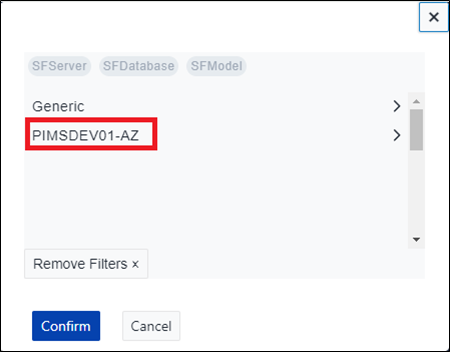
Click on the server you want to choose.
Another list appears showing all the databases on the selected server. You can either select a specific database, or close the Filters list and select from the list of displays found in all databases on the selected server.
Available databases

(Optional) To select a specific database, click on the database name.
Another list appears showing all the displays in the selected database. You can either select a specific display, or close the Filters list and select from the list of Model displays found in the selected database.
Available models

Only those displays and reports matching the filters you have selected, are displayed in the Display List - Displays and Reports panels.
TipTo fix an incorrect filter selection, remove the filter (or filters) in the Filters panel, and reselect. Removing a filter removes all filters following that filter. For example, if you have all three server, database and model filters selected, and you remove the server filter, you will need to reselect all three filters. In the same scenario, if you remove only the model filter, you will only need to reselect the model filter.
(Optional) Remove any filters you have selected in error, or that you do not want to use.
Change a filter
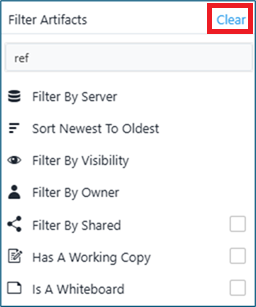
- To remove a single filter, click on it's circled x.
- To remove all the filters, click the Clear button.
In the Display List - Displays or Reports panel, click on the display or report you want to open in the main "Display" panel.
The graphical representation of the display or report is shown on the right in the "Display" panel. See Display Panel for further details on displays and Report Panel for further details on reports.
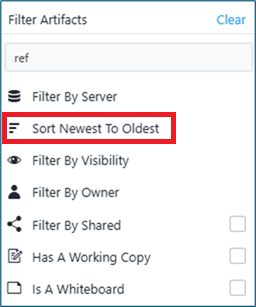
Sort Newest To Oldest
You can sort the displays and reports in the Display List according to the creation date either in ascending or descending order.
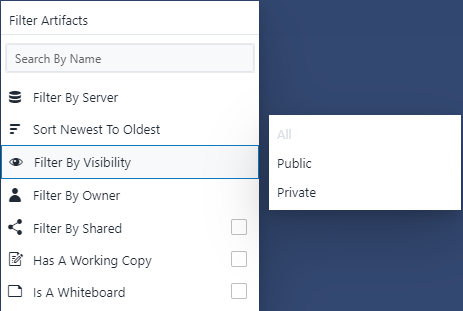
Filter by Visibility
You can filter the displays and reports in the Display List according to their visibility status:
| Option | Description |
|---|---|
| All | All displays and reports. |
| Public | The display and reports that are public. |
| Private | Your own displays and reports. |
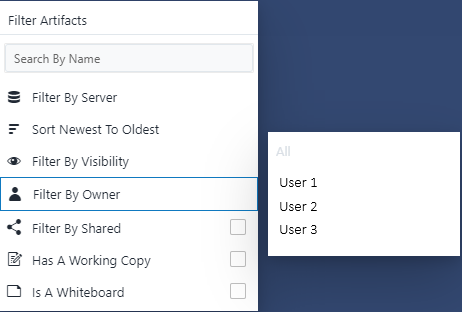
Filter by Owner
You can filter the displays and reports in the Display List according to owner:
Filter options
There are other filter obtions tha allow you to filter the displays and reports in the Display List according to their status:

| Option | Description |
|---|---|
| Filter by Shared | The display shared with other users. |
| Has a working copy | The display is in the process of being created or modified. |
| Is a whiteboard | The display is a whiteboard. |