Open Multiple Reports
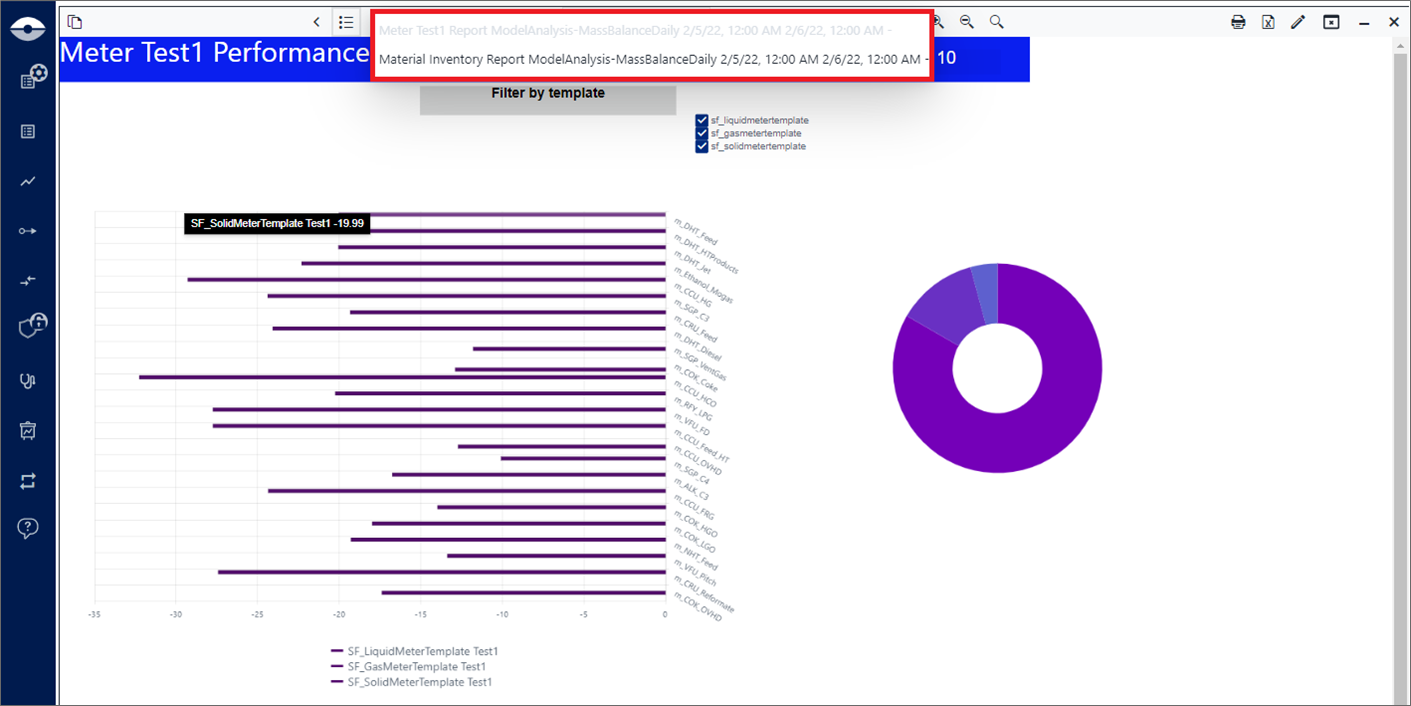
The Report Panel allows you to keep multiple reports open at the same time, and allows you to switch between them using the 'Reports Navigator' in the Report Panel toolbar. Multiple report scenarios can be any one of the following, or a combination of any two or all of them.
- Open Multiple Reports
- Open a Report for Multiple Elements
- Open a Report for Multiple Cases
- Open Different Reports
- Open a Report While Working with a Display
Open a Report for Multiple Elements
When an Element Report is open, you can select another element for which to view the data. Simply use the Search panel to look for and select the other element(s).
To open another Element:
In the Search bar, begin typing its name of the element.
As you type, the search results list populates with all elements matching the characters you have typed so far. The more characters you type, the more refined the search results list becomes.
Search for Element: Search results list
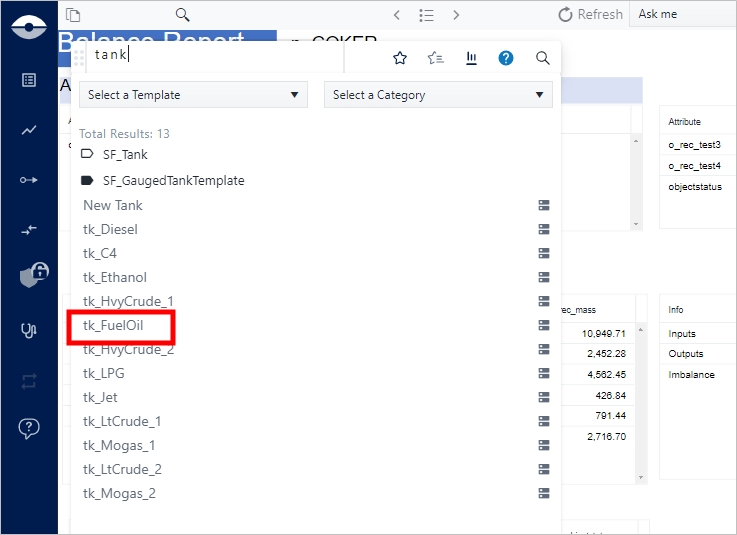
When the element you want appears in the list, click on it to select it.
Another instance of the report opens with the data from the element you just selected.
Example of a report populated with Element data
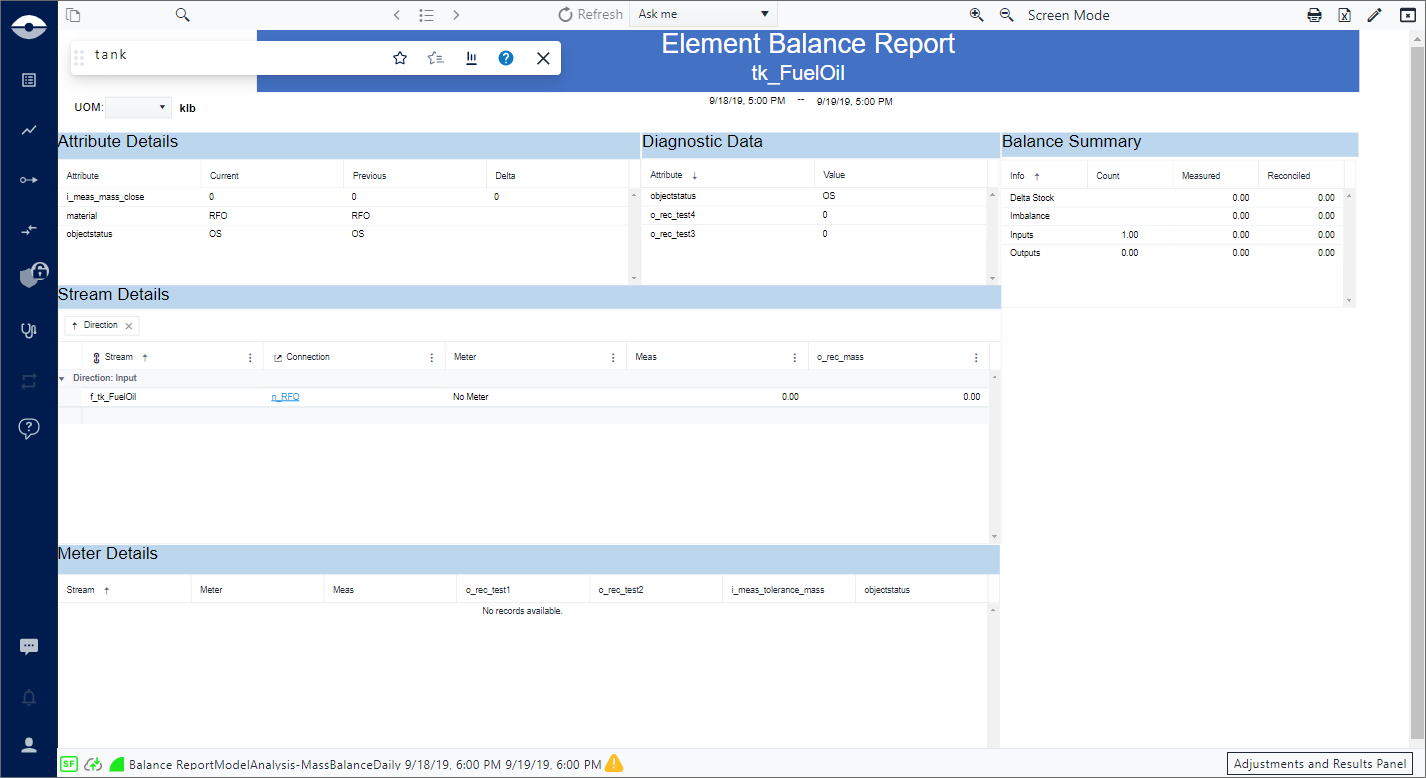
Repeat these steps 1 and 2 for each additional element you want to view in the report.
The Report Panel keeps the history of all the opened report instances, allowing you cycle through them.
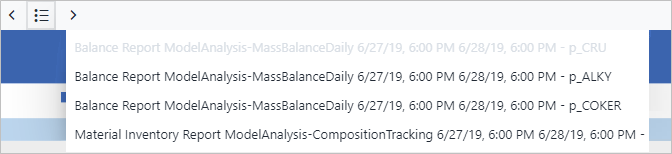
Use the Report Navigator left and right arrows to cycle through the report instances, or the menu button to select a different report instance from a list.
Report Navigator arrows and menu with report instances list
Open a Report for Multiple Cases
When a 'Model' Report is open, you can select another Case for which to view the data. Simply use the Case Search panel to look for the Case.
To open another Case:
Click the
 Case Search icon in the command bar to open the Case Search
panel.
Case Search icon in the command bar to open the Case Search
panel.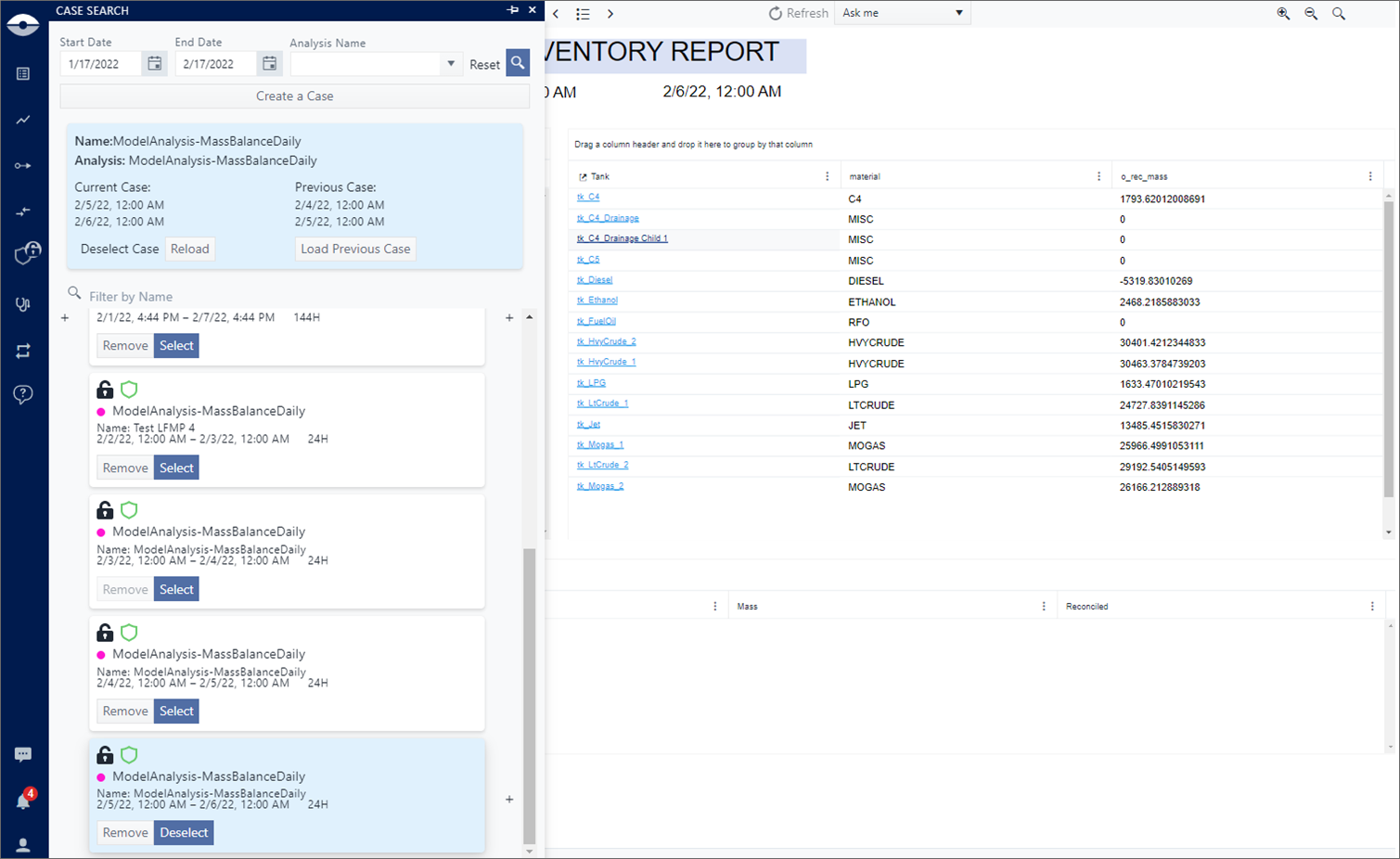
Locate the Case and click its Select button.
Another instance of the report opens with the data from the Case you just selected.
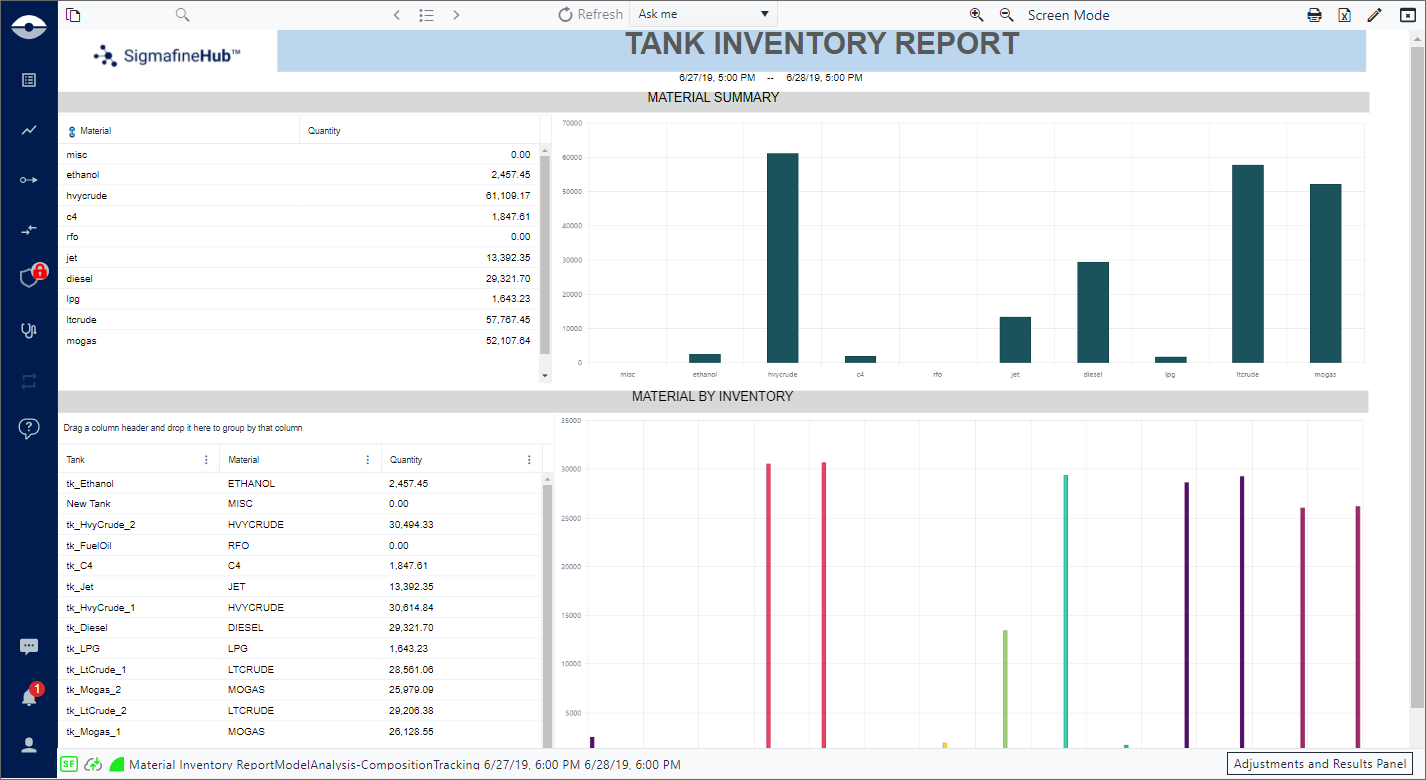
Repeat these steps 1 and 2 for each additional case you want to view in the report.
The Report Panel keeps the history of all the opened report instances, allowing you cycle through them.
Use the Report Navigator left and right arrows to cycle through the report instances, or the menu button to select a different report instance from a list.
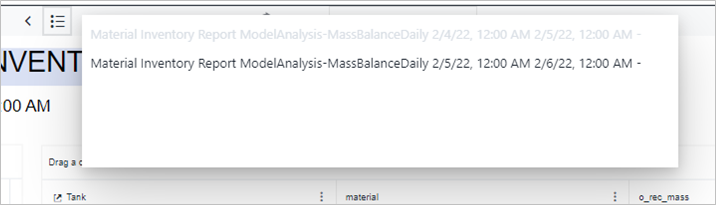
Open Different Reports
When you are working with a SFHub Visualizer Display or SFHub Visualizer Report, you can open different reports that the Report Panel takes care to keep in line.
To open another report:
Click the
 Choose Display or Report from List icon in the command bar to
open the Display List page where you can choose the report you want
to open.
Choose Display or Report from List icon in the command bar to
open the Display List page where you can choose the report you want
to open.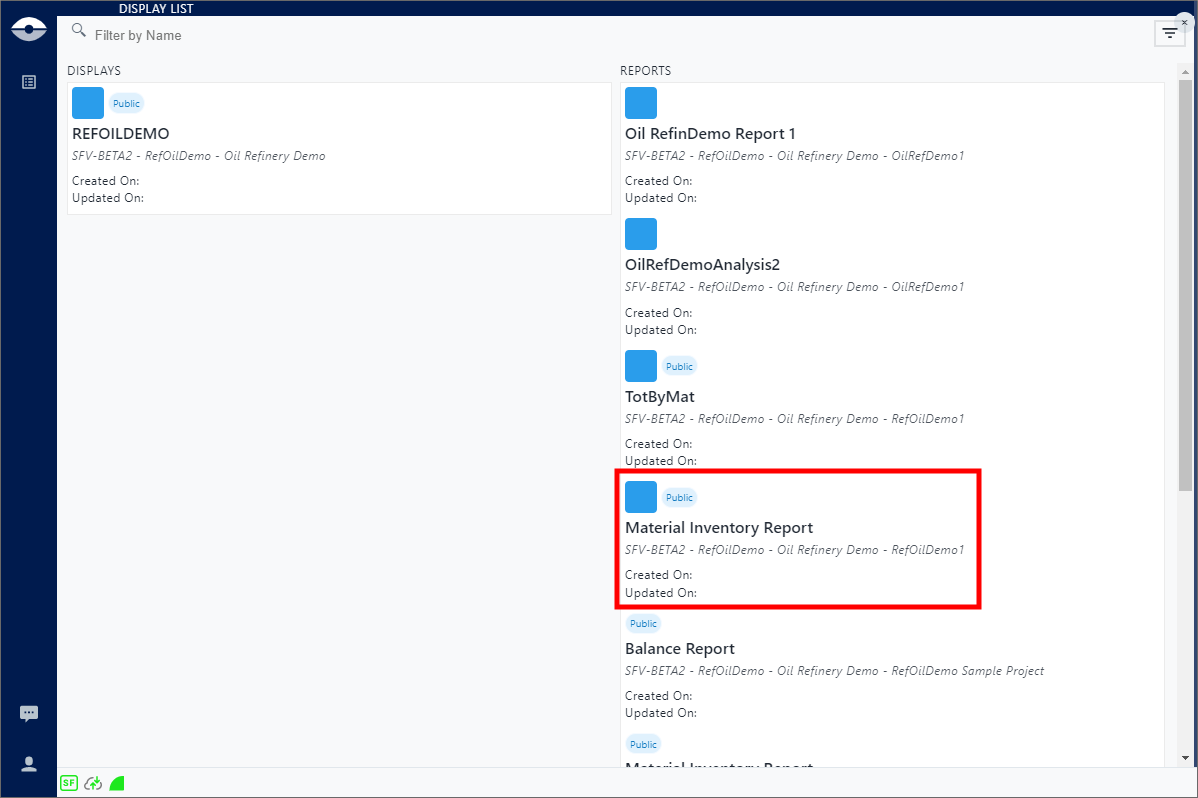
Click on the Report you want to open.
You may be asked to select a Case. If asked, do so.
Repeat steps 1 & 2 for every report you want to open.
Use the Report Navigator left and right arrows to cycle through the report instances, or the menu button to select a different report instance from a list.
Open a Report While Working with a Display
While working with a display at any time you can decide to look at your Sigmafine data using reports. There are three ways to open the report:
Command bar -- The Report icon on the command bar shows all reports of type "Case" that have been configured. Reports are displayed in a list from which you can choose the one you want.

Element Tooltip -- The Element Tooltip shows all reports of type "Case and Element" that have been configured. Each report is represented by an icon. Hovering over an icon reveals the report name.
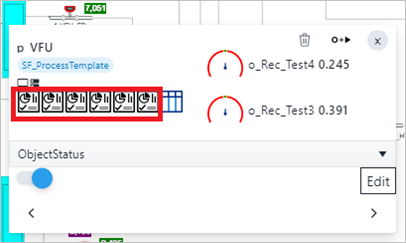
Element Detail panel -- The Element Detail panel shows all reports of type "Case and Element" that have been configured. Each report is represented by an icon. Hovering over an icon reveals the report name.
Element Detail panel Reports icon(s)

Once another report is open, you can use the Reports Navigator to cycle through the report instances you have opened.
Open a Report while working in a Display(s)