Open a Display or Report
SFHub Visualizer allows you to select your preferred way to work with Sigmafine, using the display only, a report only, or both (reports integrated in the SFHub Visualizer display). The only difference between the above methods is in how the Sigmafine data is presented to you; in a graphical format rather than through table or chart visual components. Both methods provide the same Sigmafine functions (e.g., run, Checkin/Undo Checkout, evaluating results, etc.).
Before you start working with displays, we recommend reviewing the section on Display Versioning, to gain a better understanding of the available displays.
Open a Display
To open a display from the Display List - Displays panel:
Click on the
 Choose Display or Report From List icon.
All available displays are listed in the Display tab.
Choose Display From display list
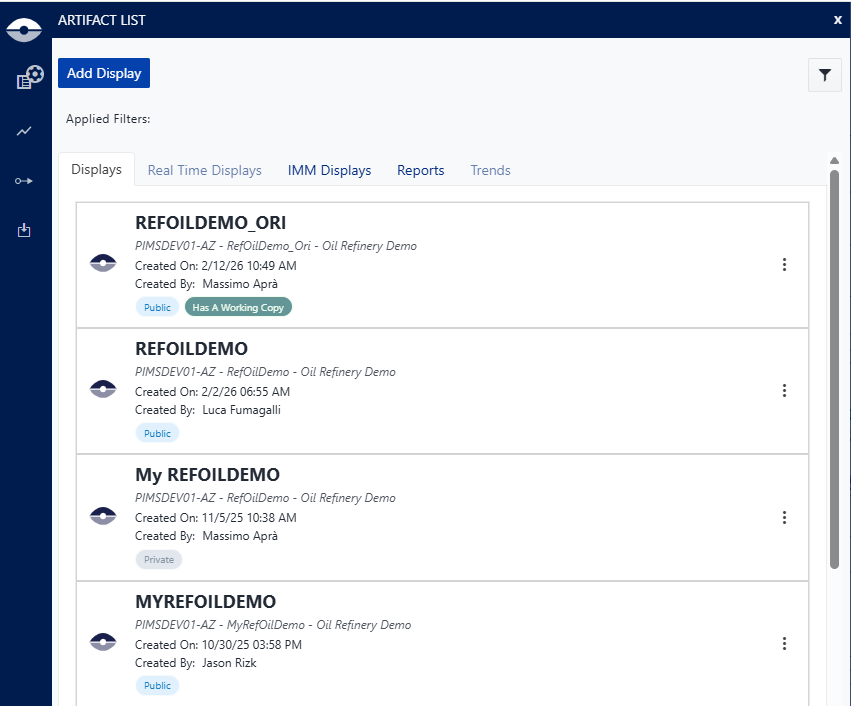
The listed displays have a tag that indicates the status of the display:
- Private: The display is available only to the user who created it.
- Public: The display is available to all users.
- Has a working copy: The display is in the process of being created or modified.
- Has views: The display has configured views.
- Whiteboard: The display is a whiteboard.
Scroll through the list to find the display you want to view in the Display panel.
Click on a display to select it. The graphical representation of the display is shown in the right "Display" panel. See Display Panel for further details. In addition, the Choose Display From List icon changes in appearance showing a "Gear" icon on top of it, to indicate that a Display has been selected.
You are asked to select a case, either click on the Select a case to work with text in the Display panel, or click the Select Case icon in the command bar (the following images show these two options).
Case selection option - in Display panel

Case Selection option - on Command bar

To see what Display Setting has been applied to the selected Display, hover your mouse pointer over the "Gear" icon on the top of the Choose Display From List icon. A tool-tip shows the name of the Display Setting applied to the Display (as shown in the following figure).
Display selection icon with Gear icon

Note: If no Display Settings have been assigned to the display you have selected, both the "Gear" icon is not visible and the tool-tip is not available.
When you open a display, if the display is not synchronized with the Sigmafine Model, you are notified with a message. See Display not in sync for further details.)
Open a Report
Click on the
Choose Display or Report From List icon.
All available reports are listed in the *Reports** tab.Choose Report from display List
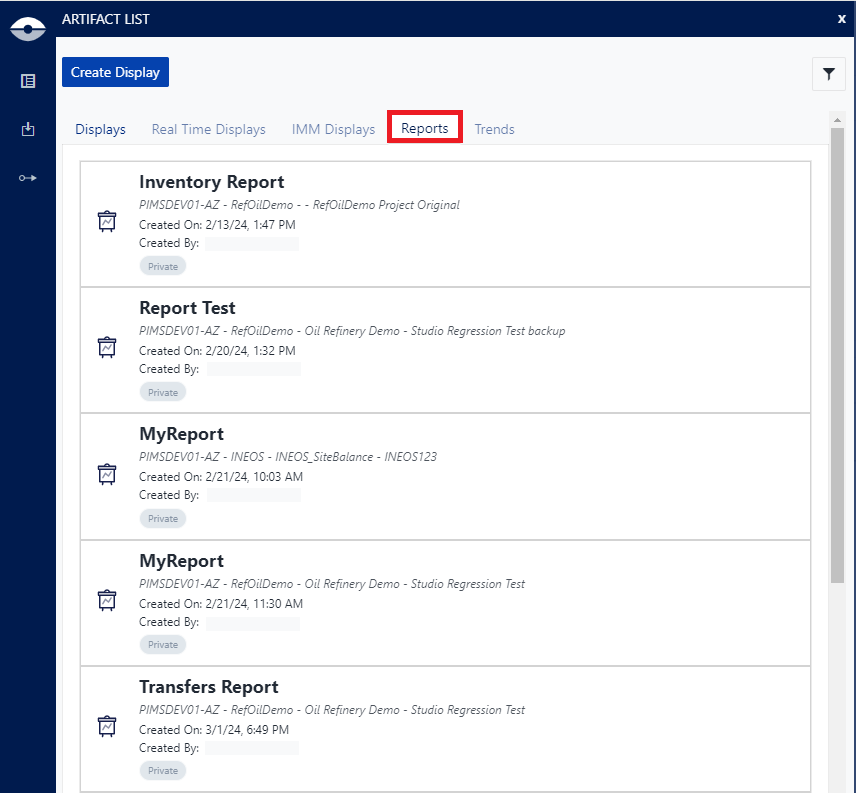
Scroll through the list to find the report you want to view in the Display panel.
Click on a report to select it.
You are asked to select a case (do so using the Select a Case steps). The Report panel opens in the main "Display" panel. See Display Panel for further details.
When you choose to work with a Report, once it is selected, the Report Panel opens to an empty page. This occurs because you need to provide the proper report context. Select a 'Case' if the Report you choose is of type "Case"; select a 'Case' and an 'Element' if the Report is of type "Case and Element".