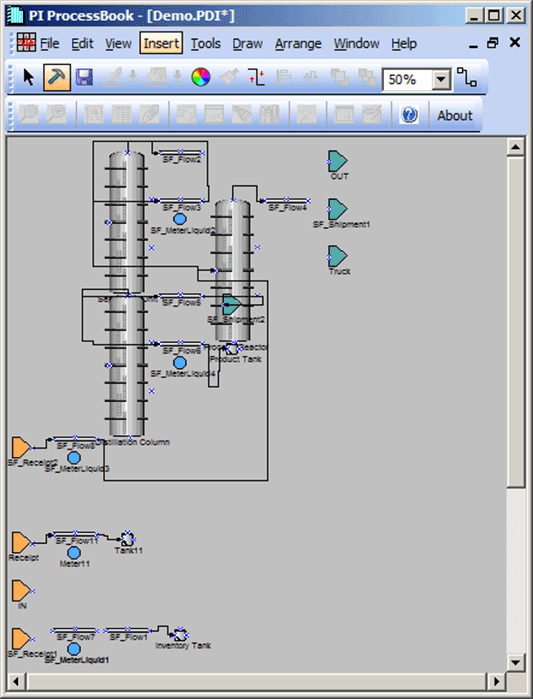
Importing a Model
When you import a Model that has been built outside of the Sigmafine Modeler (e.g. built in System Explorer), it creates a visual rendition that is based on the AF Database. Please note though that before you import a model, we recommend you first check the options in the Setting the Sigmafine Modeler Preferences window, as several options affect how the Model is imported into a ProcessBook display.
To import a model:
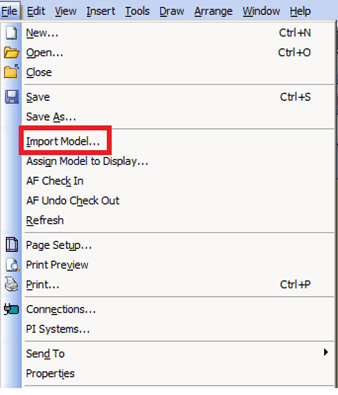
In ProcessBook, select File > Import Model, as shown in the following figure.
The Import Model window opens.
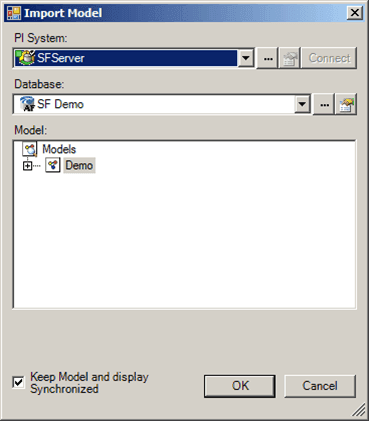
Click on the PI System down-arrow and select the server on which the database containing the Model you want resides.
Click on the Database down-arrow and select a database on the server where the Model resides.
In the Model list, click on the name of the Model you want to import.
Check the Keep Model and display Synchronized checkbox.
Click OK to save your selections and close the Import Model window.
The Elements and Connections of the selected Model are imported into the display to match the one in the database.