Adding a New Element to a Model
For a newly-created template, no elements exist until you define them. To define the elements that are based on this template, follow the procedure below. Note that this procedure creates global elements for all Element types except the "flow" template. For adding a Flow template to the model, see Adding a New Flow Element to a Model.
To add a new Element to a model:
Open AF Browser.
Click on the Elements tab.
Right-click on an Element to use as a template for the new element, and select New > New Element.
This creates a new Element in the Elements list based on the Element you right-clicked on (as shown in the following figure).
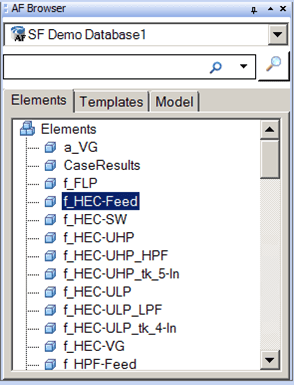
Drag the new Element into the Model display.
If an Element is already part of a model, you can double-click on it in the Browser window to be taken directly to that element's graphic symbol in the Model display.