Deleting a Connection
In order to change the connection of an element, first the existing connection needs to be deleted, only then can a new connection be created as described under Working with Element Connections in a Model.
To delete a connection:
Open ProcessBook.
Click on the Element in the Display or in the AF Browser, to open the AF Property window.
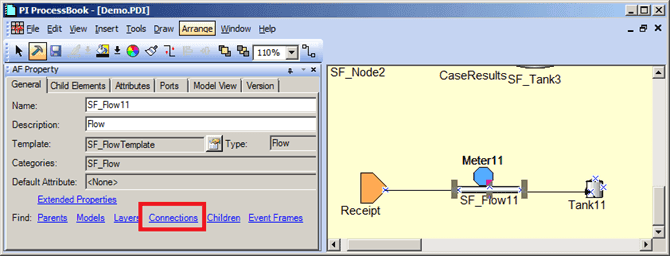
Click on the Connections link.
The Element Connections window opens.
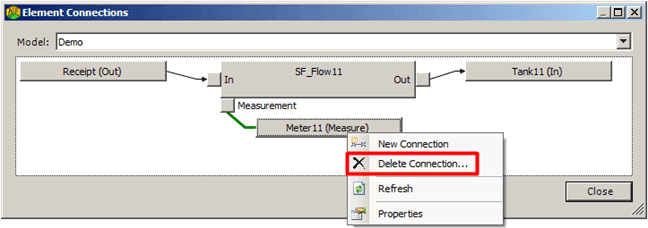
Right-click on the connection you want to delete, and select Delete Connection.
You are asked to confirm the deletion.

Click Yes to confirm the deletion and close the message window.
You are returned to the Element Connections window.
The connect you have deleted is removed from both the Element Connections window and indicated as being disconnected in the Display pane in ProcessBook, as shown in the following figure. In our example, we deleted the "meter" measurement which appears in "orange" in the Display pane in following figure, since "orange' is the color used to represent disconnected meters.
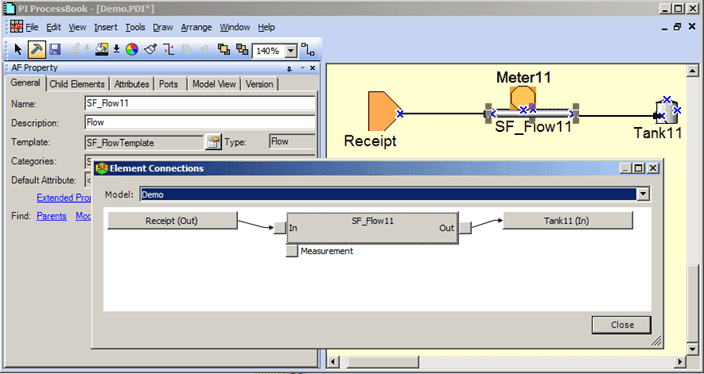
Other connections can be deleted in a similar manner.