Connecting a Measurement Port
You can use the following procedure to connect a flow to a meter, which is a 'Measurement' type of element.
To connect a flow to a meter:
Open ProcessBook.
Click on the Elements tab.
Double-click on the Flow Element to open the 'AF Property' window for that element.
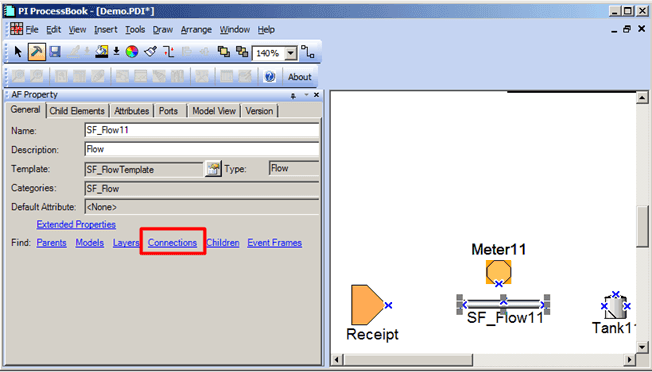
Click on the Connections link.
The Element Connections window opens.
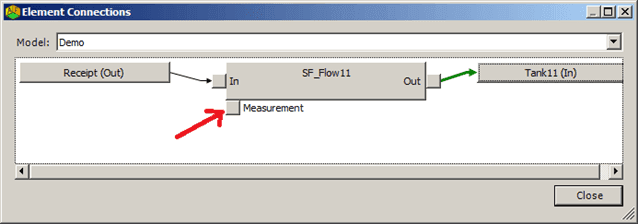
Click on the Measurement port as shown in the above figure.
The Make Connection window opens.
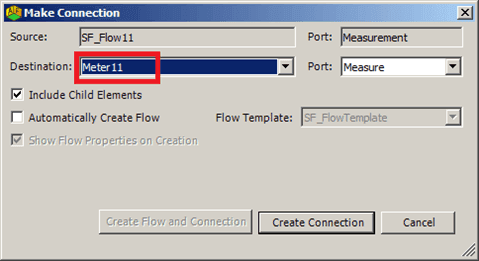
Click on the Destination down-arrow and select the meter.
Click the Create Connection button.
The Make Connection window closes, and you are returned to the Element Connections window where you can see that the connection is created between the two elements in both the Element Connections window and in the Display pane of ProcessBook (as shown in the following figure).
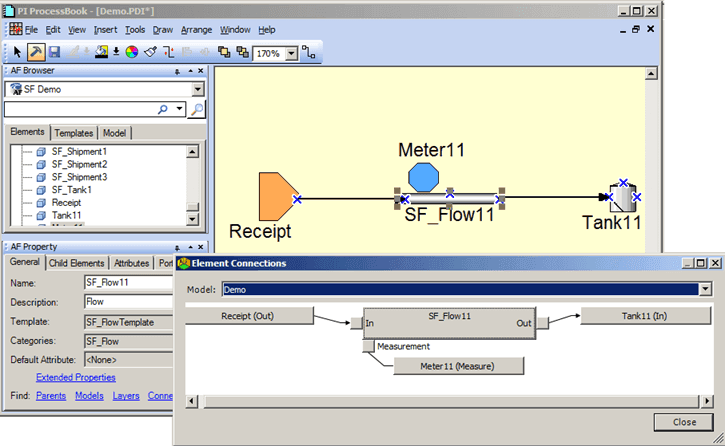
In the Element Connections window, click Close to exit the window.
Note: The default color of an unconnected meter is orange. It has one port (undirected). After the meter is associated with the flow, it resumes its normal colors. If you move the flow in the display, the meter moves with it.