Assigning a Model to a Display
After you create an display in ProcessBook. you can associate it with a Model that has been built in the System Explorer. Associating a display with a Model is useful for instances such as when you create a display associated with a Model on one computer and want to place a copy of it on another computer o that you can associate the display with a Model on the second computer.
Another reason you may want to associate a display with a Model is to put a Model into a .pdi file and then assign that display to a model. The Import operation always creates a new .pdi file.
To assign a Model to a display:
Open the display in ProcessBook.
Select File > Assign Model to Display.
The Set Model for Display window opens.
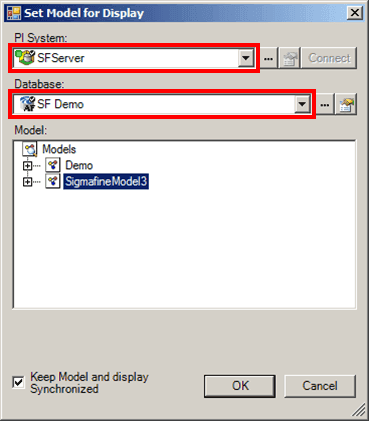
Click on the PI System down-arrow and select the server you want.
Click on the Database down-arrow and select a database that resides on the selected server.
In the Model list, select the Model you want to assign to the display.
(Optional) If you want the Model to stay in sync with the display, check the Keep Model and Display Synchronized checkbox.
Click OK to save your selections and close the Set Model for Display window.
All symbols in the display with names identical to Element names in the Model become synchronized with the Model elements. Symbols with names that do not match Element names in the Model appear at the bottom of the display.
For each symbol that does not have a match in the Model database, right-click it and select Assign Element to Symbol to associate it with an Element in the database.
Click OK.
The Sigmafine Modeler forms a relation between the Model and a display file in ProcessBook.