Attribute Table Tab
The Utility & Settings Attribute Table allows you to customize the information shown for the elements (Transfer, Tank, Instrument) in the Attribute Table.
 EXAMPLE: Attribute Table data structure
The following figure provides an example of the Attribute table data and how it is structured.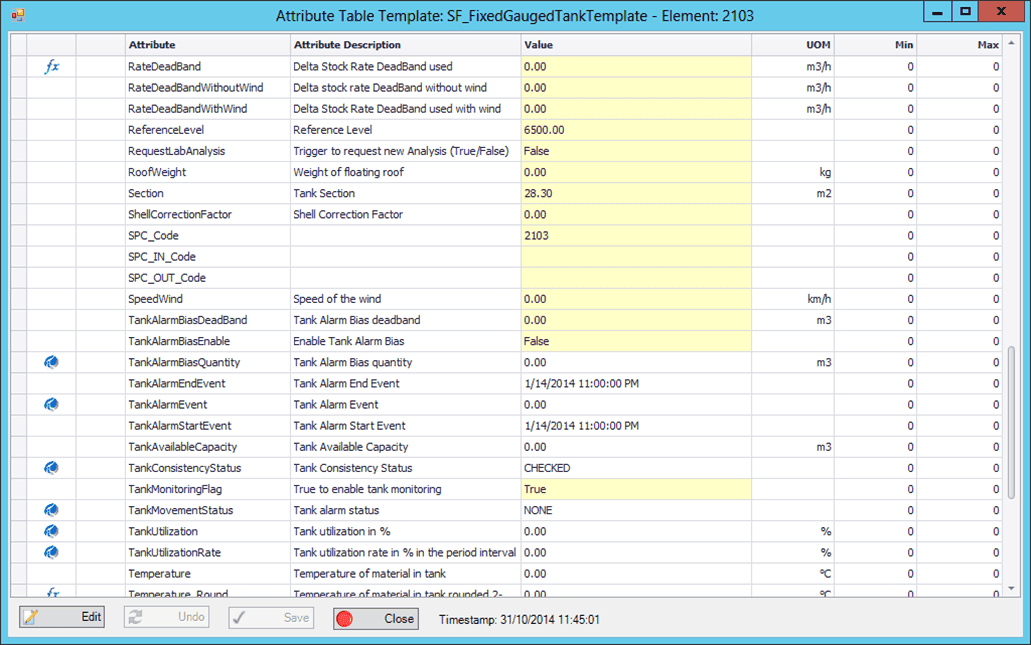
To customize the Attribute table:
Click on the
 Settings button to open the Utility & Settings window.
Click on the Attribute Table tab to display the Attribute table configuration.
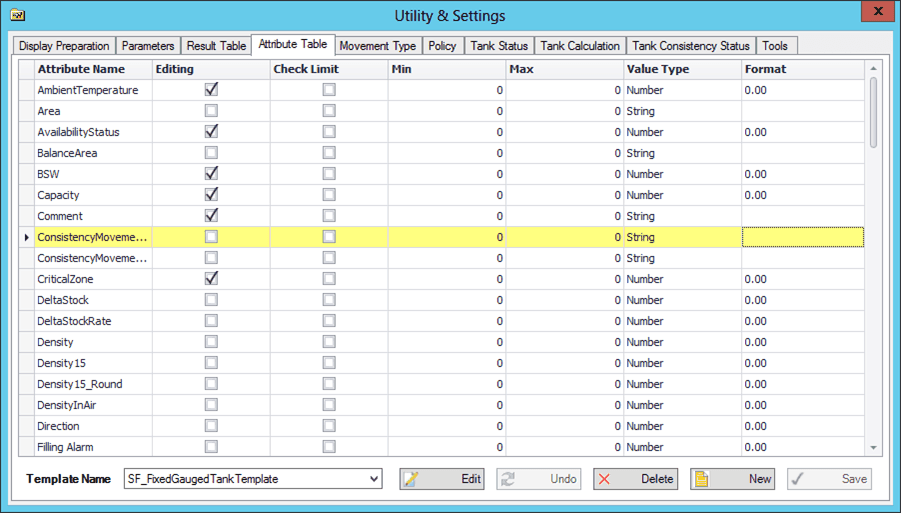
On the Attribute Table tab, you can to change the format for each attribute, allow or deny edit options, and set the check input limit (Mix and Max)
Click the Edit button to add a new column.
Click the New button to add a new attribute.
Click the Delete button to remove an Attribute from the list.
Click the Save button to save your changes.
If you do not want to save your changes, click the Undo button to discard them.