Display Preparation Tab
The Utility & Settings Display Preparation tab shows the Sigmafine IMM Server name and the Sigmafine IMM Database where a display is actually linked. Since the PI ProcessBook display needs to be linked to a Sigmafine IMM Model in order to work with the IMM Add-in, you need to prepare that link if a display is not yet linked.
The following figure depicts the message in the Utility & Settings window that appears when a display is linked to an IMM Server and Database. When a display is not yet linked to an IMM Server, the message appears as shown in Figure 1631.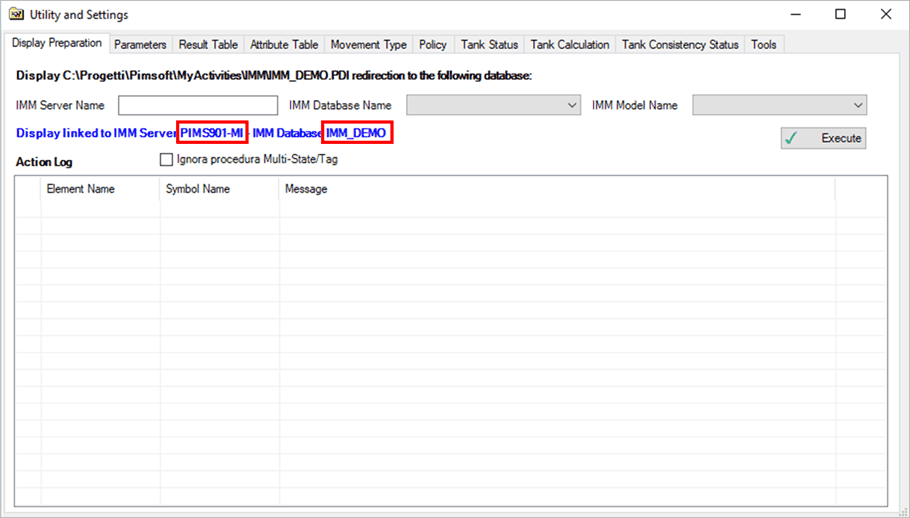
To prepare a display:
Click on the
 Settings button to open the Utility & Settings window.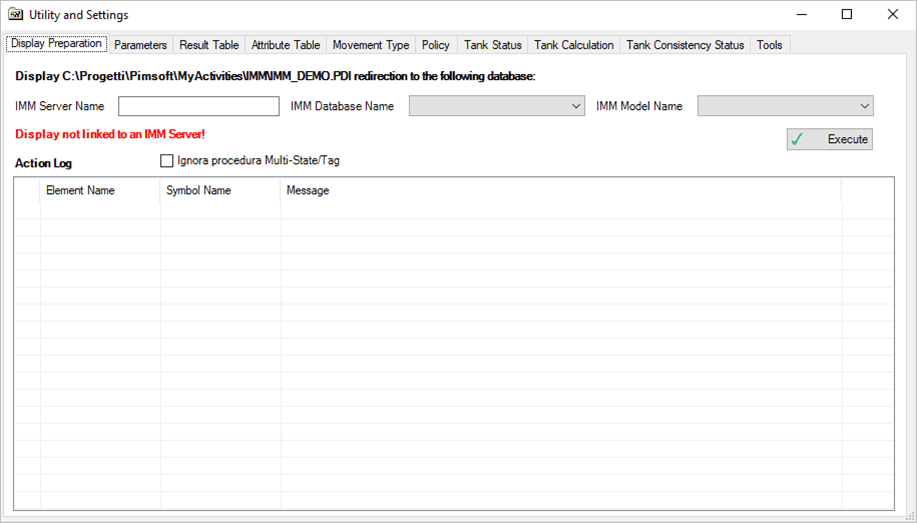
In the IMM Server Name box, type the Sigmafine IMM Server name.
Click on the IMM Database Name down-arrow and select the name of the IMM Database.
Click on the IMM Model Name down-arrow and select the name of the IMM Model.
Click the Execute button to prepare the display.
You are asked to confirm that you want the current display is to be assigned to the selected PI System Database, click Yes.
A message appears in the display, informing you that the it was successfully prepared for Sigmafine IMM.
In order to work with the new prepared display, you must close and reopen it.
Click the Utility & Settings window Close button (top, right-hand corner of the window).
You are asked to confirm the automatic saving and closing of the current display, click Yes.
Select the new Sigmafine IMM Server, Database, and Model, to link the display to a different Sigmafine IMM Server and Database.
Check the Ignore Multi-State Procedure checkbox if the multi-state tags are configured in the new Sigmafine IMM Server.
Click the Execute button to link the display to the new Sigmafine IMM Server.
You are asked if you want to proceed with assigning the current display to the Sigmafine IMM Server, click Yes.
Once the procedure completes without error, an Information message window opens and informs you that the display successfully redirected to the new server. The message also states that you should close and reopen the file before using it.
Should the process encounter any errors, please see the log produced in the same window, to obtain useful information regarding error resolution.
Click OK on the Information message window.