Testing and Connecting Servers
You can test a server and ensure that it is setup properly for connection by using the Configurator tool connection 'Test' feature. Note that the Test feature can be used to test one or more server connections and also used to test and connect to a newly added server.
There are two way in which you can test and connect a server in the Configurator tool; from the "Integration Framework - Configurator" window or from the "IF Server Connections" window. Most often the Configurator window is used, as that is where you initiate the bulk of your tasks in IF. However, if are already managing other servers in the IF Server Connections window, it is more convenient to test and connect a server directly from there.
Test and Connect One server
To test and connect a single server, follow the steps below for the window in which you are currently working.
 From the 'Configurator' main window
In the menu bar, click on File if not already selected.
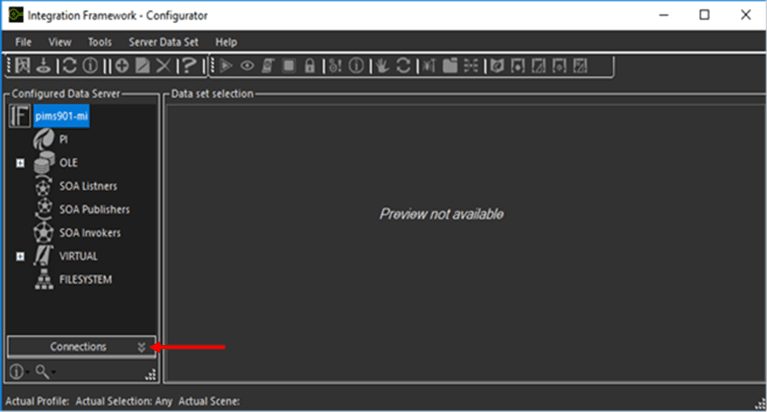
In the Configured Data Server Connections pane, click on Connections to open the IF Server list.
In the IF Server list, check the checkbox of the server you want to test and connect.
If you are testing and connecting to a new server, the server is already selected in the list.
Click the
 Test icon to test the connection to the IF Server.
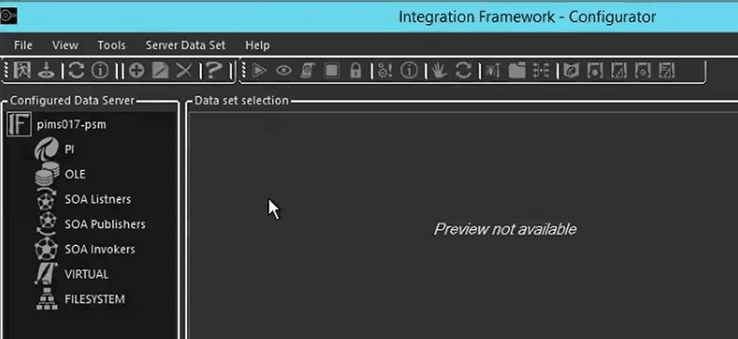
Note that if you are testing the connection to a newly added server, you can now begin defining PI Systems, OLE Systems, or any other connectors you wish to configure for your specific architecture, as seen in the following figure.
In the IF Servers list, check the checkbox of the server you want to remove.
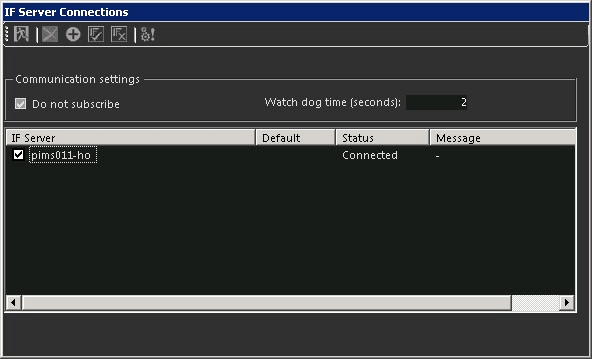
Check the Do not subscribe checkbox to speed up communication for the test connection. When checked, this option eliminates some of the communications for automatic refreshes, resulting in better performance.
In the Watch Dog Time box, type the time interval you want used for connecting with the IF Server.
Click the
Test icon to test the connection to the IF Server.Note that if you are testing the connection to a newly added server, you can now begin defining PI Systems, OLE Systems, or any other connectors you wish to configure for your specific architecture. \For more information see Working with Datasets and Working with Connectors
Test and Connect Multiple Servers at Once
To test and connect multiple servers at the same time, follow the steps below for the window in which you are currently working.
From the 'Configurator' main window
In the menu bar, click on File if not already selected.
In the Configured Data Server Connections pane, click on Connections to open the IF Server list.
In the IF Server list, check the checkbox of each server you want to test and connect.
Click the
Test icon to test the connection to the IF Server.
In the IF Servers list, check the checkbox of each server you want to test and connect.
If you want to test and connect all the servers, click the
 Select All icon to select all servers.
In the toolbar, click the
Test icon.Check the Do not subscribe checkbox to speed up communication for the test connection. When checked, this option eliminates some of the communications for automatic refreshes, resulting in better performance.
In the Watch Dog Time box, type the time interval you want used for connecting with the IF Server.
Click the
Test icon to test the connection to the IF Server.