Managing Advanced Connection Parameters
Advanced Connection Parameters affect the general communication behavior of the Integration Framework communication protocol. For this reason, these parameters should be managed only under Pimsoft Technical Support supervision. Normally, the advanced connection parameters need not be reconfigured, except in uniquely rare environments. Therefore, these parameters have been made available for those rare environments.
IMPORTANT: Advanced connection parameters should not be changed without assistance from a Pimsoft Technical Support Representative.
To access the advanced connection parameters:
Open the IF Server Connections window, if not already open.
In the Configurator window, click on the File tab.
At the bottom of the Configured Data Server list, click on Connections to display the IF Server list.
In the IF Servers list, right-click on the server for which you want to view or change advanced connection parameters.
The IF Server connection setting window opens.
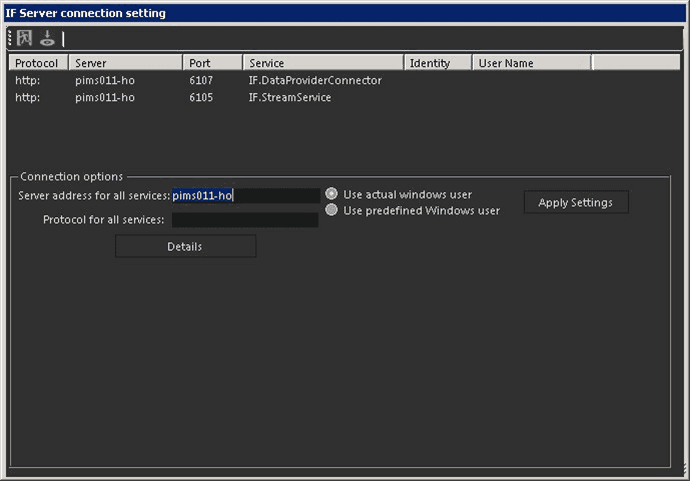
Click the Details button (under the Protocol for all services box) to open the advanced connection parameters pane.
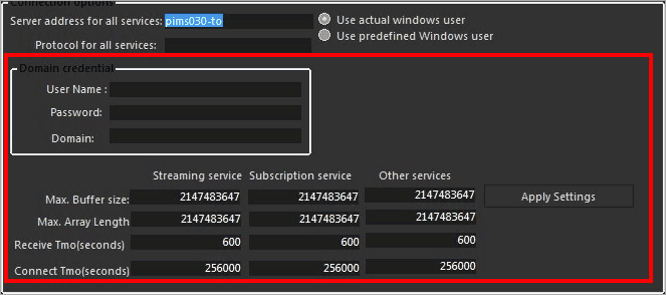
With assistance from a Pimsoft Technical Support Representative, change the settings as required.
The following table provides a description of each parameter.
Advanced Connection Parameters
Parameter Description Domain Log In Credentials These parameters are the domain credentials used by the Integration Framework server when it attempts to connect to a third-party Integration Framework server or to third-party systems. These credentials override other security data set the in the Integration Framework Datasets.*These parameters should be used carefully, as they will overwrite all the security settings.For more information about security, please see the Integration Framework Security topics. Max Buffer size This parameter refers to the maximum size (in 'bytes') of a network data packet. The Max Buffer size parameter should be tailored to fit the data managed by the Integration Framework. Max Array Length This parameter refers to the maximum length (in 'units') of an array of data expressed in the number of elements. If this parameter is equal to the 'Max Buffer size' it means that one object can be as large as an array of bytes defined by the Max Buffer size. Receive Tmo (seconds) This parameter sets the timeout for receiving data or a command reply from the Integration Framework server. Connect Tmo (seconds) This parameter sets the timeout for connecting to an Integration Framework server. Click the Apply Settings button to apply your advanced connection parameter changes.
Click the
 Save icon in the toolbar, to save those changes and close the IF Server connection setting window.
You are returned to the IF Server Connections window or Integration Framework - Configurator window, depending on which was used to access the IF Server connection setting window.