Removing a Server
When you want to stop the connection to an IF server, you do so by removing (deleting) the server from the IF Servers list. This is done through the Configurator using the 'Delete' feature. This action unregisters the selected server, thereby removing the ability to connect to it. One or more servers can be removed simultaneously, from either the "Configurator" window or the "IF Server Connections" window. Most often the Configurator window is used, as that is where you initiate the bulk of your tasks in IF. However, if are already managing other servers in the IF Server Connections window, it is more convenient to remove servers directly from there.
Removing a single server
To remove a single server, follow the steps below for the window in which you are currently working.
 From the 'Configurator' main window
- In the menu bar, click on File if not already selected.
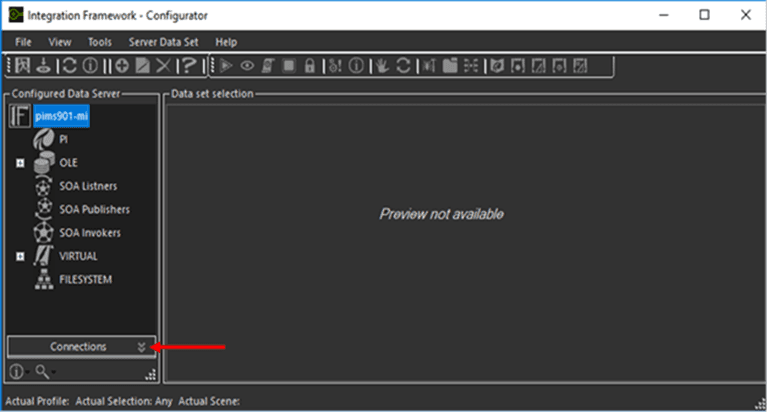
- In the Configured Data Server Connections pane, click on Connections to open the IF Server list.
- In the IF Server list, check the checkbox of the server you want to remove.
- In the toolbar, click the
 Delete icon.
In lieu of steps 2 and 3, you can right-click on the server in the IF Server list and select Remove Server.
- In the IF Servers list, check the checkbox of the server you want to remove.

- In the toolbar, click the Delete button.
Removing multiple servers
To remove multiple servers, follow the steps below for the window in which you are currently working.
From the 'Configurator' main window
- In the menu bar, click on File if not already selected.
- In the Configured Data Server Connections pane, click on Connections to open the IF Server list.
- In the IF Servers list, check the checkbox of each server you want to remove.
- In the toolbar, click the Delete icon.
From the 'Connections' window:
In the IF Servers list, check the checkbox of each server you want to remove.
If you want toremove all the servers, click the
 Select All icon to select all the servers.
In the toolbar, click the
Delete icon.