Editing Server Connection Settings
When you need to change the connection settings (e.g., server name, protocol, login user preference, etc.) for an IF server, you do so by editing those settings in the "IF Server connection setting" window, accessible from the Configurator 'Edit' feature. Only one server can be edited at a time.
To edit a server's connection settings:
In the Integration Framework - Configurator window, click on File if it is not already selected.
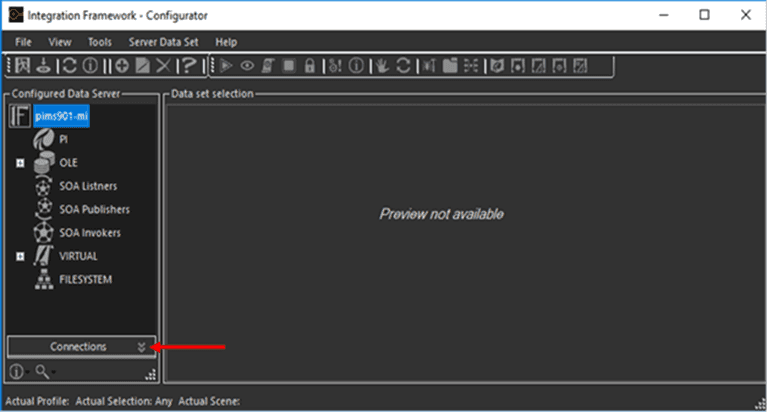
In the Configured Data Server pane, click on Connections to open the IF Server connections list.
In the IF Server list, check the checkbox of the server you want to edit.
In the toolbar, click the
 Edit icon.
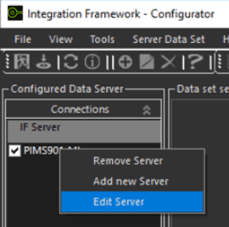
In lieu of steps 2 through 4, you can right-click on the server in the IF Server list and select Edit Server, as shown in the following figure.
The IF Server connection setting window opens.
Make the changes you need done.
- Server name: The logical name of the server (is the machine/network name) of the server where IF server is running
- Protocol: The parameter used as the transport protocol for communication (default is the 'http' protocol).
- One of the following:
- Current logged in user: The user who’s running the Integration Framework Configurator tool
- Predefined Windows user: A pre-configured Windows user name (with password) set in the configuration. This setting causes the IF Configurator to use the setting of the user who is currently logged in the system.
- Should you need to change login credential parameters or connection parameters , see Managing Advanced Connection Parameters. We recommend that you do not edit these advanced connection parameters
- Click the Apply Settings button to apply the changes.
- Click the
 Save icon in the toolbar, to save the applied changes and close the window.