IF Server Connections Window
The IF Server Connections window is used to manage IF connections, which involves maintaining the list of IF Servers to which you want Integration Framework to connect, and making sure that those connections work properly by keeping connection settings current and correct.
Though most IF server connections can be managed from either the "Integration Framework - Configurator" window or the "IF Server Connections" window, there are two settings which can only be accessed from the "IF Server Connections" window; 'subscription' and 'watch dog'. More information on the two settings can be found under Adding a New Server.
Opening the 'IF Server Connections' Window
To open the IF Server Connections window:
Run the Configurator tool.
Click your Windows Start button.
From the list of software applications, select Integration Framework > Configurator.
From the menu click on File, if not already selected.
In the Configured Data Server pane, double-click on Connections.
The IF Server Connections window opens.
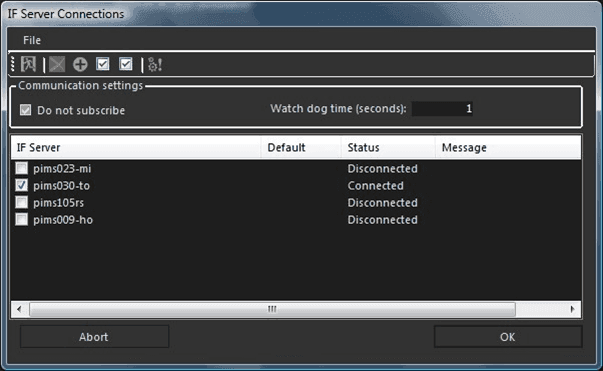
This window displays the list of registered IF Servers. Those with a status of "Connected" are the servers to which the Configurator is currently connected. The servers with a status of "Disconnected" are registered, but not currently connected.
Along the top of the IF Server Connections window is a toolbar with icons that allow you to manage the list of server connections and their configurations. The toolbar options are described in the following table.
IF Configurator toolbar options
Icon Action Description Exit Exit the window without saving and changes. Save Save changes and exit the window. Delete Removes the registration(s) for the IF Server(s) selected in the list. Add Add a new server registration to the list. Select All Select all of the registered servers in the list. Unselect All Unselect all of the registered servers in the list. Test Test and connect to the selected IF Server(s). One or more servers can be selected, as the Configurator tool can connect and interact with more than one IF server at the same time.
Perform any of the following actions by following the steps under the associated \topic. Note that to perform all actions except for "Adding a New Server," you need to select a server in the IF Server list.