Connecting to the IF Server
Before you can configure any Integration Framework settings, you need to connect to the IF Server(s) with which you want to work. Once that connection is made, you are then able to setup or manage your integration settings. Connecting to an IF Server is accomplished using the IF Server connection feature in the Configurator tool.
When you first run the Configurator tool after installing IF, a message appears stating that no servers are configured for Integration Framework.
To connect to an IF Server:
Run the Configurator tool.
Click on your Windows Start button to display the list of installed software applications.
From the list of software applications, select Integration Framework > Configurator.
The Integration Framework - Configurator window opens.
From the menu, select File > Connections.
The IF Server Connections window opens.
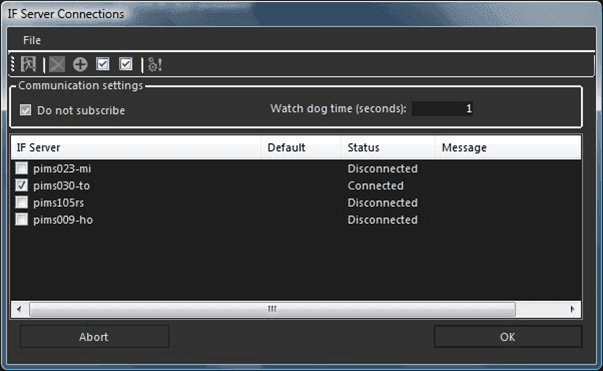
This window displays the list of registered IF Servers to which you can select to connect. You can also manage your the list of registered Integration Framework Server connections by creating (adding a new) or managing (editing or deleting) servers in the list. See Managing IF Connections for further details on managing connections, and Adding a New Server for details on adding a new IF Server.
One or more servers can be selected for connection, as the Configurator can connect and interact with more than one IF server simultaneously.
Note: If this is the first time you are running the Configurator after installing Integration Framework, a message appears stating that no servers are configured for Integration Framework. You need to add the IF Server to which you want to connect. For detailed instructions see the [Adding a New Server](/DocumentDepot/DocSFHub/docs_2026/docs-sf-system/IF/Installation2-0/FirstRunConfigTool/add-new-server) topic under Installation.
In the IF Server connection list, check the checkbox next to each server to which you want to connect.
(Optional) Check the Do not subscribe checkbox only if you want to disable the "subscription" option.
"Subscription" refers to the capability of the client to automatically get all updates (data and/or configurations) from the connected IF Server. When this option is checked, it eliminates some of the communications for automatic refreshes, resulting in better performance.
(Optional) In the Watch Dog Time box, you can change the time interval you want used for checking the connection (s) with the IF Server(s).
The time interval is in seconds, with values usually ranging between 1 and 10.
Click OK to connect to the selected IF Server(s).