Edit an Element
An Element may have many different Attributes which makes it difficult to find the correct Attribute to adjust in the AF Property window. A few features have been included in ADA that make it possible to view only the Attributes that might potentially need adjustments, resulting in a more expedient method for finding and adjusting those attributes. Attribute values can be edited only if the Attribute value is configured to be editable, see the AF Table: SFDiag_EditAttr \topic for more details.
To edit an element's attribute:
Do one of the following to access the element's properties:
Using the SF-ADA Toolbar:
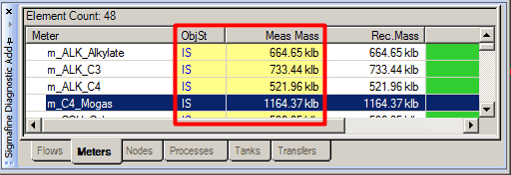
Click on the editable cell (the non-yellow cells) for the Element Attribute you need to edit.
Click the
 Edit Element button on the SF-ADA Toolbar.
Using the right-click menu:
Right-click on an Element in the SF-ADA Results table and select Edit Element from the menu that appears.
Using the double-click method:
Double click on the Element in the ProcessBook display.
This option works only if it is enabled in the AF Table: SFDiag_Params table (
ExcludeDoubleClickEventis set to "false").The Properties for Element: [Element name] window opens.
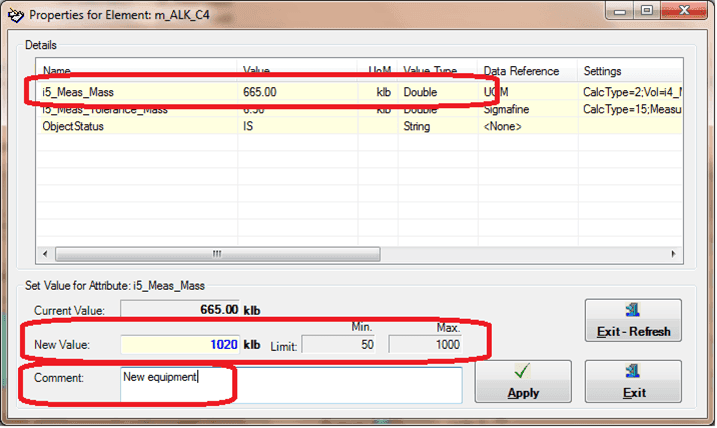
The Properties for Element window displays only those Attributes that are configured as editable.
Click on the editable row of the Element Attribute you want to change.
When an editable row is selected the New Value box is enabled.
In the New Value box, type your adjusted value.
On the right side of the New Value box there are two boxes displaying the lower and upper limits of the selected measure. If the new value is not within those limits, a warning message is displayed requiring confirmation. The Min and Max boxes are only active when the Attribute is set with Minimum and Maximum values as values, Attributes or tags, otherwise these boxes are not active. The Minimum and Maximum values can be set in the AF Table: SFDiag_EditAttr table.

The warning message appears only when the Attribute is set with Min and Max values, otherwise it does not appear.
If the confirmation message displays:
- Select Yes if you want to use the new value even though it is not within the Min/Mas range.
- Select No if you wish to change the value to one that is within the Min/Max range.
(Optional) In the Comment box, type any additional information you want recorded in regard to the adjustment.
Click the Apply button to create the adjustment.
If you decide not to apply the adjustment and would like to close the Properties for Element window and refresh the SF-ADA Results window, click the Exit - Refresh button.
If you decide not to apply the adjustment but would just like to close the Properties for Element window without refreshing the Results, click the Exit button.
If you clicked the Apply button and have no further adjustments to make, click the Exit button to close the Properties for Element window.