Access Object Information
To display the Case balance data for any Element in the Sigmafine Model so that you can check and analyze the results of the reconciliation, access the object's information using the Get Object Info function.
To access an object's information:
Do one of the following:
Using the SF-ADA toolbar:
Select an Element in the SF-ADA Results window, or select a symbol of an Element in the ProcessBook display.
On the SF-ADA toolbar, click on the
 Get Object Info button.
Using the right-click menu:
Right-click on an Element in the SF-ADA Results window, or on a symbol of an Element in the ProcessBook display.
Select Object Info from the menu that appears, as shown in the following figure.

The Object Info window opens.
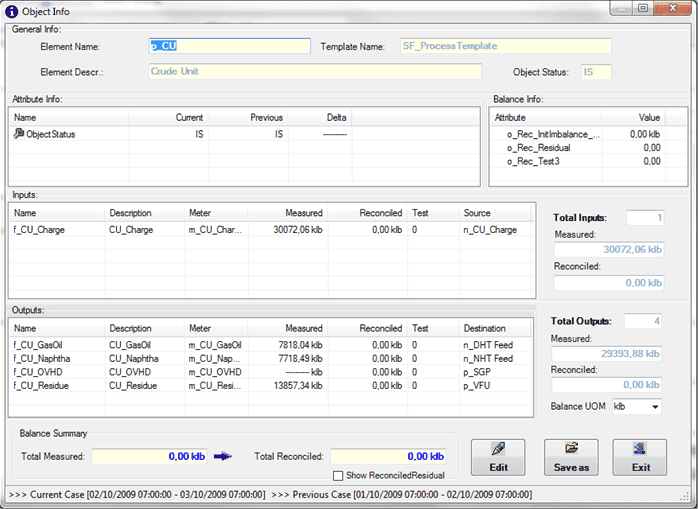
The information shown in this window is fully configurable by the administrator for each Sigmafine template.
The following table describes each section of the Object Info window.
Object Info Section Descriptions
Section Description General Info The General Info section contains basic information of the Element such as: name, template and description. Attributes Info The Attributes Info section contains the Element Attributes with the category BA_GetInfo_Attribute in the associated template. Information for the current Case, the previous Case, and the Delta between the Cases are displayed. Balance Info The Balance Info section contains the Element Attributes with the category BA_GetInfo_Balancein the associated template. Information for the Current Case is displayed.Inputs / Outputs The Inputs and Outputs sections are tables that show the flows and transactions for point of balance objects (Processes, Nodes, Tanks). Balance Summary The Balance Summary section summarizes the balance results of the reconciliation. Show ReconciledResidual The Show ReconciledResidual checkbox lets you display the effective Reconciled Residual calculated by Sigmafine (that value has no unit of measure) when checked. Total Inputs / Total Output Measured & Reconciled The Total Inputs and Total Outputs Measured boxes show the ReconciledMassImbalanceAttribute of the selected Element according to the following equations:For Nodes or Process Units:For Inventories:The Total Inputs and Total Outputs Reconciled boxes show the final imbalance after the reconciliation according to the following equations:For Nodes or Process Units:For Inventories:This value is the same value that is stored in theReconciledResidualattribute.Balance UOM The Balance UOM box lets you change the default UOM.The default unit of measure used to show the balance data is determined by the unit of measure configured on the reconciled imbalance attribute. Edit The Edit button lets you change any of the configurable values. Save as The Save as button lets you export the data to a txt, csv or xml formatted file. Exit The Exit button lets you close the window. Using the right-click menu, you can access a configuration tool that lets you select the Attributes to display in each section. Refer to Customize Object Info Settings for more details.
When finished viewing the information, click the Exit button to close the window.