View the Results Table
The Sigmafine ADA (SF-ADA) Results Table, which opens in a dockable window, displays AF data in table format, where rows correspond to Model elements and columns to their attributes. The Results Table opens in a dockable window in ProcessBook.
To view the SF-ADA Results table:
On the SF-ADA toolbar, click the
 Sigmafine Result button.
The SF-ADA Results table window opens.
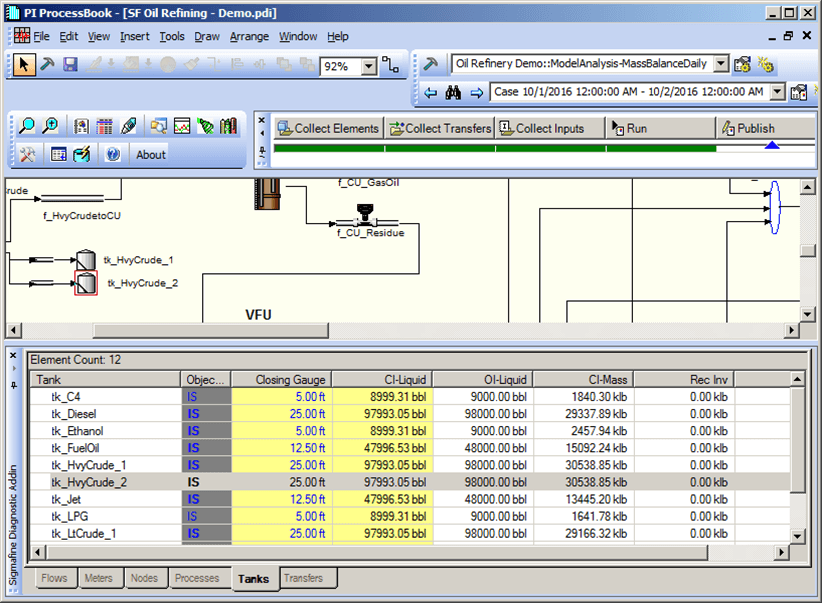
In this table, all table cells are configurable in terms of font color and style, background color and mouse pointer setting to highlight specific data. Configurations are set in the Configure the Results Table configuration table, which allows you to customize the appearance of the SF-ADA Results Table.
The following tables summarize the definitions for the settings.
Font Setting
Font Settings Definition Color Style Black Normal Blue Normal Bold Data input Adjusted. Background Setting
Background Setting Definition Light Yellow Allows Attribute editing. White Standard. Others ... Customization ... No standard configuration is associated. Mouse Pointing Setting
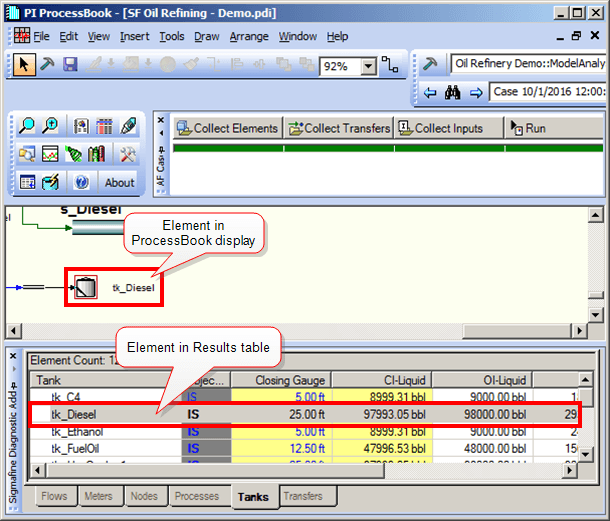
Mouse Pointer Setting Definition Blinking Cursor Allows Attribute editing. Default Pointer (Arrow) Allows row selection and points to the Element in the display. Hand Pointer Opens a list view (for the Log). To easily locate an Element row to view in the Results table, click on the Element in the ProcessBook display.
The corresponding row in the SF-ADA Results table window is highlighted (as shown in Figure 1066).
Likewise, when you click on a row in the Results table, the corresponding Element in the display is selected (as shown in Figure 1066).
To obtain information about a specific element, right-click on the Element and select Object Info from the menu that appears.
Alternatively, you can select the Element and click on the
 Get Object Info button in the SF-ADA toolbar.
The Object Info window opens for the selected element. Details about the Object Info window can be found under Access Object Information.
To open a new 'AF Property' window for an element, right-click on the Element and select Element Properties from the menu that appears.