Configuring Result Colors
In the SF-ADA Results window each attribute (column) can be colored according to its value: the color configuration is described below in Conditional formatting (Format Ranking). Each Element on the ProcessBook display can be colored according to the color of one of its attributes.
To change the color of attributes:
Ensure that you are in the SF-ADA Results window.
From the SF-ADA toolbar, click the
 Configure Symbol Color Settings button.
The Settings for color Symbol Function window opens.
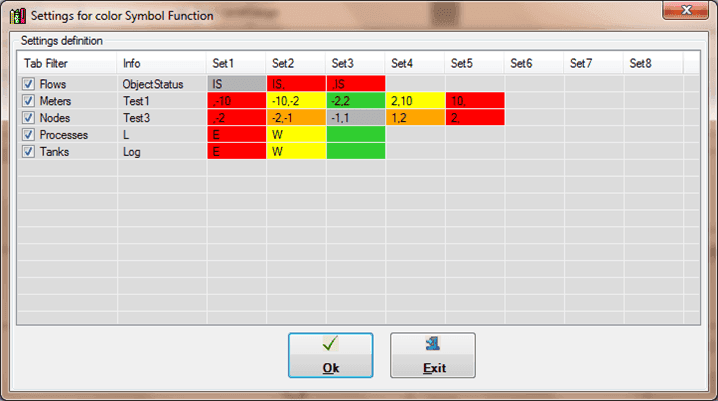
This window displays the colors that have been configured for Attributes to be applied on the display.
The editable columns are described in the following table. Color configuration details can be found in the Configure Format Ranking \topic.
Settings for color Symbol Function window - Editable Columns
Column Name Description Tab Filter This column includes checkboxes that let you control whether or not an Element category should be colored. Info This column displays the name of the Attribute to be configured with color. To apply color to an Element category, check the Tab Filter checkbox next to the Element category.
To select the Attribute of that Element category to be colored, in the Info column, select the Attribute name.
Repeat steps 3 and 4 for all Element category Attributes to be colored.
Click OK to save your changes.
Click Exit to close the window.