Export to a TXT, CSV or XML File
When the Result table is open, SF-ADA allows you to export its data displayed to a text file (.txt), comma separated file (.csv) or extensible markup language (.xml) file.
To export the Result table to a file:
Ensure that the Result table is displaying data. If not, click on a tab (at the bottom of the Result table) that does display data.
Right click anywhere in the table.
An options menu opens.
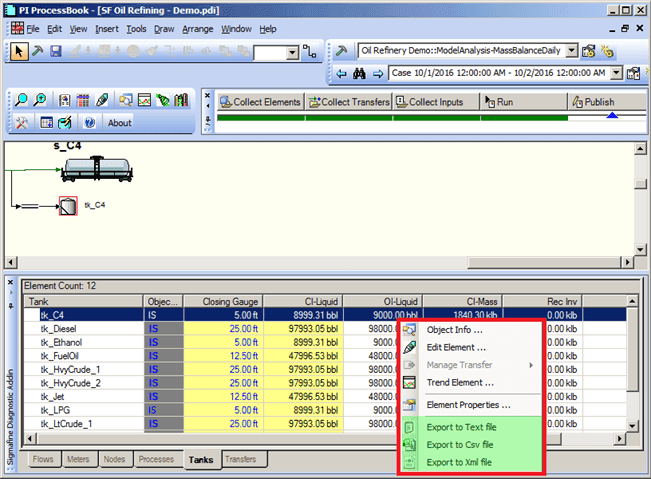
Select one of the following from the menu, depending on how you want to save the data.
Export to Text file: The data is saved to text (.txt) file.
Export to Csv file: The data is saved to a comma separated (.csv) formatted file that can be opened with Excel. Column data is separated with a specific character (the character is read by the User Setting).
Export to Xml file: The data is save to an extensible markup language (,xml) formatted file. Using this format simplifies the possibility of inserting the data in a web page.
A window opens allowing you to select a path and enter a file name for the export file.
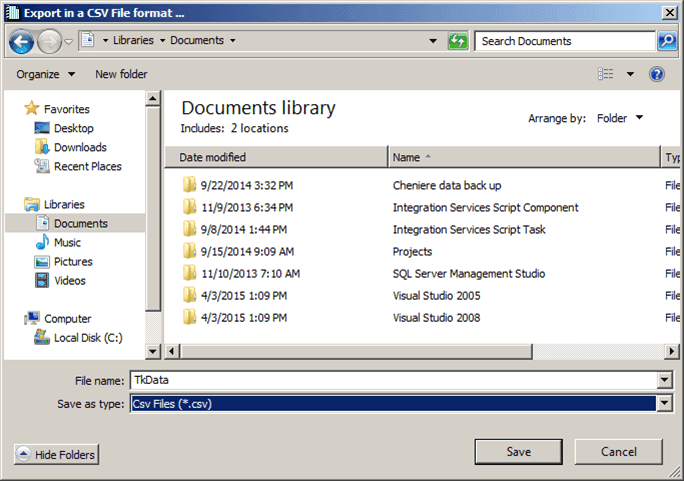
Locate and open the location where you want to save the file.
In the File name box, type a name for the export file.
Click Save to export the data to the file and close the window.
Note: If the tab that is selected at the bottom of the Results table does not contain any data, a warning message appears stating that the export is not permitted for an empty table. You need to select a different tab that displays data , and repeat steps 2 through 6 again.