COM Connector or Data Not Compressed
When COM connectors are present, or when data is not compressed, the SF-ADA Results table window might take a long time to load (several minutes). The extended load time is due to there being a large amount of data to be evaluated, before a single value can be written in a single cell.
To improve the data retrieval performance, you will want to avoid the evaluation process by having SF-ADA take the values directly from the 'Results' tab of the 'Case Properties' window.
In System Explorer, open the SFDiag_Params table.
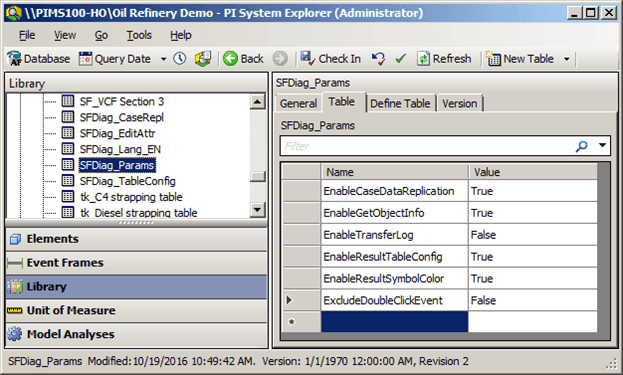
Click on the Table tab if it is not already displayed.
Click in the Name column of the empty row and add the CaseDataReadMethod parameter.
In the Value column for the parameter, type 2 as its setting.
This action instructs SF-ADA to ignore the calculations and instead, take the data values directly from the 'Results' tab of the 'Case Properties' window and display them in the SF-ADA Results table window.
The various parameters and the actions performed on the data by SF-ADA, based on the parameter setting are described in the following table.
Actions taken by SF-ADA, based on the assigned parameter setting
Parameter Action taken when the SF-ADA Results table window is loaded 0 Values displayed are evaluated from raw data or from the adjusted data. 1 Values displayed are taken from the Results tab of the 'Case Properties' window. If the entry is missing in this table, then the value is evaluated according to the previous rule. 2 Values displayed are only taken from the Results tab of 'Case Properties' window. If the entry is missing in this table, “No Data” is displayed instead of the value. If there is no data in the results table, a message appears stating that the Collect Input operation is pending or failed, and asks if you want to proceed.
Select Yes to confirm that you want the SF-ADA Results table window to be loaded according to the
CaseDataReadMethodparameter setting.