Ad Hoc Trending
The Sigmafine Ad Hoc Trend function allows you to display a trend with some specific data from the element (Data Referenced with PI Point).
Prior to using the Sigmafine Ad Hoc Trend function, it is necessary to configure the Element properly using the following guidelines, so that you can see the trend.
- The Attributes must belong to the
SFDiag_Trendcategory. - The Attributes are configured with PI Point Data Reference.
Using Ad Hoc Trending
To use Ad Hoc Trending:
Do one of the following:
Using the SF-ADA toolbar:
Select an Element in the SF-ADA Results window, or select a symbol of an Element in the ProcessBook display.
On the SF-ADA toolbar, click on the
 Sigmafine Ad Hoc Trend button.
Using the right-click menu:
Right-click on an Element in the SF-ADA Results window, or on a symbol of an Element in the ProcessBook display.
Select Trend Element from the menu that appears.
If the following message appears, you must verify the Element configuration, especially the Attribute configuration at the template level.

The trend is displayed instead of the Model display, as shown in the following figure.
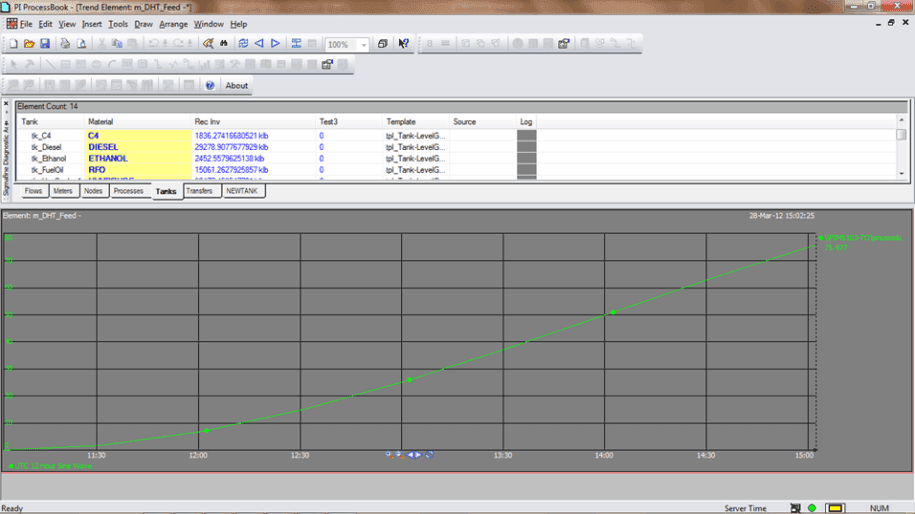
Note: To allow for data to show up in a trend, it is necessary to create a custom Attribute category called
SFDiag_Trend. The data in the graphic are the Attributes inside the category.The Trend is displayed according the following parameters:
- TimeRange = Case interval
- Multiple scale = True
- Maximize = True
- Title = Element: \<AF Element Name>
- When finished viewing the trend, click the window Close button in the upper right corner.