Use Case Data Replication
The Case Data Replication from Previous to Current Case function allows you to copy Attribute data from the previous case (that is linked as per the Case Properties window) to the current case. The Attribute data that is to be copied depends on the configuration in the SFDiag_CaseRepl AF Table. The data could be brought in as an 'Input' or an 'Adjustment' with optional comment.
It is possible to change these configurations for a single run by simply changing the flags on the grid, or saving new configuration settings by using the 'Config' button in the window.
Working with the Case data Replication window
The Case Replication data from Previous to Current Case function is activated from the SF-ADA toolbar
On the Sigmafine Diagnostic Addin toolbar, click the
 Case Data Replication button.
The Case Replication data from Previous to Actual Case window opens.
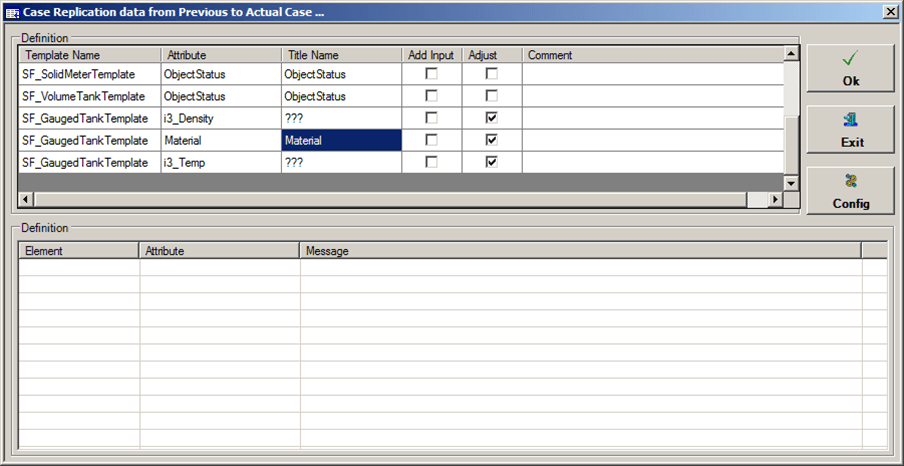
This windows displays only those elements and Attributes involved in the data replication operation.
(Optional) Do either of the following:
Change configuration settings for a single run
If you only want to change the configuration settings for the current run, follow the steps below.
Check the checkboxes for those Attributes you want to replicate.
Ensure that there are no checks in the checkboxes for those Attributes you do not want to replicate.
Click the
 OK button.
The following message appears.

Click Yes to confirm your selections.
Save new configuration settings
If you want to change the configuration settings to be used for all future runs, follow the steps below.
In the Case Replication data from Previous to Actual Case window, click the
 Config button.
This button allows you to change the configuration using an easy interface as opposed to configuring directly from the AF Tables. The configurations you change in the interface are still stored in the AF tables, but you are guided to the correct configuration by specific options in the interface.
Make your selections as prompted.
Save the new configurations.
When the Case data replication is performed, the bottom section of the window shows the detailed information on what is being executed (as shown in the following figure).
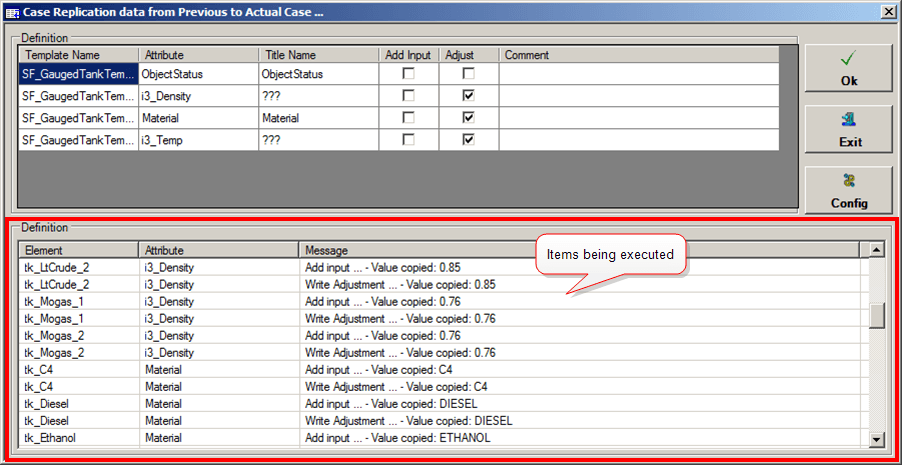
When the run finishes, a confirmation of successful operation Information message opens.

Click OK to close the message window.
To learn more about the configuration aspect, see AF Table: SFDiag_CaseRepl.