Edit the Attribute Configuration
In the Config Result Table window, there is an option that allows you to specify which Attributes can be edited in the running Case. Using the SF - ADA toolbar, you can actually add Input or Adjust values directly in the grid (see Edit an Element for further details).
To edit the configuration of an attribute:
Ensure that you have an editable Attribute selected in the Config Result Table window.
The light yellow background color in a configuration setting box indicates that the setting is editable (e.g., the 'Col. Position' box in the following figure).
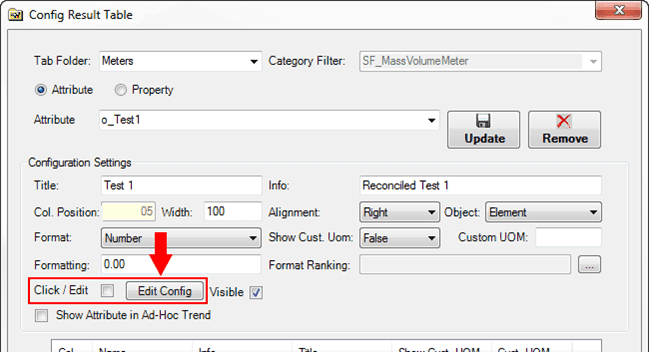
Click on the Edit Config button.
The Edit Attribute Configuration window opens.
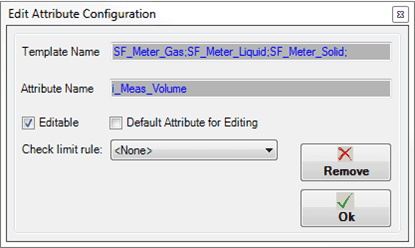
The Template Name and Attribute Name boxes automatically display the templates inherited directly from the configuration.
Check the Editable checkbox in order to allow editing of the attribute.
When checked, adjustments can be made to the Attribute using the Properties for Attribute: [Attribute name] window.
To set this Attribute as the default for editing, check the Default Attribute for Editing checkbox.
When checked, this is the default Attribute that is automatically selected for any adjustment you need to make.
To set or change the Check limit rule, click on the down-arrow and select the setting you want to be used for the attribute.

If anything other than \<None> is selected, a test is performed on the new value that is inserted in the Properties for Attribute: [Attribute name] window.
If you select:
- \<None>: No check is performed.
- Value: Two text boxes display in which you need to enter the possible minimum and maximum values.
- Tag: The 'Zero' and 'Span' values of the configured tag for the Attribute are considered as the minimum and maximum values.
- Attribute: Two additional settings display; An Attribute Min and Attribute Max. You need to select a value for each that corresponds withe the Attributes of the template.
- When finished with your configurations, click the OK button to save them and close the window.