Configure Case Replication
Case Replication allows you to copy some data from the previous to the current Case. For SF-ADA to determine which Attributes and methods (adjust and/or add input) are involved in the replication of data, those Attributes and methods must be configured. This is done through the Case Replication Data from Previous to Actual Case window.
To configure a Case replication Attribute and method:
From the SF-ADA toolbar, click the
 Case Data Replication button.
The Case Replication Data from Previous to Actual Case... window opens.
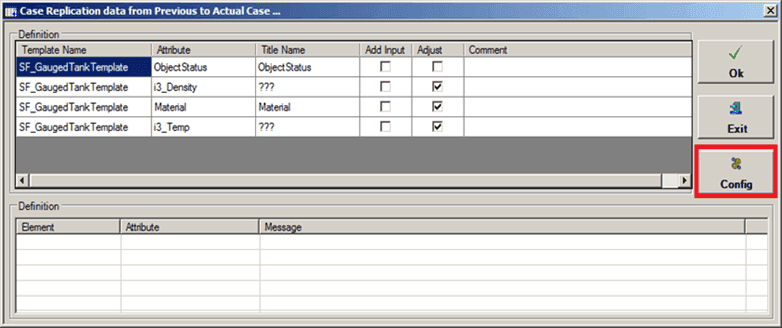
Click the Config button.
The Case Replication Configuration window opens.
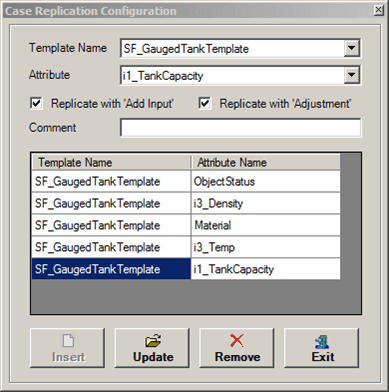
To add a new attribute:
Click the Template Name down-arrow and select the name of the Element template.
Click the Attribute down-arrow and select the Attribute whose value must be replicated.
To copy add-input values from the previous Case to the current, check the Replicate with 'Add-Input' checkbox.
To copy adjustment values from the previous Case to the current, check the Replicate with 'Adjustment' checkbox.
(Optional) If copying adjustment values, you can add additional information in the Comment box.
Click the Insert button to add the new Attribute and method.
Repeat the steps for each Attribute and method you need to configure.
To change an attribute's settings:
Click the Template Name down-arrow and select the name of the Element template that contains the Attribute you need to edit.
Click the Attribute down-arrow and select the Attribute to edit.
To copy add-input values from the previous Case to the current, check the Replicate with 'Add-Input' checkbox.
To copy adjustment values from the previous Case to the current, check the Replicate with 'Adjustment' checkbox.
(Optional) If copying adjustment values, you can add additional information in the Comment box.
Click the Update button to add the new Attribute and method.
Repeat the steps for each Attribute and method you need to edit.
To remove an attribute:
In the Template Name down-arrow and select the name of the Element template containing the Attribute you want to remove.
In the Attribute Name column of the table at the bottom of the window, select the Attribute you want to remove.
Click the Remove button to remove it from the table.
Repeat the steps for each Attribute you need to remove, or steps a through c for each Attribute that resides in a different Template.
When finished, click the Exit button to close the Case Replication Configuration window.