Configure Format Ranking
The fields in the SF-ADA Results Window can be set to have different formatting (font, background, icons) depending on conditions set up in the ‘Format Ranking’ Field of the ‘Config Result Table’. In addition, elements in the ProcessBook Model display can be configured to change color based on those same settings.
When format ranking rules are to be applied, the application tests the following conditions and then applies the color or icon formatting if the conditions are met:
- If the Minimum and Maximum values are defined, and (Value >= MinVal) and (Value < MaxVal), then the Color or Icon is set.
- If the Minimum or Maximum value is omitted and (Value ≥ MinVal), then the Color or Icon is set.
- If the Minimum or Maximum value is omitted and (Value < MaxVal), then Set Color or Icon is set.
 EXAMPLE: Format Ranking Rule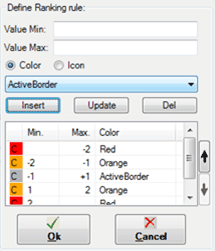
For the format ranking shown above, the behavior of the attribute o_Rec_Test3 for Tank elements is as follows:
- If the value of
o_Rec_Test3is between (-1 and 1), the tank in the display and the corresponding cell in the Sigmafine Results table does not change. - If the value of
o_Rec_Test3is between (-1 and -2) or (1 and 2), the color of the tank in the display and the corresponding cell in the Sigmafine Results table turns orange. - If the value of
o_Rec_Test3is less than -2 or greater than 2, the color of the tank in the display and the corresponding cell in the SF-ADA Results Window turns red.
Add or Change a format Ranking Rule
To configure (define) a Format Ranking rule:
In the Config Result Table window, click the Format Ranking
 ellipsis button.
The Define Ranking rule area displays in the Config Result Table window.
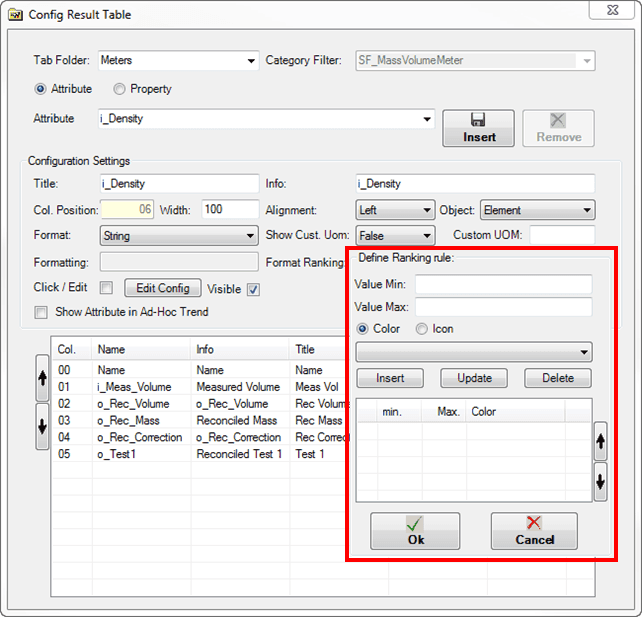
For an existing Format Ranking rule, the Define Ranking rule area displays the current minimum, maximum and color or icon ranking configuration for the selected Attribute or property.
To define a new ranking rule, do one of the following:
In the Value Min box, type the minimum value for the configuration range.
In the Value Max box, type the maximum value for the configuration range.
Select the Color option.
Click on the down-arrow of the box below the Color/Icon options.
Select a color to apply to the min and max range you have entered.
Click the
 Insert button to add the rule to the table.
Repeat these steps for each range you need to add to the ranking rule.
In the Value Min box, type the minimum value for the configuration range.
In the Value Max box, type the maximum value for the configuration range.
Select the Icon option.
Click the
ellipsis button to the right of the box below the Color/Icon options.A window opens that allows you to select an image to use as the icon for the min and max range you have entered.
Select the image to use.
The image name appears in the box as well as under the Color column in the table (as shown in ).
Click the
Insert button to add the setting.Repeat these steps for each setting you want to add to the rule.
To edit an existing ranking rule setting:
In the table of ranking rules, click on the row of the range setting you want to edit.

The Define Ranking Rule area displays the current values for the selected setting.
Use the following guidelines to change the setting's values.


- Value Min: Select the current value in the box and type a new value in its place.
- Value Max. Select the current value in the box and type a new value in its place.
- Color: Click on the down-arrow of the box below the Color/Icon options and select a new color.
- Icon: Click on the ellipsis button to the right of the box below the Color/Icon options, then locate and select a new image to use.
- Move a setting up or down in the list: With the setting row selected, click the Up button to move the setting up one row, or click the Down button to move it down one row.
Click the
 Update button to save your changes.
Repeat these steps for each setting you want to add to the rule.
To delete an existing ranking rule setting:
In the table of ranking rules, click on the row of the rule you want to delete.
Click the
 Del (delete) button.
You are asked to confirm the deletion.
Click Yes.
When finished with your configuration additions/updates, click the
 button to save the new/updated rule.
To see the changes reflected in the SF-ADA Results table, click the
 Sigmafine Result button.
If an Attribute is configured as editable, the column in SF-ADA Results window displays in a light yellow background color, even if conditional formatting is configured for the attribute. Typically, Inputs are configured as editable and outputs are configured for conditional formatting.