Customize Object Info Settings in System Explorer
Object Info settings can be customized by adding specific Attribute categories to an Attribute in System Explorer.
To customize Object Info settings through System Explorer:
In the navigation pane, click on Library to open the Library list.
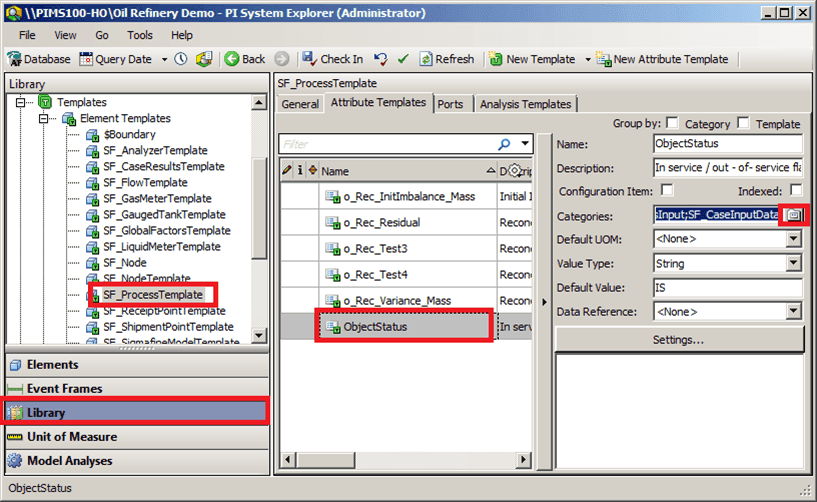
In the Library list, click on Templates to expand the tree.
Click on Element Templates to expand that tree.
Locate an select the template that contains the Attribute you want to customize.
The tabs for that specific Attribute display in the window (as shown in Figure 1116).
Click on the Attribute Templates tab, then select the Attribute you want to customize.
The attribute's settings display in the window (as shown in Figure 1116).
Click on the Categories button.
The Categorize window opens.
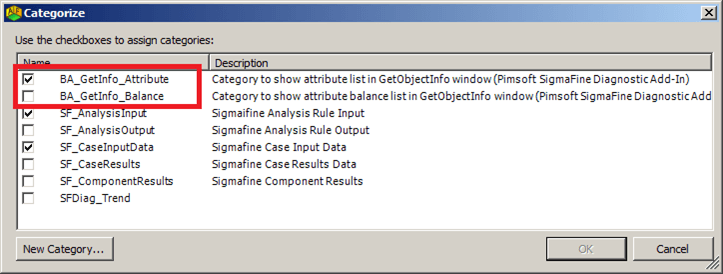
The Categorize window displays all the categories for the selected attribute.
To select a category, check its checkbox.
To deselect a category, uncheck its checkbox.
To create a new category, click the New Category button to open another window in which you can define the new category.
When finished with your customizations, click OK to save then and close the Categorize window.
To have your changes applied, you need to check them in (Check-In).
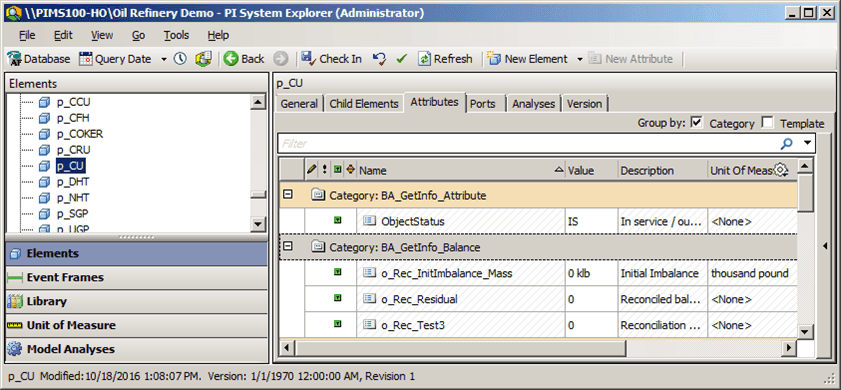
 EXAMPLE: Category displayed for the selected attribute
The following figure displays the 'BA_GetInfo_Balance' category that we had selected in the our example in under step 6.