AF Table: SFDiag_TableConfig
The configuration settings of Sigmafine Results table are saved in an AF Table that is called SFDiag_TableConfig. In fact, all settings saved in this table determines, for each tab in the Results Window, the columns that will be shown and their format (column position, alignment, editable or not). The table can be viewed from the Library > Tables folder in the PI System Explorer.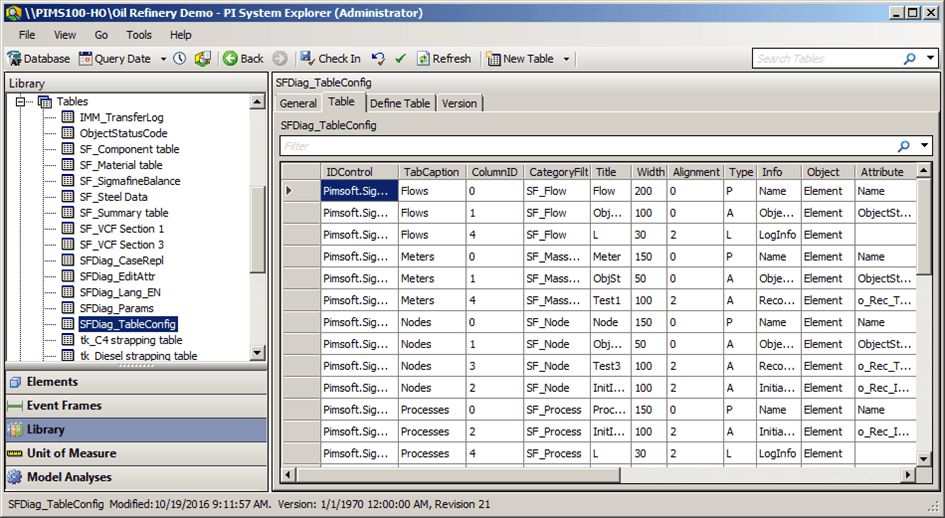
Note: Whenever you edit this table, you must first Check-In the table prior to opening it in SF-ADA. to see the effect of your changes.
The table below provides descriptions for the types of Attributes contained in the SFDiag_TableConfig table along with their settings.
SFDiag_TableConfig Table Columns
| Column Name | Description | Settings |
|---|---|---|
| IDControl | Pimsoft.Sigmafine.Add-In.BalanceApplication | |
| TabCaption | Name of the Tab of the Sigmafine Results table that is applicable to the elements. | Free |
| ColumnID | Column position in the Sigmafine Results table for the corresponding tab | Integer number, not settable it is evaluated automatically. |
| CategoryFilter | AF category for the element | AF Categories list |
| Title | Column Heading | Free |
| Width | Column width | Free |
| Alignment | Alignment type | 0-Left, 1-Right, 2-Center |
| Type | Filter | AFProperty(P), AFAttribute(A), LOGInfo (L) |
| Info | AF Property or AF Attribute used to read the value. | Free |
| Object | Type of Object | Element, Transfer, Source (of Transfer), Destination (of Transfer) |
| Attribute | Name of the Attribute or property in the SF database | Name of property/ attribute |
| CustomUOM | Units of Measure if different from the default one | Units of Measure if different from the default one |
| Format | Value Type | String, Number, Data, Table |
| FormatString | Specific format | Example: 0.00, dd-mm-yy |
| FormatRanking | Conditional formatting See 5.2.2 | |
| Visible | Set if the column is visible or not | True / False |
| Editing | Set if the column is editable or not | True / False |
| SeparateUomColumn | When exporting to CSV if you would like the Attribute value exported defining 1 column for value and 1 column for UOM set to True, if you would like 1 column defined to hold both the value and UOM set to False. | True / False |
Adding the 'SeparateUomColumn' column
If you have upgraded from version 4.6.3.10 or later, you will need to manually add the “SeparateUomColumn” column to your existing “SFDiag_TableConfig” table.
To manually add the 'SeparateUomColumn':
- In System Explorer, navigate to Library > Tables > SFDiag_TableConfig.
- Click on Define Table tab.
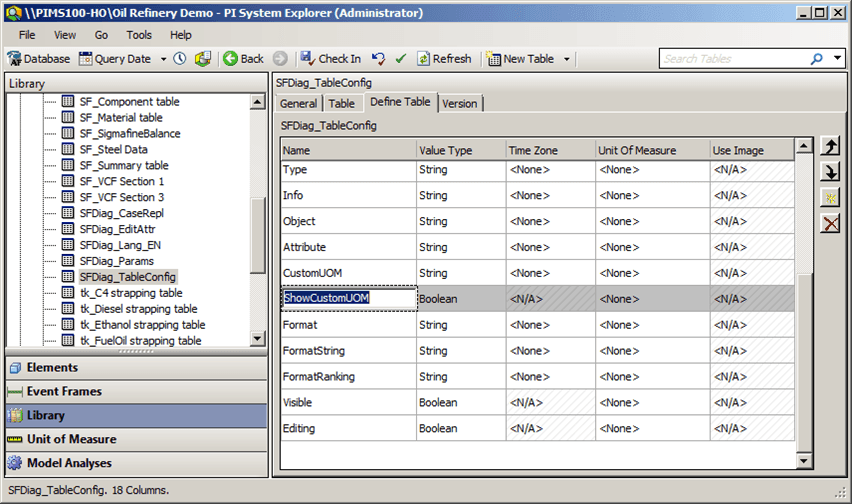
- Right click and select Insert to create a new column.
- Name the column SeparateUomColumn and change the Value Type to Boolean.
- Click on the Table tab.
- Select each row for which you want to have a separate UOM column and switch the new column that you just created to True for that row.