Configure the Results Table
All the information saved in the AF Table SFDiag_Table Config can be configured in the table itself, or by using the SF-ADA toolbar. The following provides configuration steps using the SF-ADA toolbar.
To configure the Results Table:
On the SF-AFA toolbar, click on the
Config Result Table button.
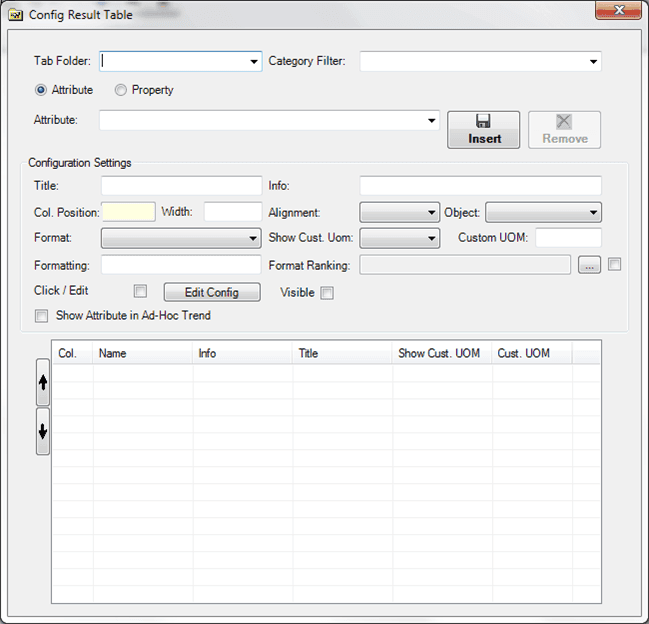
The Config Result Table window opens.

In the Config Result Table window, you can choose which columns to display, along with their format (column position, alignment, editable, etc.), change the actual configuration, or add new tabs.
Note: When more than one format ranking rule is configured for an Element category, a checkbox appears on the right side that allows you to select the default format ranking to be applied for coloring the display.
Use the following SFDiag_TableConfig Configuration Settings table as a guide to make configuration changes and additions.
SFDiag_TableConfig Configuration Settings
Setting Description Tab Folder The name of the tab (e.g., Tank, Meter, Flow, etc.).The ‘Tab Folder’ allows you to select from the tabs that exist in the SF-ADA Results Window.Once a ‘Tab folder’ is selected, the corresponding configuration for the SF-ADA Results Window is shown in the lower part of the window. Category Filter The mandatory first choice. You need to select a category of elements (i.e.: SF_Tank, SF_MassVolumeMeter, SF_Flow etc.,) that will help make the remaining configuration simpler. Attribute/Property (option) Enables the 'Attribute' or 'Property' list box containing the sets of Element Attributes or Element properties related to the selected category.When an Attribute or property is selected, its current configuration in the SF-ADA Result window is displayed.The Attribute box allows you to add Attributes for elements associated with the Tab Folder by selecting the desired new Attribute from a drop-down menu.Use the Insert button to add a new Attribute to the list.You can connect an Attribute to a table (e.g., in the Composition Tracking Result table) by simply selecting 'Table' in the format drop-down menu. Attribute/Property (list box) The list of available Element Attributes or properties does not contain the 'Name' property because it is the key property of the table, and therefore is automatically added. When the name of the Attribute or of the property is selected, the 'Title' and 'Info' boxes are filled with the same value (i.e.: if 'MeasureMass' Attribute is selected, 'Title' and 'Info' are also filled with 'MeasuredMass') but they can be changed. Title The header for the column in the SF-ADA Result window. Info A brief description available in the current window. Col. Position/Width The column position in the Result Window and its width. The first column position ('00') is reserved for the ‘Name’ property. 'Name' must always be the first column in the table.EXAMPLE: 'Name' in column position '00'![Figure 1099: 'Name' setup as the first column (position '00') Alignment Text alignment in the Result table (Left, Center, Right). Object Normally this refers to the Element or transfer; however, for transfers it might be useful to also show data referring to the source or destination. The possibilities are: 'Element', 'Transfer', 'Source', and 'Destination'. Format The data format. Available data formats are 'String', 'Number', 'Date' or 'Table'.You can connect an attribute/property to a table (e.g., in the Composition Tracking Result table) by simply selecting 'Table' in this drop-down menu. Formatting The specific format for numbers and dates. Show Custom UOM and Customer UOM If ‘Show Custom UOM’ is True, you can enter custom Engineering units in the ‘Custom UOM’ box, so that the values are displayed in that unit of measure. Format Ranking Shows the current format ranking setting for the selected attribute/property. The ellipsis button on the right side displays the ‘Define Ranking Rule’ settings in which you can define the minimum and maximum value for the attribute/property and cell color or icon, depending on the value for that attribute/property (see Configure Format Ranking for more details).Note: When more than one format ranking rule is configured for an Element category, a checkbox appears on the right side that allows you to select the rule to be applied as the default. Click / Edit (checkbox) When this checkbox is checked, the column in the result window is displayed with a yellow background. When you click on it, the ‘Properties for Element: XXX’ window is opened to allow making adjustments to attributes. Edit Config (button) When this button is clicked, it opens a new window in which you can configure the attributes/properties that can be adjusted in the ‘Properties for Element: XXX’ window (as explained under Edit the Attribute Configuration). Visible (checkbox) When this checkbox is checked, the selected Attribute is visible in the SF-ADA Results Window. Show Attribute in Ad-Hoc Trend When this checkbox is checked and an Attribute is configured as PI Point Data Reference, clicking on the SF-ADA toolbar Ad Hoc Trend button displays a new PDI with the trend. Up or Down button: Changes the order of the Attribute columns in the Result window.Note: Ensure that you do not move 'Name' from the first column position ('00'). Insert button: Adds a new Attribute in the SF-ADA Result window for the selected Tab Folder. Update button: If the Attribute already exists in the SF-ADA Results Window, the “Insert” button switches to “Update” and updates the configuration. Remove button: Removes an existing Attribute configuration from the Result window. A confirmation window is shown to allow you to continue with the action (Yes) or cancel it (No).Note: If 'Name' is selected and then you click 'Remove', the entire Tab is removed when you confirm the removal in the message box that appears. Click on the Tab Folder down-arrow and select the tab you want to configure.
If adding a new Tab Folder, type the tab name in the Tab Folder box.
If applicable, click on the Category Filter down-arrow and select the AF category for the element.
Select either the Attribute or Property option, depending on which you are configuring.
This enables the 'Attribute' or 'Property' list box in which you can either select an existing attribute/property to edit for elements associated with the Tab Folder, or add a new attribute/property.
Do one of the following:
Click on the Attribute or Property box down-arrow and select the one you want to configure.
In the Configuration Settings area, enter/select whatever configuration changes you need to make, using the SFDiag_TableConfig Configuration Settings table as a guide.
Click the Update button to save your changes.
In the Attribute or Property box, type a name for the Attribute or property you want to add.
In the Configuration Settings area, enter and/or select whatever configuration settings you need to add for the new attribute/property, using the SFDiag_TableConfig Configuration Settings table as a guide.
After making the changes, you can click the
Sigmafine Result button to see the effect of your changes in the Result table.
If an Attribute is configured as editable, the column in SF-ADA Results window displays in a light yellow background color, even if conditional formatting is configured for the attribute. Typically, Inputs are configured as editable and outputs are configured for conditional formatting.