List Transfers
When you select a display to view, regardless of whether or not you have
opened a case, the
 Transfer List icon appears in the command bar.
Use this feature to view transfers recorded in the Sigmafine Database within a specified date range.
With a case open: The transfer list displays transfers that fall within the case's start and end dates.
Without a case open: The transfer list displays transfers within the default date range. You can configure this default period in the Transfer Search Setting found in the SFHub Admin General Settings.
The Sigmafine Database is the one associated with selected display.
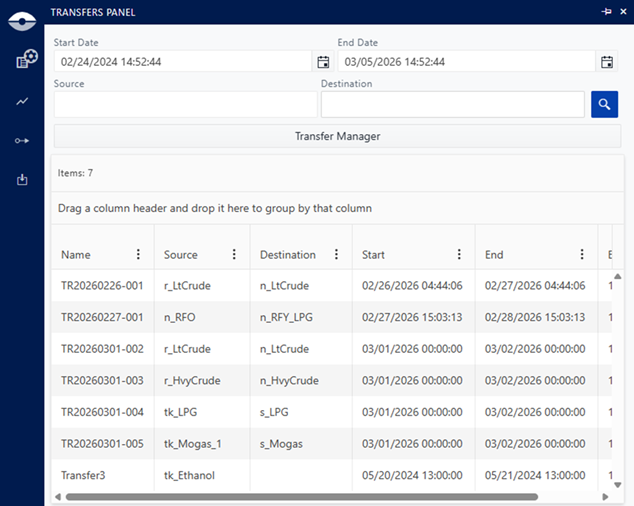
Transfers Panel
| Column | Description |
|---|---|
| Name | Displays the name of the transfer. The transfer may appear in a different format such as the following Hyperlink text: (TR20200506-003) This format indicates that the transfer is in the transfer collection of the selected Sigmafine Case. By clicking on the hyperlink, the transfer will be selected on the display and show the red Pin in the proximity of the source element of the transfer. Normal text: (TR20200506-004) This formation indicates that the transfer falls in the time range of the selected Sigmafine Case, but the transfer has not yet been collected by the Sigmafine Case. Figure 6 shows both formats, along with changes that appear in the display panel. 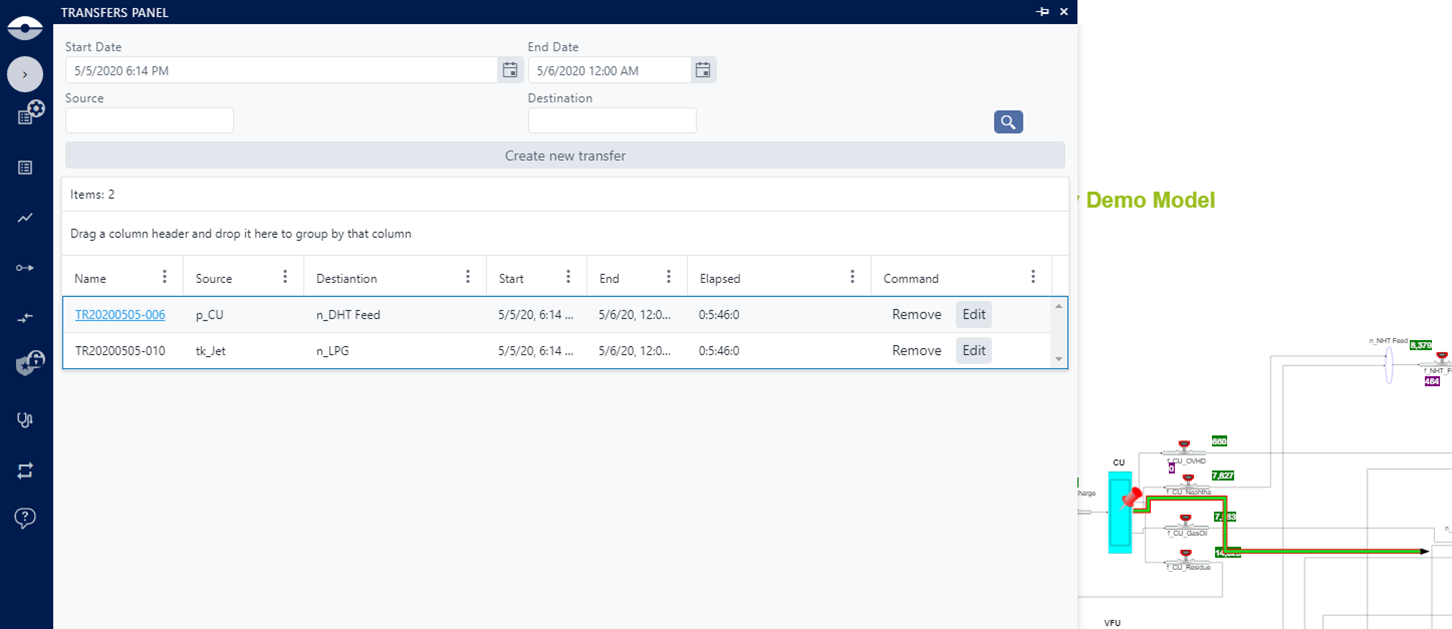 |
| Source | Displays the source Element name. |
| Destination | Displays the destination Element name. |
| Start | Displays the transfer's start date and time. |
| End | Displays the transfer's end date and time. |
| Elapsed | Displays the transfer's duration expressed in Days:Hours.Minutes.Seconds. |
Transfer start and end dates are displayed in your selected time zone. The Sigmafine Database stores these dates in UTC format. If your time zone differs from the Sigmafine Server where the transfer was recorded, the displayed dates may vary accordingly. See Time Zone Setting for more information on how to set your time zone in SFHub Visualizer.
Transfer Manager
Click the Transfer Manager button to open a panel that displays detailed transfer information and provides tools for adding, editing, and deleting transfers.
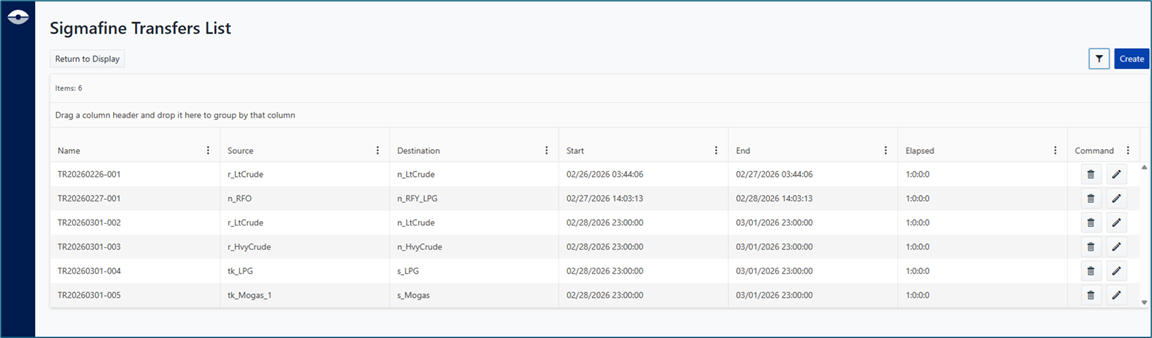
The Transfer Manager panel includes the following sections:
| Section | Description |
|---|---|
| Transfer List | Displays a list of transfers that match the specified filter criteria. The list includes the transfer name, source and destination elements, start and end dates, and elapsed time. |
 | Create transfer button allows you to add a new transfer. When you click the button, the Create Transfer dialog opens, where you can specify the transfer's name, source and destination elements, start and end dates. |
 | Delete transfer button allows you to delete a transfer. |
 | Edit transfer button allows you to edit the transfer. When you click the button, the Edit Transfer dialog opens, where you can modify the transfer's name, source and destination elements, start and end dates. |
Filter Transfers
You can use the filters in the area above the list to narrow the scope of the list. Filter options are; Start Date, End Date, Source and Destination.
Start Date / End Date: Allows you to specify start and end times for the search time period. The list of transfers that overlap the specified time period will be returned.
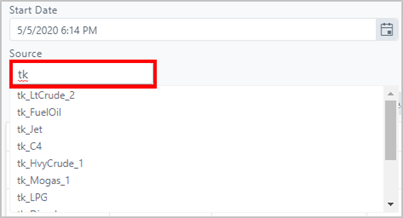
Source: Allows you to filter the transfers by source element. The text box automatically displays a list of the possible element results when you start typing.
Destination: Allows you to filter the transfers by destination element. The text box automatically displays a list of the possible element results when you start typing.
Both the Source and Destination filters are supported by the SFHub search engine. This allows you to search not only by Element Name but also by template, category and expression (see Search Features for more information). Therefore, if you are looking for a specific element, you simply type its name and the system provides possible matches.
EXAMPLE: Filter possible matches based on partial Element name
In our example, we wanted to find all source Elements beginning with "tk".
Filter possible matches based on partial name
If you are looking for a specific type of element, simply type the element type in the box, and the system provides possible matches.
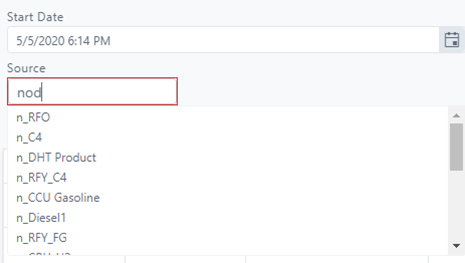
EXAMPLE: Filter possible matches based on Element type
In our example, we wanted to find all source Elements of the "nod" type.
Filter possible matches based on Element type
Last, if you are looking for elements that match specific conditions, you simply type the expression, and the system provides possible matches.
EXAMPLE: Filter possible matches based on specific conditions
In our example, we wanted to find all node source Elements in which test 3 had a result greater than 0.
Filter possible matches based on specific conditions

Transfer list - Sort, Filter and Column Customization
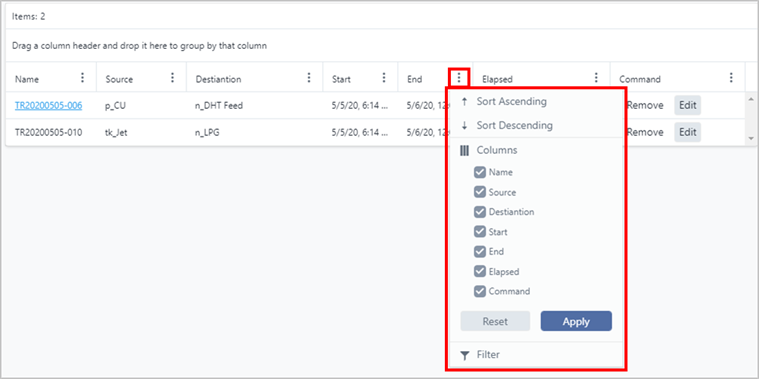
The Transfer list can be sorted by clicking on the column header or by clicking the vertical ellipsis to open the Column Menu, and selecting Sort Ascending or Sort Descending from the menu.
You can customize the list columns by showing the columns you want displayed and hiding those you do not want displayed. See Select Columns to Display for the instructions.
Yiu can filter the column content by clicking the funnel icon in the column header to open the Filter menu, and selecting the filter options you want to apply.
Column Menu - Sort and column customization options example