Create / Edit Transfer Panel
The Create Transfer panel and Edit Transfer panel are used to create a new transfer or edit an existing transfer, respectively.
The Create / Edit Transfer panel is accessible from the following entry points:
- The Transfer Manager panel, by clicking the Create Transfer or Edit Transfer buttons.
- The element's tool-tip, by clicking the Create Transfer button.
- The Detail Panel, by clicking the Create/Edit Transfer button.
The Create / Edit Transfer panel is organized into sections (General and Attributes tabs) that allow you to set or change the transfer's base information such as name, description, start time, end time, source element and destination element, as well as other transfer attributes.
Create/Edit Transfer Panel
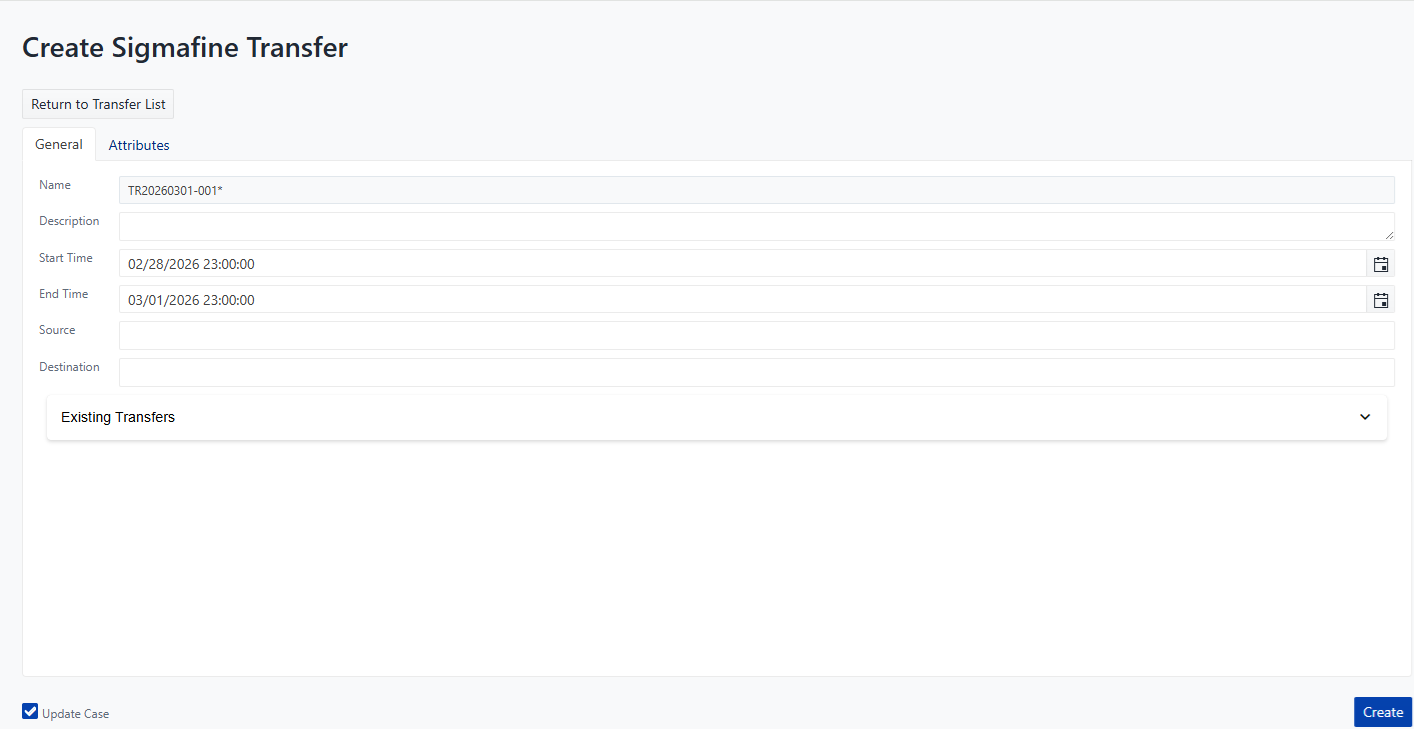
General Tab (Transfer Properties)
This section allows you to set or change the transfer's base information such as; name, description, start time, end time, source element and destination element.
Any Change to a transfer property is recorded in the Sigmafine database regardless of it has been performed in the 'In Database' or 'In case' tabs. The only difference is that if it is performed in the 'In Case' tab, the Sigmafine Case is checked-out, in order to collect the changed transfer again in the selected Sigmafine Case, and the display is updated in accordance with the changed property.
When modifying a transfer's source, destination, start date or end date, please see SFHub Managed Transfer Component, if you are using the Managed Transfers feature to automatically manager transfers.
Start Time and End Time
When you create a transfer, the Start Time and End Time fields are pre-filled according to the Start Time and End Time of the selected Sigmafine Case if you have a Case loaded in the display, or with the current date and time if you do not have a Case loaded in the display.
Transfer start and end dates are displayed in your selected time zone. The Sigmafine Database stores these dates in UTC format. If your time zone differs from the Sigmafine Server where the transfer was recorded, the displayed dates may vary accordingly. See Time Zone Setting for more information on how to set your time zone in SFHub Visualizer.
When you create a transfer and your personal settings are configured to use a different time zone than the Sigmafine Server, you must pay attention on the transfer start/end time to be consistent with Sigmafine Server time zone.
Example:
if your time zone is GMT+1 and the Sigmafine Server time zone is GMT, then if you set the transfer start time to 12:00 AM, the transfer start time will be 11:00 PM (GMT time zone).
Update Case check-box
This check-box appears enabled only when you create or edit a transfer in the context of a Sigmafine Case (you have loaded a Case in the display).
Update Case unchecked
If you are creating a transfer, then it is created in the Sigmafine database, but the Sigmafine Case is not checked-out (the Collect Transfers needs to be re-executed to collect the created transfer in the selected Sigmafine Case), and the display is not updated in accordance with the created transfer.
if you are editing a transfer, then the change made on the transfer attributes are recorded in the Sigmafine database only, and the Sigmafine Case is not affected by the change.
Update Case checked
If you are creating a transfer, then it is created in the Sigmafine database, and the Collect Transfers is automatically re-executed to collect the created transfer in the selected Sigmafine Case, and the display is updated accordingly. The Sigmafine Case will result to be checked-out.
if you are editing a transfer, then the changes made on the transfer attributes are recorded in the Sigmafine Case as adjustments (the original attribute values keeps unchanged on the database). The Sigmafine Case will result to be checked-out.
Existing Transfers section
The Existing Transfers sub-panel displays the existing concurrent transfers on the source or destination element of the transfer that is being created or edited.
The Existing Transfers sub-panel is populated only when you create or edit the transfer in the context of a Sigmafine Case (you have loaded a Case in the display).
When modifying a transfer's source, destination, start date or end date, please see SFHub Managed Transfer Component, if you are using the Managed Transfers feature to automatically manager transfers.
Attributes Tab
The Attributes sub-panel displays all the transfer attributes that are allowed to be set or changed, for any of the transfer's attribute values.
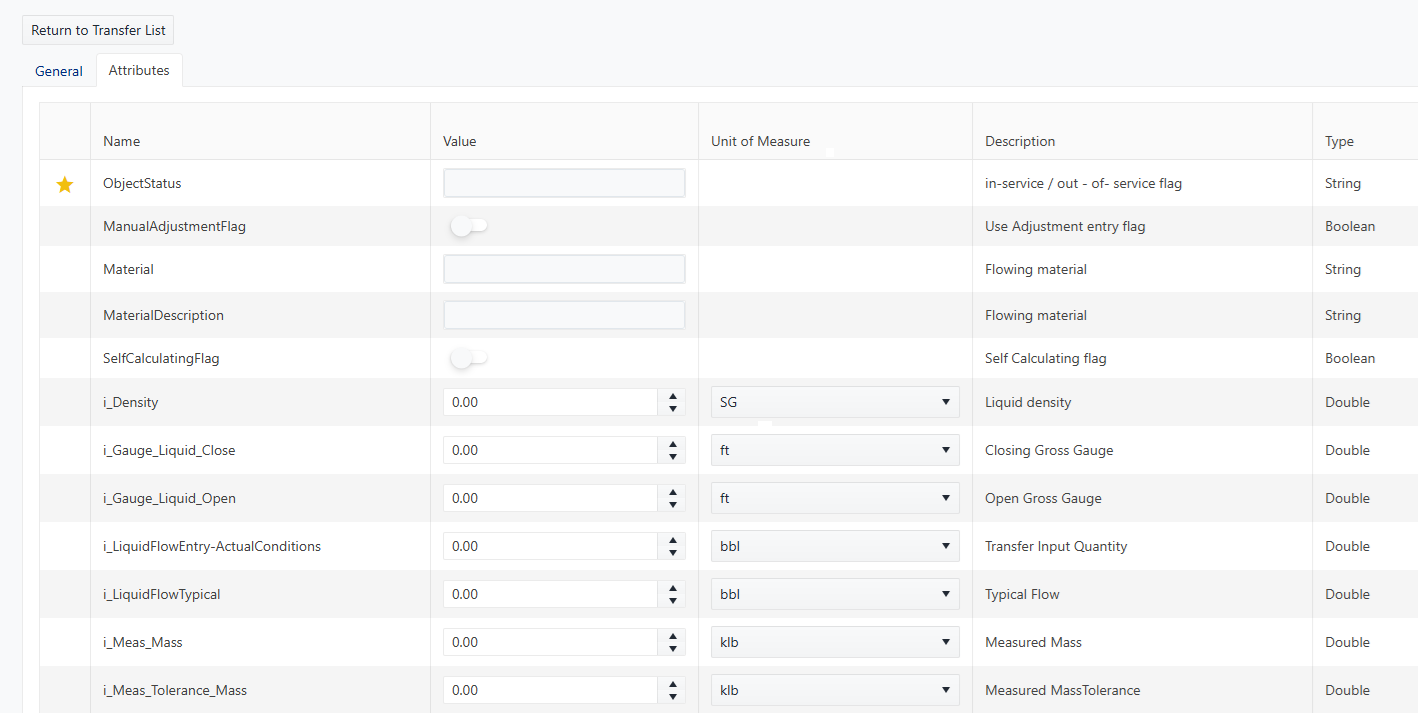
The Attributes list does not show attributes that are configured with a data reference. If you try to edit the value of such attribute, you will receive an error message advising you that the change cannot be recorded on the transfer attribute because a data reference is configured on the attribute. However, the transfer is created or updated, and the attribute keeps the value returned by the data reference.
The attributes marked with a yellow star are the ones that are configured as quick edit attributes in the user settings.
The value field of each attribute is pre-filled with the current value of the attribute, according to the context where the Create or Edit transfer panel is opened from.
For example,
- if the panel is opened from the Detail Panel of a transfer that is collected in the selected Sigmafine Case, the attribute values are pre-filled according to the values recorded in the context of the selected Sigmafine Case (Results or adjustments).
- If the panel is opened from the Transfer Manager without opening a Case, the attribute values are pre-filled according to the original values recorded in the Sigmafine database.
You can change the attribute values and save the changes. The way the changes are recorded depends on the context where you have opened the Create or Edit transfer panel from, as described in the following sections.
The Unit of measure column indicates the default unit of measure configured for each attribute if any.
Even if you change the unit of measure in the attribute value field, the change will not be recorded. The attribute value will be converted and recorded according to the default unit of measure configured for the attribute.
What Happens When You Create a Transfer?
When a transfer is created, it is recorded in the Sigmafine database regardless of whether it has been created under the 'In Database' or 'In case' tab. The only difference is that if the transfer is created under the 'In Case' tab, the Sigmafine Case is checked-out, in order to collect the created transfer in the selected Sigmafine Case; the display is also updated accordingly.
When the transfer creation is requested in the context of a Sigmafine Case (a Case was loaded in the display), SFHub Visualizer pre-fills some transfer's properties, in order to facilitate the operation like:
Transfer Start/End time
They are pre-filled according to the Sigmafine Case Start/End Time, and you can change the proposed dates.
Source/Destination
When the transfer creation is activated from an element's tool-tip or the Detail Panel, the transfer source element is pre-filled according to the selected element. When the selected element is a Shipment Point, it is proposed as a destination.
The create transfer allows you to set any of the transfer attributes using the Quick Edit or Attributes section. In some circumstances, you might receive an error message advising you that a value cannot be recorded on the transfer attribute because a data reference is configured on the attribute.
Saved with Errors message

However, the transfer is created, and the attribute keeps the value returned by the data reference.
What Happens When You Edit a Transfer?
When a transfer is changed using the 'In database' optional tab, changes to the transfer attribute values are recorded on the Sigmafine database.
When a transfer is changed using the 'In case' optional tab, changes to the transfer attribute values are recorded on the Sigmafine Case as adjustments.
How the Transfer Panel Works
The following table provides information on how the transfer panel works, based on whether or not a Case has been loaded in the display.
How the Transfer Panel Works
No Case selected scenario
| Action | On Database only |
|---|---|
| Create | The Transfer is created on the Sigmafine database. |
| Edit property | The change is recorded on the transfer database and it is reflected in any Sigmafine Case where the transfer is collected. |
| Edit Attribute value | The change is recorded on the transfer database. The changed attribute value is reflected in any Sigmafine Case where the transfer has been collected and the attribute value has not a result recorded. |
Case selected scenario
| Action | On Database | On Case |
|---|---|---|
| Create | The transfer Start/End time are proposed according to the time-range of the selected case. The Transfer is created on the Sigmafine database. | The transfer Start/End time are proposed according to the time-range of the selected case. The Transfer is created on the Sigmafine database. The Collect Transfers is automatically re-executed, and the display is updated. |
| Edit property | The change is recorded on the transfer database and it is reflected in any Sigmafine Case where the transfer is collected. | The change is recorded on the transfer database and it is reflected in any Sigmafine Case where the transfer is collected. The Collect Transfers in current Case is automatically re-executed, and all the transfer results are invalidated and removed. |
| Edit Attribute value | The change is recorded on the transfer database. The changed attribute value is reflected in any Sigmafine Case where the transfer has been collected and the attribute value has not a result recorded. | The changed value is recorded on the Sigmafine Case as an adjustment. |
Error Messages
Press the Save button to save the changes made to the transfer properties and it may return the following error messages:
Invalid Source or Destination values
This error message appears when you set a source or destination value that is not valid (empty or not existing element).
Start Time is later than End Time
This error message appears when you set a Start Time that is later than the End Time.
Attributes: 'Attribute name' not set, pluging is configured
This error message appears when you try to save a transfer where you set a value for an attribute that is configured with a data reference.
When you receive this error message, the transfer is created or updated, and the attribute keeps the value returned by the data reference.