Delete a Transfer
Transfers can be deleted from following SFHub panels:
- Transfer List Panel (Transfers Panel)
- Element Tool-tip Panel
- Element Detail Panel
When a transfer is deleted, it is permanently removed from the Sigmafine database and from all the Sigmafine Cases where the transfer is collected. Once deleted, the transfer cannot be recovered even if Case undo-checkout is performed. Please make sure you want to permanently delete the transfer before confirming the deletion.
If the transfer you want to delete is involved in Sigmafine Cases are currently selected by one or more other users, SigmafineHub automatically executes the "Collect Transfer" and updates the related displays, reflecting the change.
The delete transfer action shows a confirmation panel, where you can click Delete to permanently remove the transfer, or click Cancel to ignore the deletion.
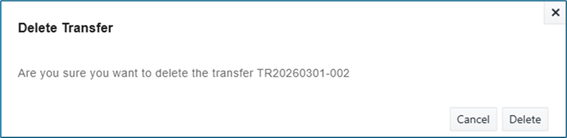
Delete a Transfer from the Transfer List Panel
To delete a transfer from the Transfer (List) panel:
Click the
 Transfer List icon.
The Transfers Panel opens.
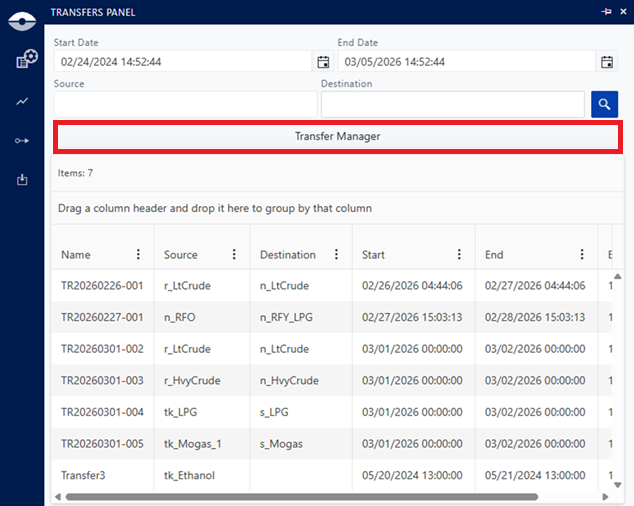
Click Transfer Manager button.
The Sigmafine Transfer list opens.
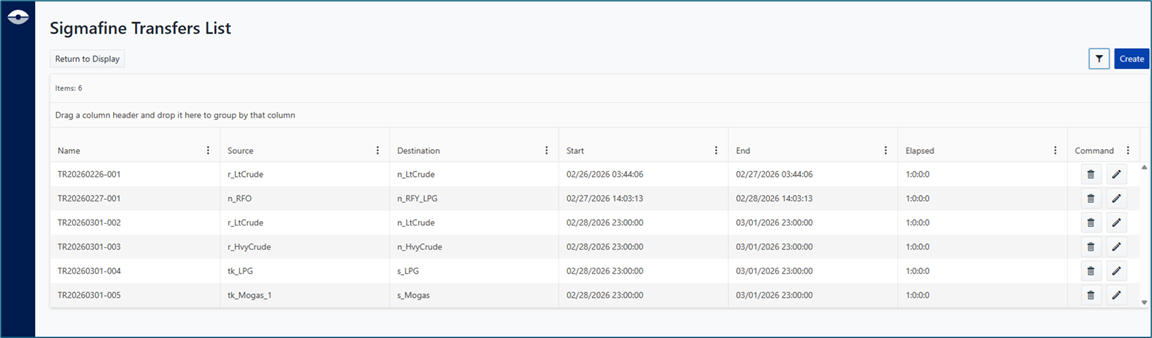
Click the Delete button
 of the transfer you want remove.
Delete a transfer from the Tool-tip Panel
While working on a Sigmafine Case, when the tool-tip is activated from a transfer element, the Remove Transfer Icon in the tool-tip is enabled.
To delete a transfer from the tool-tip panel:
Hover your mouse over a 'Transfer' element on the display, to open the tool-tip panel.
Tool-tip panel - Remove Transfer
Click the Remove Transfer icon, as shown in the figure above.
Delete a Transfer from the Detail Panel
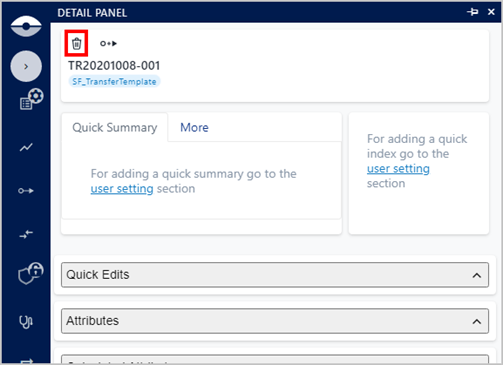
When the element displayed in the Detail panel is a transfer, the Remove Transfer icon is enabled.
To delete a transfer from the Element Detail Panel:
Click the transfer element on the display to open the Detail panel.
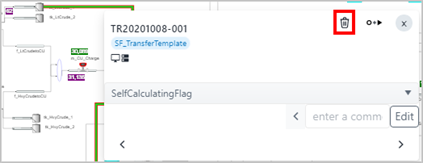
Click the Remove Transfer icon, as shown in the following figure.
Delete Transfer from the Element Detail Panel