Show Hidden Layers
To show one or more layers that have been hidden:
Click on Layers at the bottom bar.
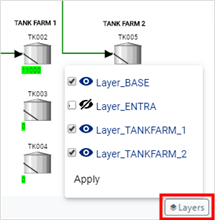
The layers configured in the display and model are listed, as shown in the following figure. The list includes both active and inactive layers.
Active and inactive layers
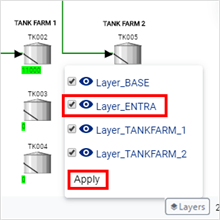
Click on the checkbox of the hidden layer you want to show, as shown in the following figure.
Re-checked layer
 Note
NoteWhen you change the view of one or more layers in a display, it becomes the new default for everyone that views that display.
Repeat the step for each hidden layer you want shown in the view.
Click Apply to see the results in the display.
The selected layers are applied to the case, automatic "Collect Elements" and "Collect Transfers" are performed and the display is refreshed, showing only the elements belonging to active layers.
NoteAll symbols not associated with a layer are, by default, associated to the default layer named "LayerDefault". The default layer has no effect on the case.