Status Bar
The Status Bar, located at the bottom of the Display panel, provides information about the current state of the display. It is organized in three sections; connection status, display information and action buttons.
Display panel - Status Bar
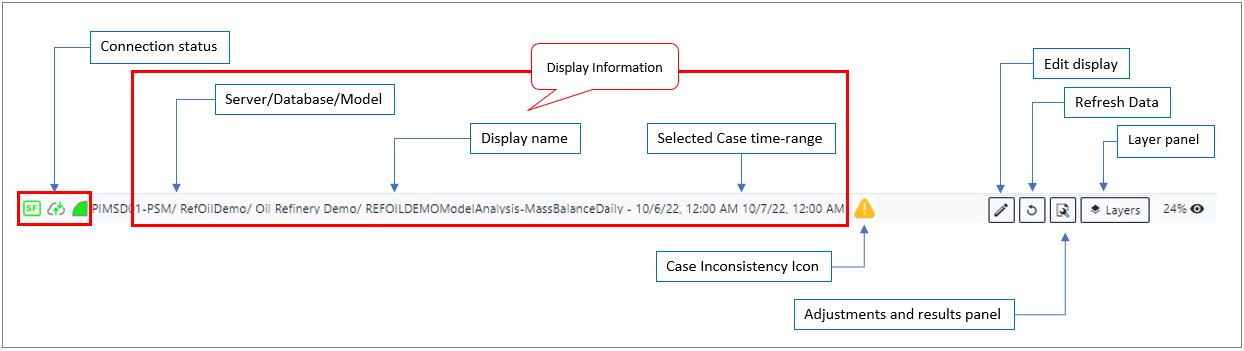
The following table provides descriptions for the details in each of the sections of the Status Bar.
| Information Item / Icon | Description |
|---|---|
| Connection Status | |
 (Sigmafine) | Indicates whether you are connected with the Sigmafine Server referenced by the open display. When the icon is red, it means you are not able to connect to the Sigmafine Server. |
 (Web Sockets) | Indicates the connection of the web sockets. When the icon is red, it means the browser was not able to establish the web socket connection with the SigmafineHub Application Server. |
 (Network) | Indicates the general status of the physical network connection with the SigmafineHub Application Server. |
| Display Information | |
| Display name | Shows the actual name of the display currently shown in the Display panel. Click on the display name to navigate to another display, if your display supports this feature. |
| Analysis name | Shows the name of the Analysis for the display currently shown in the Display panel. |
| Case time range | Shows the selected range for the Case of the display that is currently shown in the Display panel. |
| Other indicators | |
 (Case Inconsistency) (Case Inconsistency) | The Case Inconsistency icon indicates that the Case data is no longer consistent, and a case runner action needs to be re-executed. For example: If someone creates a new transfer in the Sigmafine database that falls in the Case time range, then the Collect Transfers needs to be re-executed. Another example is if an element attribute has been changed by someone else, then the Collect Inputs needs to re-executed in order to get the correct inputs results. |
| Edit Display (button) | Allows you to open the display in authoring. |
| Refresh Data (button) | Allows you to refresh the display data. Note that SFHub Visualizer automatically refreshes the display when changes occur, however, you can use this button at any time to force a refresh. |
| Adjustment and Results Panel (button) | Opens an Audit panel in which all case adjustments and case results are shown for the selected Sigmafine Case. |
| Layers (button) | Opens a list of the layers configured in the display. See View Layers for more details. This button is only visible when the display uses layers. |
| number% (Zoom) | Indicates the current zoom factor being used in the display. You can click on the number to quickly change the zoom factor. See Zoom In / Out for more details. |
When you open one or more reports, the SFHub Visualizer status bar displays additional options (as shown in the following figure) that allow you to manage the report panel.
Status Bar - Additional Report icons

The following table provides descriptions for the details in each of the sections of the Status Bar.
| Information Item / Icon | Description |
|---|---|
| reports | Reports opens a list of the current reports that are open, allowing you to select one. |
 (Maximize/Minimize) (Maximize/Minimize) | The Maximize/Minimize icon allows you resize the Report Panel to full width or hide it (minimize). |