Pan Around a Display
The Zoom features were designed to allow you to increase specific sections of a display to view the details. However, as you increase the size of a display, the whole display is increased. Therefore, you need a way to move the display within the Display panel so that you can find and view the inputs and outputs you want to review. This is purpose of the "Pan" feature; to provide a means for moving the whole display around the Display so you can view its various sections. The are two ways in which you can pan the display; using the mouse scroll method or the mouse drag method.
Using the Mouse Scroll Button to Pan Around the Display
Using the mouse scroll button you can easily pan up and down the screen, while using your Shift key in combination with your mouse scroll button, you can pan left and right.
- To scroll up, roll your mouse scroll button forward.
- To scroll down, roll your mouse scroll button back.
- To scroll left hold down the Shift key (on your keyboard) and scroll your mouse button back.
- To scroll right, hold down the Shift key (on your keyboard) and scroll your mouse button forward.
Using the Mouse Drag Method to Pan Around the Display
To use the mouse drag method:
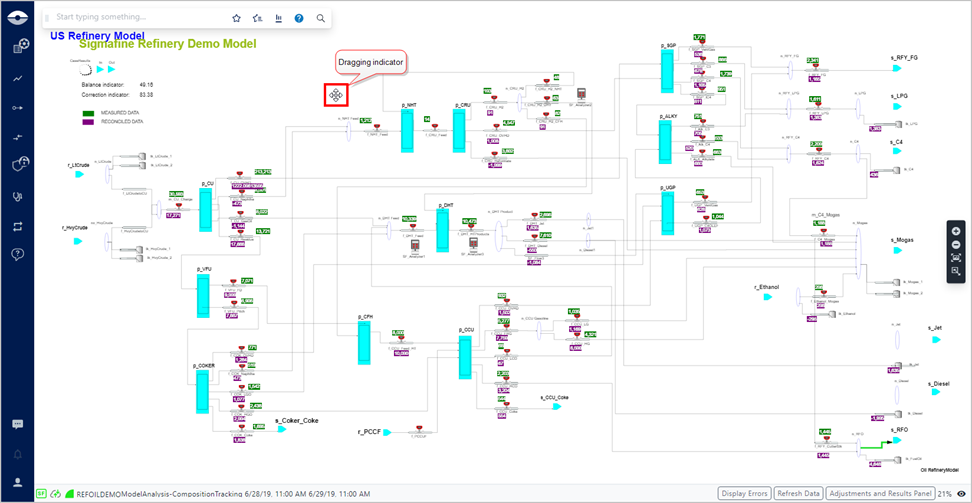
In the Display panel, click and hold your left mouse button over an area of the display.
While holding the mouse button down, drag in any direction across the viewing area to move a different section of the display into view.
Display Dragging indicator
When you have found the section you want to review, release your mouse button.
To move to another section of the display, repeat the steps.