Hide Layers
You can hide layers for any reason, though most commonly this feature is used to exclude certain layers when running an analysis, so that results show only the data you want to focus on. When a layer is hidden, it is automatically excluded from analysis.
To hide a layer:
Click on Layers in the bottom bar.
The layers configured in the display and model are listed (as shown in the following figure).
Active layers
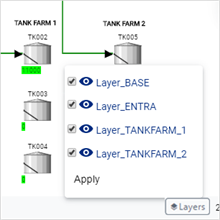
Click on the checkbox of the layer you want to hide, to remove its check (as shown in the following figure).
Unchecked layer
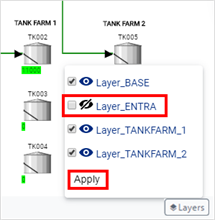
Repeat the step for each layer you want to hide from view.
Click Apply to see the results in the display.
The selected layers are applied to the case, automatic "Collect Elements" and "Collect Transfers" are performed, and the display is refreshed to show only those elements belonging to the active layers.
(Optional) Run the Workflow steps (see Run a Case Analysis), to view the results of the analysis.
NoteThis step is only needed if you hide the layers to run an analysis.
EXAMPLE: Excluding Tank Farms from a Case Analysis run
The following is an example of how you would exclude tank farm layers when running a Case Analysis. In this example, we hid the Layer_TANKFARMS_1 and Layer_TANKFARMS_2 layers so that you could see the difference between when layers are shown and when they are hidden.
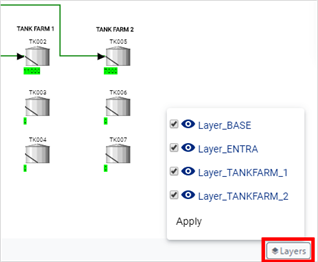
First we clicked on the Layers option to display the layers configured for the selected Case, as shown in the following figure.
The Case active layers
Notice how all the layers for the selected Case are appearing in the display, as shown in the following figure.
All Case layers appear in the display
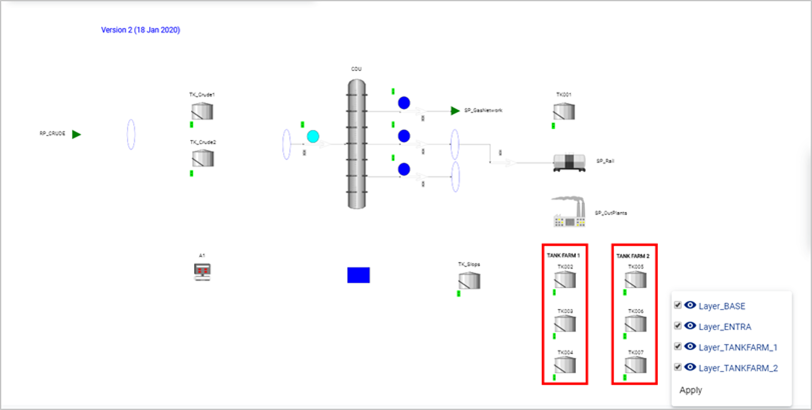
Pay close attention to the TANK FARM elements as we progress through the steps.
Next, we unchecked the Layer_TANKFARM_1 and Layer_TANKFARM_2 layers checkboxes (as shown in the following figure) to exclude them from the analysis.
Select Case layer(s) to exclude
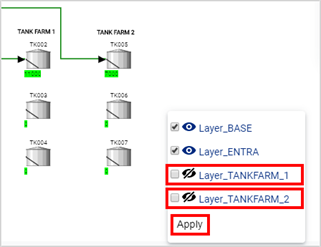
Then we clicked Apply.
Notice how the Layer_TANKFARM_1 and Layer_TANKFARM_2 layers in the following figure no longer appear on the display.
Layers no longer appear in the display
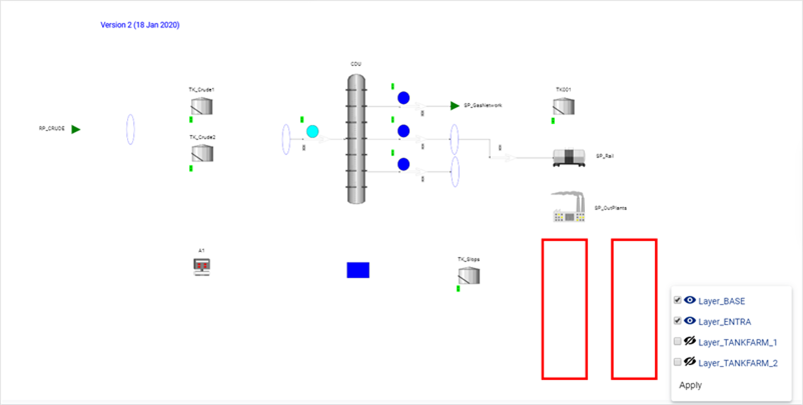
Last, we ran the Workflow steps (see Run a Case Analysis), to view the results of the analysis, excluding the hidden layers.