Standard Security Model Initialization Completed
After installing the IF Server, a window should open stating “IF Standard Security Model Initialization Completed.” (As shown in the following figure.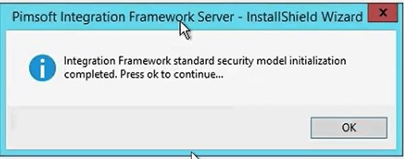
- Click OK to close the message window.
- Using Windows Explorer, locate the
Pimsoft\IF\Repositoryfolder.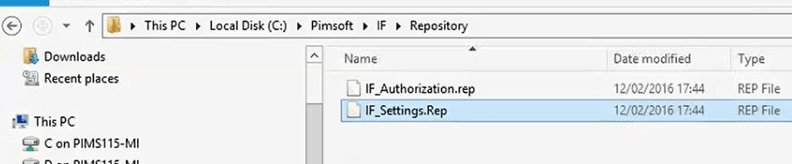
- Check the 'Repository' folder to ensure that it contains both the IF_Authorization.rep and IF_Settings.rep files (as shown in Figure 1458).
- If the files are missing, you need to manually add them by running the security.exe file from a Windows command prompt.
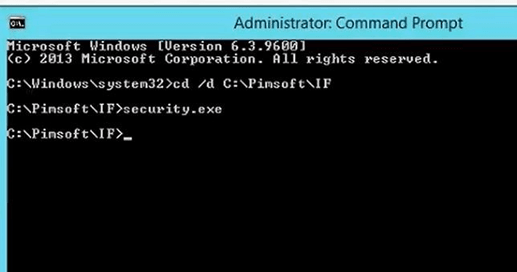
- Open the Command prompt window as an Administrator.
- Use the Windows Change command (CD) to go to the IF folder.
- Run the security.exe file.
- Exit the Command prompt window.