Adding a Dataset
Datasets are usually tables obtained as a result of a query or extraction of the external system to which you are connected.
When you add a Dataset, you are basically implementing a new set of data (it can be an input or an output request) for an already connected system, through a Connector. Each dataset must be created under a connector, as it inherits the connection properties (system coordinates and account log on policy) that are defined in the connector. Configuration of the Dataset is also based on the type of connector it is created under.
Note: When creating a new Dataset, ensure that the external system is up, running and ready to run the query or request. You cannot create and define a new Dataset without a valid connection to the external system.
To add a new Dataset for a target system:
Run the Integration Framework Configurator.
Click on your Windows Start button to display the list of installed software applications.
From the list of software applications, select Integration Framework > Configurator.
The Integration Framework - Configurator window opens.
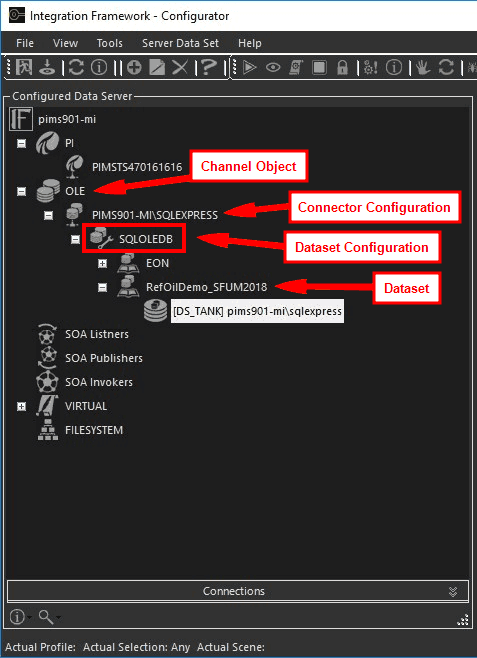
The Configured Data Server list displays all the possible connector types for each server, based on the license stipulations. For example; if you have a license for only OLEDB and Sigmafine, then only OLE and PI/AF connector types are displayed.
From the Configured Data Server list, select the Channel Object (the type of the Connector) for the target system.
Select the Connector that represents the link with that external system.
Right-click on the Connector and select Add.
For OLE the procedure is a little bit different:
Once you have selected the Connector, then select: OLEDBDriver > Catalog (User).
Right click on the Catalog (User) and select Add.
A new instance of the selected Dataset type (depends on the Connector type selected) is created and loaded. IF displays the specific Dataset window in which you can setup the Dataset parameters. The parameter rules vary, from dataset to dataset, as they are based on the selected connector type.
Enter all the parameters required for the new Dataset.
To enter the parameters for the most commonly used datasets for IF, please see the associated \topic.
- PI/AF Dataset
- OLEDB Dataset
- FILE Dataset
- SOA Invoker Dataset
- SOA Listener Dataset
- SOA Publisher Dataset
- Adding an Integration Rule (VIRTUAL Dataset)
In the toolbar, click on the
 Test icon to test the connection.
In the toolbar, click the
 Save icon to save your parameters settings.
When finished, the new object is listed under the specific Connector element.
Note: Using your old system as reference, you need to configure each dataset with their respective connectors as defined in your old system. These may be in the form of queries from an OLEDB data source, or tables of data in a specific file in some directory on your machine. Your old system should have these configurations set.
 EXAMPLE: Create a new SOA Invoker Dataset for IF
If you wanted to create a new SOA Invoker Dataset for Integration Framework, you would perform the following steps.
Open Integration Framework Configurator.
Select the SOA Invoker Channel Object.
Select an existing and valid SOA Invoker Connector.
Right-click on the selected connector and select Add.
Insert the parameters needed by the SOA Invoker request.
In the toolbar, click the Test icon.
Click the Save icon.
The new object would then be listed in the main tree under the “SOA Invoker” Connector. The new SOA Dataset is also created with the name used for this specific instance of SOA Invoker Dataset in step 5.