Adding a Connector
Connectors are the basic objects that connect Integration Framework (IF) to external systems. Once a connector has been defined, IF then manages the connection, as well as any possible errors encountered during the communication and any reconnection options.
The following are the settings you will need to configure in your new IF environment:
- Name or IP of target system
- Connection or Log on credentials
- Any Third-party system specific parameters
Note: Prior to adding a new Connector, you must first ensure that the connector is up, running and ready to accept a connection. You cannot define a Connector without testing and validating its connection against the external system.
Adding a Connector
To add a new Connector:
Run the Integration Framework Configurator.
Click on your Windows Start button to display the list of installed software applications.
From the list of software applications, select Integration Framework > Configurator.
The Integration Framework - Configurator window opens.
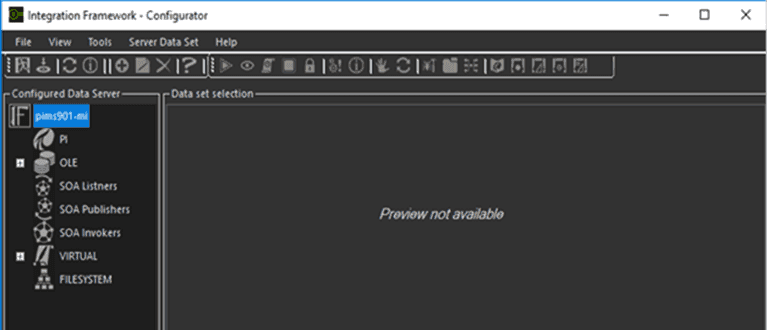
The Configured Data Server list displays all the possible connector types for each server, based on the license stipulations. For example; if you have a license for only OLEDB and Sigmafine, then only OLE and PI/AF connector types are displayed.
From the Configured Data Server list, right-click on the Channel Object and select Add.
A new instance of the selected connector type is created and loaded. Based on the connector type, IF opens a connection parameter window so that you can enter the parameters.
Enter all the parameters required for the new Channel Object.
To enter the parameters for the most commonly used connectors for IF, please see the associated \topic.
- PI/AF Connector
- OLE Connector
- FILE Connector
- SOA Invoker Connector
- SOA Listener Connector
- SOA Publisher Connector
In the toolbar, click on the
 Test icon to test the connection.
In the toolbar, click the
 Save icon to save your parameters settings.
When finished, the new object is listed under the specific Connector element.
 EXAMPLE: Creating a New SOA Invoker Connector for IF
If you were to create a new SOA Invoker Connector for Integration Framework, you would perform the following steps.
Open Integration Framework Configurator.
Select the SOA Invoker Channel Object.
Select the Add option from the right-click menu to create and load a new instance of SOA Invoker.
Insert the information needed by the Connector.
In the toolbar, click on the Test icon.
Click the Save icon.
The new object would then be listed in the main tree under “SOA Invoker” with the name used for this specific instance of SOA Invoker Connector.