Search & Display Integration Rule Trace Messages
The Integration Rule VIRTUAL Dataset includes a Log tab that lets you search and display the trace messages generated for the Integration Rule. Traces and Logs are packed by “executions” or “calls”. Meaning that a new set of trace/log messages is created each time the Integration Rule is invoked.
To search for and display the trace messages and logs:
Run the Integration Framework Configurator.
Click on your Windows Start button to display the list of installed software applications.
From the list of software applications, select Integration Framework > Configurator.
Under Configured Data Server, locate and select the Integration Rule.
The VIRTUAL Dataset window opens to the first tab.
Click on the Log tab.
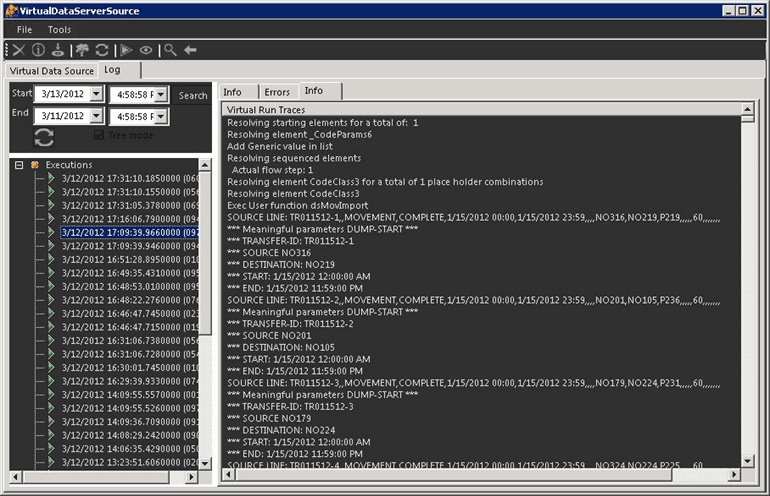
The Log tab includes three areas; one for entering search criteria, below that a list of the trace logs by date and time, and to the right, the content of the selected trace log.
To search for a specific date/time range:
Enter the Start and End date and time values in the appropriate search boxes.
Start = NOW -2 days
End = NOW
Click the Search button to search for all execution traces within the entered date/time range.
The Executions tree refreshes to show all the trace logs for the entered time/date range.
To view the message for a trace log, locate and select it in the Executions list.
The content of the trace log is displayed in the Trace pane on the right.
To refresh the trace list, click the Refresh icon in either the toolbar or in the Search area.
This action ignores your date/time entries and instead, resets the Executions list back to the original list.
To change the Executions list from a "tree" view to a simple list view, remove the check from the Tree Mode checkbox.
When finished, click the Exit icon to close the window.
 EXAMPLE