Consume SFHub Analytics
SFHub Analytics application fields can be summarized as following:
Analytics designed to extract data (ETL -- Extract Transform Load)
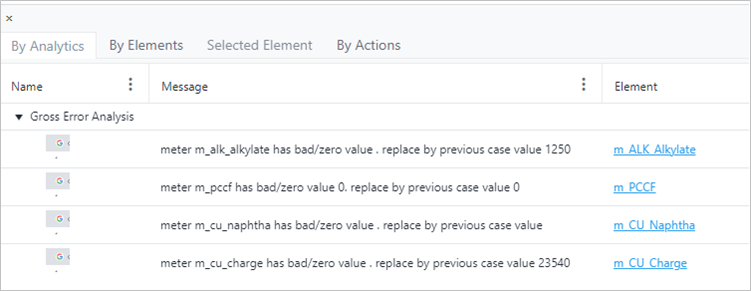
Analytics designed to generate diagnostic messages
Analytics designed to suggest actions
Analytics designed to perform bulk actions
| Category of Analytic | Purpose | Consumers |
|---|---|---|
| ETL -- Extract Transform Load | Designed to extract data | Consumers |
| Diagnostic | Generate diagnostic messages, suggest actions, perform bulk actions | SFHub Visualizer |
The following topics provide additional information on consuming SFHub Analytics.
SFHub Analytics: ETL
The notion of designing an analytic to implement an ETL, to be consumed by SFHub applications (SFHub Reports), means defining the following:
Which data to be extracted to feed the report
Exposing the required data through analytic variables
The interfaces to make the analytic parametric
The type of analytic variables to use to expose the data, depends primarily on which kind of visual objects are expected to be fed. The following table summarizes each SFHub report visual object for the expected type of analytic variable.
| SFHub Report Visual Object | SFHub Analytic Variable |
|---|---|
| Table Grid | SFHub Table |
| Chart | SFHub Table |
| Dynamic text | String / Numeric |
| Drop-down | SFHub List |
The Interface definition depends by the freedom level you would like to grant.
SFHub Analytics: Actionable Insights
The implementation of an analytic designed to generate actionable insight digital information, implies the use of the Report SFHub Code Block (see the Report Code Block section topic for further information).
Example: Report Code Block and configuration panel
In the following example, a Report code block has been configured to generate the diagnostic information "missing transfer". The information is also associated with a specific severity code, in our example Imbalance.
| Report Code Block Example | Edit Report configuration panel |
|---|---|
 | 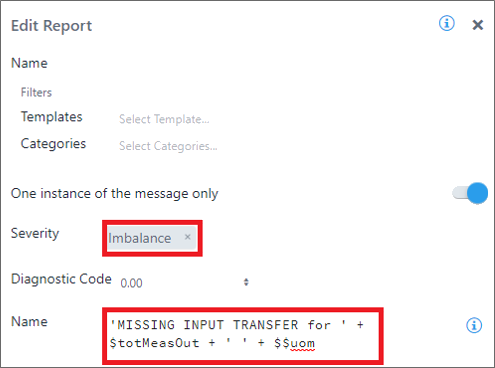 |
The use of severity codes allows for easier use of the information, and they become additional information associated with the element.
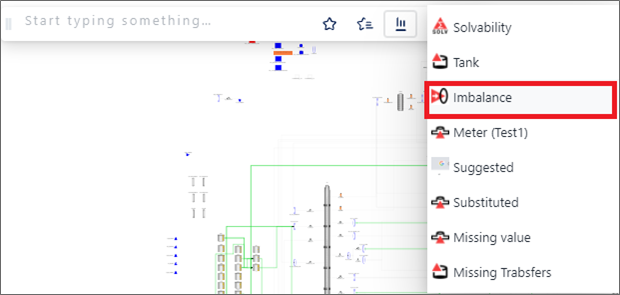
In the following example, you can see how SFHub Visualizer allows you to search for specific information using the search tool bar, and select the Imbalance severity code.
: SFHub Visualizer Search and Select
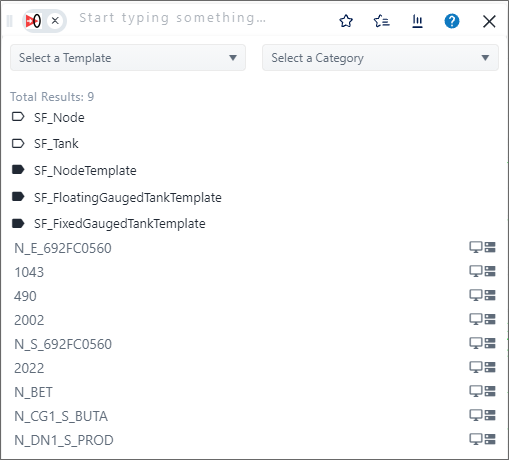
The search shows all the elements for which a digital information, associated to the Imbalance severity code, has been recorded.
: Search Results
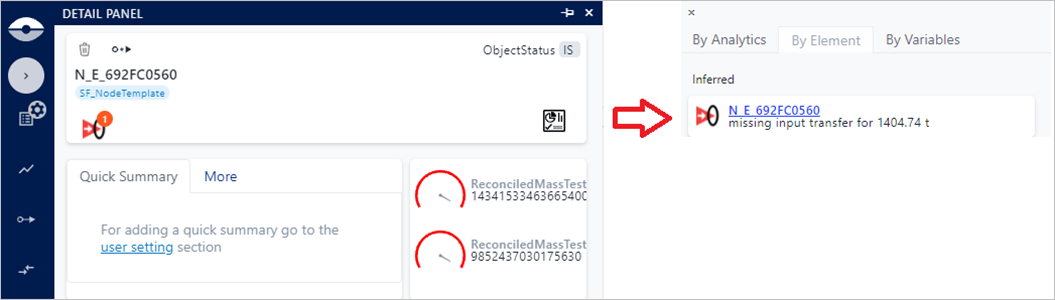
The presence of digital information associated to elements is visible in the element tool-tip and detail panel, where severity icons are shown.
Detailed information is provided through the Analytic Detail.
: Detail Panel - Analytic Detail
SFHub Analytics: Action Insights (Digital Actions)
The implementation of an analytic designed to suggest actions implies the use of the Action SFHub Code Block as an inner code block of the Report Code Block (see the Report Code Block sectiontopic for further information).
Example: Digital Action
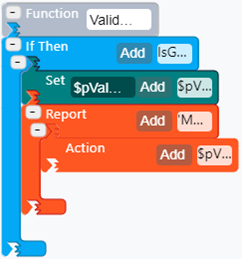
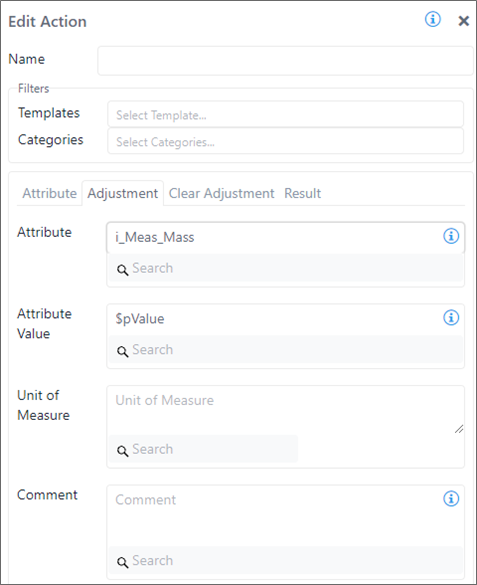
In the following example, a Report code block has been configured to generate a diagnostic message, and an inner Action code block suggests the creation of an adjustment on the i_Meas_Mass attribute using a value stored in the variable \$pValue.
| Report Code Block Example | Edit Report configuration panel |
|---|---|
 |  |
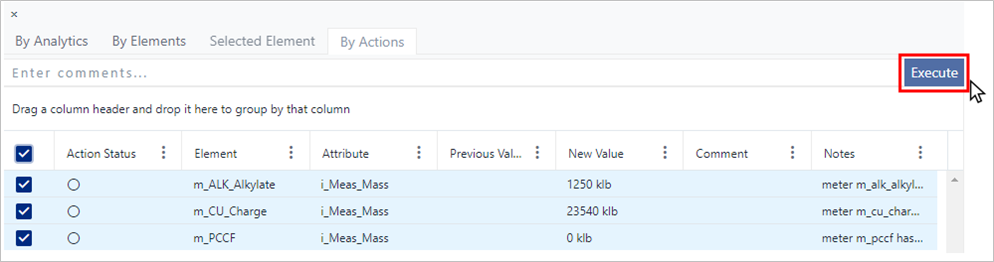
Digital actions can be viewed and consumed through SFHub services and web apps, such as Visualizer.
In the following example, a set of actions is proposed and activated with a single click in the SFHub Visualizer application.
: SFHub Visualizer Execute a set of actions
SFHub Analytics: Performing Actions
The implementation of an analytic designed to perform actions, implies the use of the \'Write Attribute\' SFHub Code Block (see the Write SF Code Block reference for more information). The \'Write\' Attribute code block has the same functionality of the Action code block but is designed for executing the action.
Example: Performing Actions using Write Attribute
In the following example, a Report code block has been configured to generate a diagnostic message, and an inner Write Attribute code block creates an adjustment on the i_ Meas_Mass attribute using a value stored in the variable \$pValue getting the value from the previous case.
| Write Attribute Code Block | Edit Write Attribute configuration panel |
|---|---|
 | 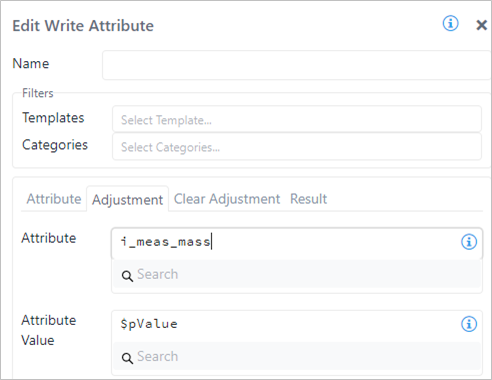 |
The Write Attribute code block has the same functionality as the Action code block, but is designed for executing the action.
Attach the Write Attribute to the inner port of a Report code block, so that it is possible to search for them (see previous example) as well as understand their reason.
Example: Visibility of executed actions in SFHub Visualizer
In the following example, the set of actions executed by the analytic are visible into the SFHub visualizer application.
: Executed actions visible in SFHub Visualizer