Narrow the Analytic Scope - Optimize Performance & Resources Consumption
SFHub Studio Analytics is a logic (a program), that is applied (in parallel) to all elements contained in the input Working Space (by default all the elements collected in the selected Sigmafine Case). This means that it runs in parallel against each individual element.
Working in parallel means that the logic is not executed in a natural sequence (element by element) but rather in parallel for all the elements. The parallelism degree depends on the hardware characteristic of the server (e.g., number of physical processors).
The easiest way to understand this concept is by reviewing the following example, in which the analytic prints out the name of all the elements.
| Debug Pront Code Block | Debug Print Code Transcription |
|---|---|
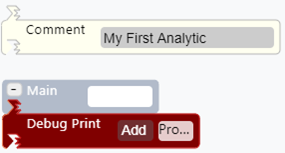 | 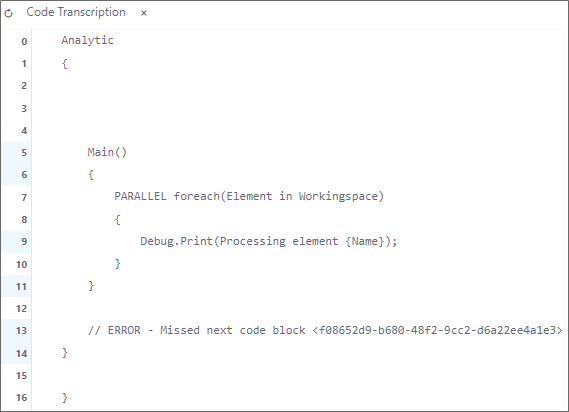 |
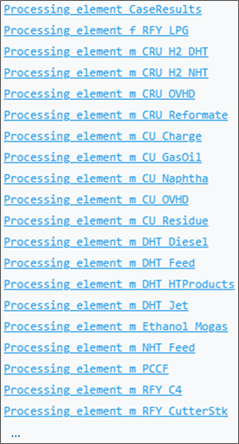
The analytic consists of a single Debug.Print SFCodeBlock. As it is executed in parallel for all the elements of the input working space, the result will be the list of all the element names (as shown in the following example image).
Results from the Main function with Debug Print code block
Always consider narrowing the scope, (i.e. the Working Space of the analytic). Narrowing the Working Space of the analytic consumes less resources and is faster. Consider that the larger the model, the more resources that will be consumed and the slower the execution will be.
Narrow Working Space: Pattern Support
Whenever possible, use the 'Pattern Support' code block to define the applicable working space, by configuring the templates or the categories of the elements for which the code blocks should be executed. As introduced in the previous section, by default, each code block is executed, by default, for each element of the working space, for each element of the case, though this is generally not the case.
For example, an analytic that uses a For Each loop to aggregate information based on the materials configured in the SF_Material table, should narrow the scope of the For Each loop to only those elements having a property (attribute) of type "Material". In this way, both the For Each code block and the subsequent code blocks will be executed for a subset of the elements, saving memory and CPU time.
It is best practice to configure the pattern of the for each code block. Doing so automatically narrows the Working Space, as the For Each and the inner code blocks are evaluated only for those elements associated with the configured templates.
Pattern support does not modify the Working Space; instead, it limits the execution to only those elements that match the configuration.
Narrow Working Space: Select
Always consider using the Select code block to define the Working Space. This code block is specially designed for selecting elements based on template or category name, element name and condition, as well as the combination of the three methods.
If the analytic applies to different element types, consider breaking it up into sections and using a Select code block at the beginning of each section to appropriately define the working space.
The Select code block can be used only in the main sequence of the analytic. Never use the code block:
inside function
inside loops (for, for each, while, etc.)
as part of an If Then or If Then Else
The Select code block modifies the Working Space. After a Select code block, the working space consists of only those elements matching the Select criteria.
Narrow Working Space: If Then
You can use If Then or If Then Else code block as an alternative, to restrict the Working Space.
The If Then and If Then Else code blocks do not modify the Working Space, but they will limit the execution to only those elements matching the conditional expression.