Element Properties - Version Tab
Use the Version tab to view the current version and historical versions of the selected element.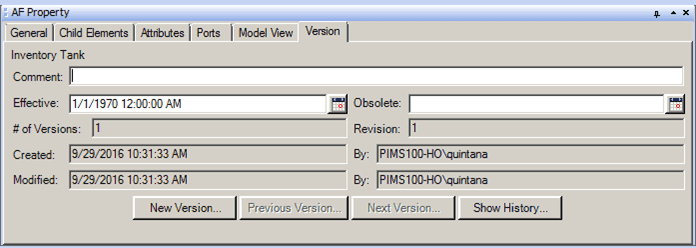
The following table provides descriptions for each of the inputs found under the Versions tab and what you can do with each.
AF Property Window – Version Tab for an Element
| Input Box / Button / Checkbox | Description |
|---|---|
| Comment | (Optional) Type some descriptive information about the version. |
| Effective / Obsolete | Select or type a date for when the version becomes effective or obsolete.You can click the calendar button to open the Date and Time Picker dialog box to choose a date. The effective date determines which version is currently in use. Although it is possible to create gaps between when a version becomes effective and obsolete, it is recommended that you avoid creating such gaps |
| # of Versions | Read only.Indicates the number of versions created for the element. |
| Revision | Read only.Indicates the number of revisions created for a version. |
| Created / By | Read-only.Displays when the version was created and the ID of the user who created it. |
| Modified / By | Read-only.Displays when the version was modified and the ID of the user who changed it |
| New Version | Allows you to define/create a new version. |
| Previous / Next Version | Display an earlier or later version of the Element. |
| Show History | Display all versions that have been created for the Element |